PsMCP-MCP-Server-for-Photoshop
About
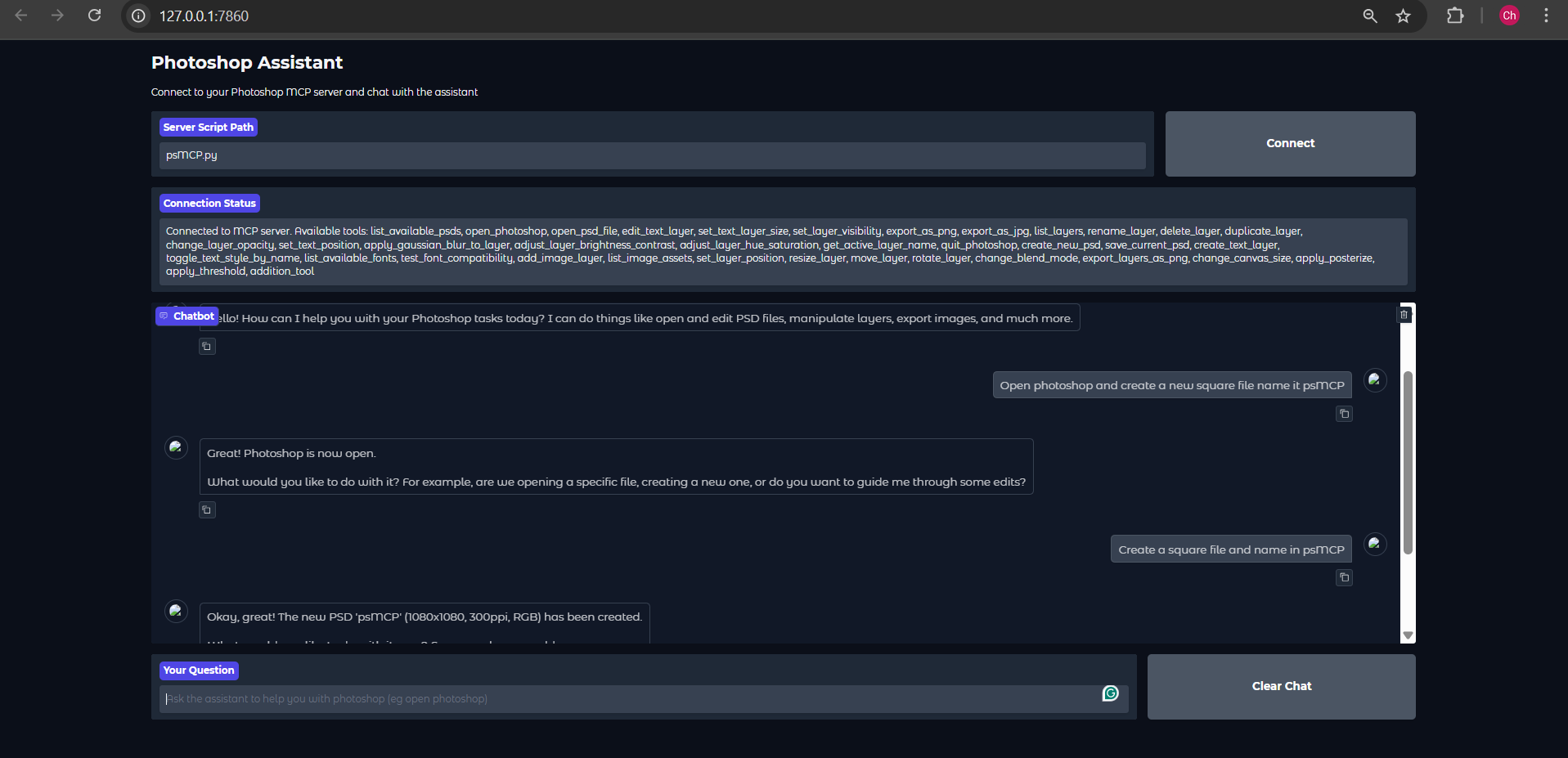
An Extensive MCP server and a Gradio MCP client ( with Gemini ) with several tools made using win32com to intereact with Photoshop. Designing with Photoshop has never been more fun!
Details
- Author
- Chandrahas455
- GitHub stars
- 10
- Downloads
- 347
- Categories
- Media
Jump to
- Connects AI assistants to Adobe Photoshop tools.
- Automates repetitive tasks like resizing, text insertion, and export.
- Supports batch PSD editing with custom pipelines.
- Enables dynamic layer toggling and effect application.
- Integrates with Gemini API for optional test runs.

Setting up with Highlight
This MCP is not yet compatible with Highlight’s one-click setup. However, you can still use it with Highlight by following these steps:
- Download and install Highlight from highlightai.com/download
- Navigate to the plugins tab and select "Add Custom Plugin"
-
Configure the plugin with the settings below
Plugin Name
PsMCP-MCP-Server-for-PhotoshopCommand (node, npx, python, etc.)Please refer to the README for specific instructions on how to obtain API keys or other required environment variables.
- Enable "Start Automatically" if you want the plugin to start when Highlight launches





From the repository
Install dependencies from requirements.txt, set the required environment variables (GEMINI_API_KEY, PSD_DIRECTORY, EXPORT_DIRECTORY, ASSETS_DIR) in a .env file, then run app.py. For production use, configure the server in your MCP client’s settings file (e.g., Claude or Cursor) with the command uv --directory <path> run psMCP.py and a timeout of 60000–100000 ms. A Gradio client is provided for quick testing, but note it only makes at most one tool call per request.
Claude Desktop / Cursor
Paste into your MCP client config file to install this server.
{
    "mcpServers": {
        "psmcp-mcp-server-for-photoshop": {
            "PsMCP-MCP-Server-for-Photoshop": {
                "command": "python",
                "args": [
                    "app.py"
                ]
            }
        }
    }
}McpServers
{
    "PsMCP-MCP-Server-for-Photoshop": {
        "command": "python",
        "args": [
            "app.py"
        ]
    }
}
PsMCP-MCP-Server-for-Photoshop
Watch the Demo Below
Usage
Install Requirements
Activate your Python environment and install dependencies:
pip install -r requirements.txt
> Heads Up: The Gemini Gradio client I've provided, for some reason does only a maximum of one tool call for any request, use this just to test the tool. For actual usage use Claude ot Cursor
---
Set Gemini Key in .env
GEMINI_API_KEY = PASTE_YOUR_KEY_HERE
Set Directories for PSDs, Assets and Exports
   PSD_DIRECTORY = "D:\\Photoshop Files"

   EXPORT_DIRECTORY = "D:\\PsMCP-Exports"

   ASSETS_DIR = "D:\\PsMCP-Assets"
Run the App and connect to the Server
python app.py
Configure Server with Any MCP Client (Claude, Cursor, etc)
Add Server to Config file as follows to access the tools
   {

    "mcpServers": {

      "PhotoshopAdv": {

        "command": "uv",

        "args": [

          "--directory",

          "Path/To/Directory",

          "run",

          "psMCP.py"

        ],

        "timeout": 60000

      }

    }

  }
Use Cases
- Automate repetitive Photoshop tasks (e.g., inserting text, resizing, exporting).
- Build custom design pipelines for batch PSD editing.
- Rapidly generate marketing creatives from templates.
- Toggle layers or apply effects dynamically through Python scripts.
- Streamline creative asset versioning and export processes.
Sign in to leave a review
Use Google, GitHub, or an email account so ratings stay tied to real people.
No reviews posted yet.