
Unitree Go2 Mcp Server
About
The Unitree Go2 MCP Server is a server built on the MCP that enables users to control the Unitree Go2 robot using natural language commands interpreted by a LLM.
Details
- Author
- lpigeon
- GitHub stars
- 85
- Downloads
- 922
- Categories
- Other
Jump to
- Natural language control of Unitree Go2 via LLM.
- Translates commands into ROS2 instructions.
- Supports contextual understanding of commands.
- Includes a demo task with obstacle avoidance and direction changing.
- Optional rosbridge support for remote connections.

Setting up with Highlight
This MCP is not yet compatible with Highlight’s one-click setup. However, you can still use it with Highlight by following these steps:
- Download and install Highlight from highlightai.com/download
- Navigate to the plugins tab and select "Add Custom Plugin"
-
Configure the plugin with the settings below
Plugin Name
Unitree Go2 Mcp ServerCommand (node, npx, python, etc.)Please refer to the README for specific instructions on how to obtain API keys or other required environment variables.
- Enable "Start Automatically" if you want the plugin to start when Highlight launches





From the repository
Install the server on a PC connected to the Go2 robot, configure the MCP settings (mcp.json), set the path to unitree_ros2/setup.sh, and optionally configure rosbridge IP and port. Ensure the robot is on the same network (check for /wirelesscontroller topic using ros2 topic list). Then run any AI system that has imported the server and type natural language commands.
Claude Desktop / Cursor
Paste into your MCP client config file to install this server.
{
    "mcpServers": {
        "unitree go2 mcp server": {
            "unitree-go2-mcp-server": {
                "command": "uv",
                "args": [
                    "--directory",
                    "/ABSOLUTE/PATH/TO/PARENT/FOLDER/unitree-go2-mcp-server",
                    "run",
                    "server.py"
                ]
            }
        }
    }
}McpServers
{
    "unitree-go2-mcp-server": {
        "command": "uv",
        "args": [
            "--directory",
            "/ABSOLUTE/PATH/TO/PARENT/FOLDER/unitree-go2-mcp-server",
            "run",
            "server.py"
        ]
    }
}
Unitree Go2 MCP Server


<center> </center>
The Unitree Go2 MCP Server is a server built on the Model Context Protocol (MCP) that enables users to control the Unitree Go2 robot using natural language commands interpreted by a Large Language Model (LLM). These commands are translated into ROS2 instructions, allowing the robot to perform corresponding actions.
Requirements
- Unitree Go2 robot
- Ubuntu 20.04 or 22.04
- ROS2 environment : Humble(recommended) or Foxy
MCP Functions
You can find the list of functions in the MCPFUNCTIONS.md.
Installation
1. Setup unitree_ros2 environment
https://github.com/unitreerobotics/unitree_ros2
- You need to complete the setup up to Step 2: Connect and test in the repository linked above.
2. Clone this repository
git clone https://github.com/lpigeon/unitree-go2-mcp-server.git
cd unitree-go2-mcp-server
3. uv Installation
- To install uv, you can use the following command:
curl -LsSf https://astral.sh/uv/install.sh | sh
pip install uv
- Create virtual environment and activate it (Optional)
uv venv

source .venv/bin/activate
4. MCP Server Configuration
Set MCP setting to mcp.json.Please keep in mind that the configuration must be done on the PC connected to the Go2.
{
    "mcpServers": {
        "unitree-go2-mcp-server": {
            "command": "uv",
            "args": [
              "--directory",
              "/ABSOLUTE/PATH/TO/PARENT/FOLDER/unitree-go2-mcp-server",
              "run",
              "server.py"
            ]
        }
    }
}
If you use Claude Desktop, you can find mcp.json using the following command:
- MacOS
code ~/Library/Application\ Support/Claude/claude_desktop_config.json
- Linux(Ubuntu)
You can install Claude Desktop to use claude-desktop-debian.
code ~/.config/Claude/claude_desktop_config.json
- Windows
code $env:AppData\Claude\claude_desktop_config.json
How To Use
1. Set UNITREE_ROS2_SETUP_SH_PATH.
- Open server.py and change your UNITREE_ROS2_SETUP_SH_PATH (eg. /home/lpigeon/unitree_ros2/setup.sh)
If you use rosbridge, you need Set IP and Port to connect rosbridge (Optional).
- Open server.py and change your LOCAL_IP, ROSBRIDGE_IP and ROSBRIDGE_PORT. (ROSBRIDGE_PORT's default value is 9090)
2. Check the Go2 robot is connected to the network.
Type the following command in the terminal.ros2 topic list
/wirelesscontroller
3. Run any AI system that has imported unitree-go2-mcp-server.
4. Type "Make the Go2 robot move forward at a velocity of 0.5 m/s for 3 seconds.".
<center>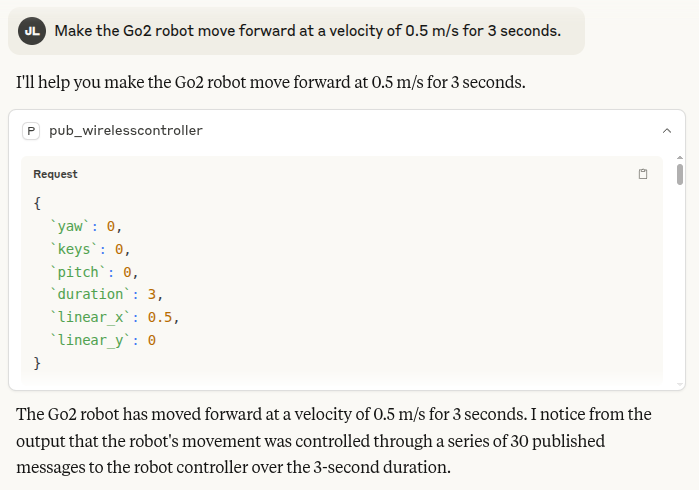 </center>
5. Check the Go2 robot's movement.
<center>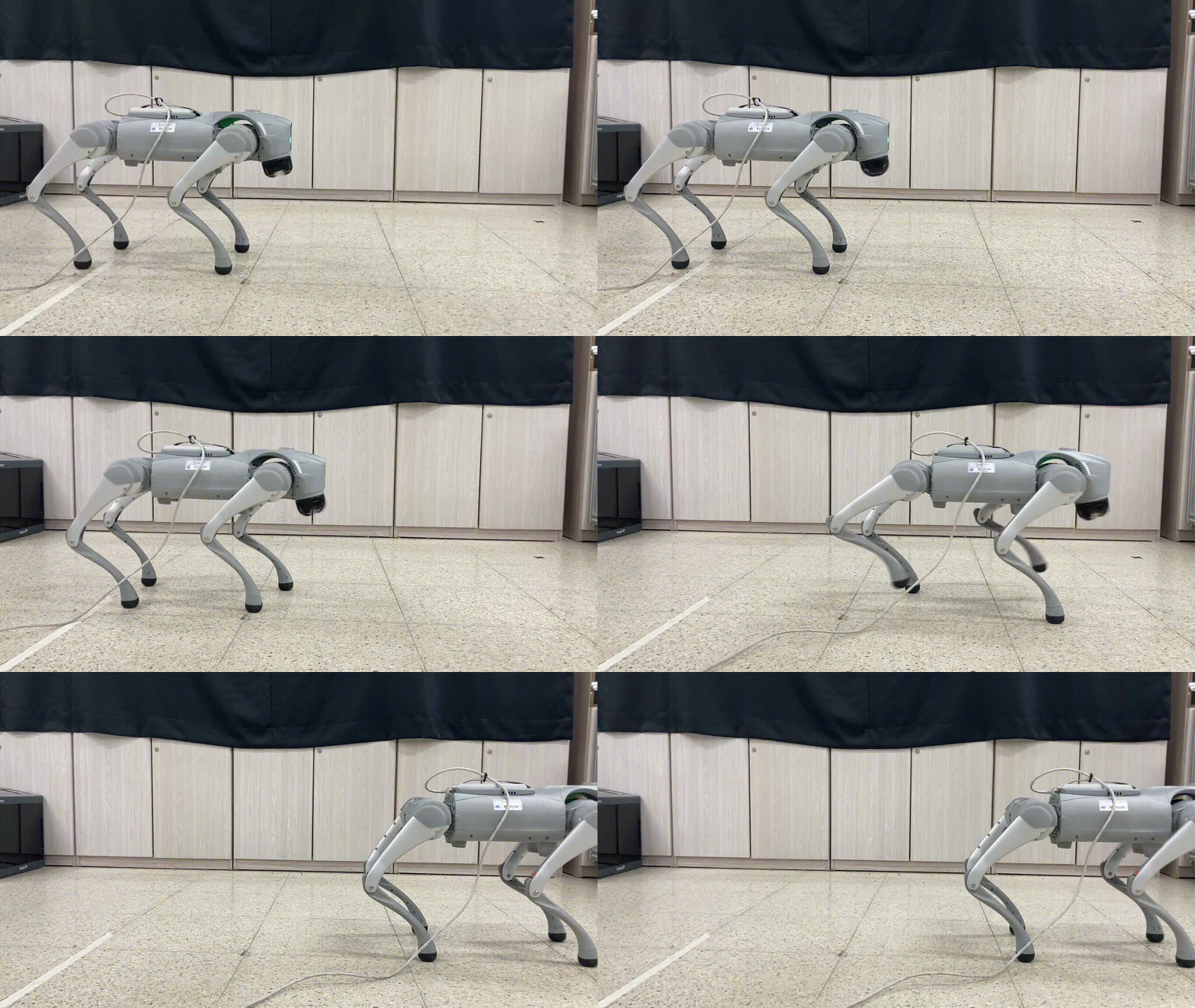 </center>
6. Type what you want to do and Enjoy!
Contextual Understanding
When you type a command like "It looks like the Go2 is getting tired," the LLM interprets this contextually — understanding that the robot might need a break or some form of stretching!<center>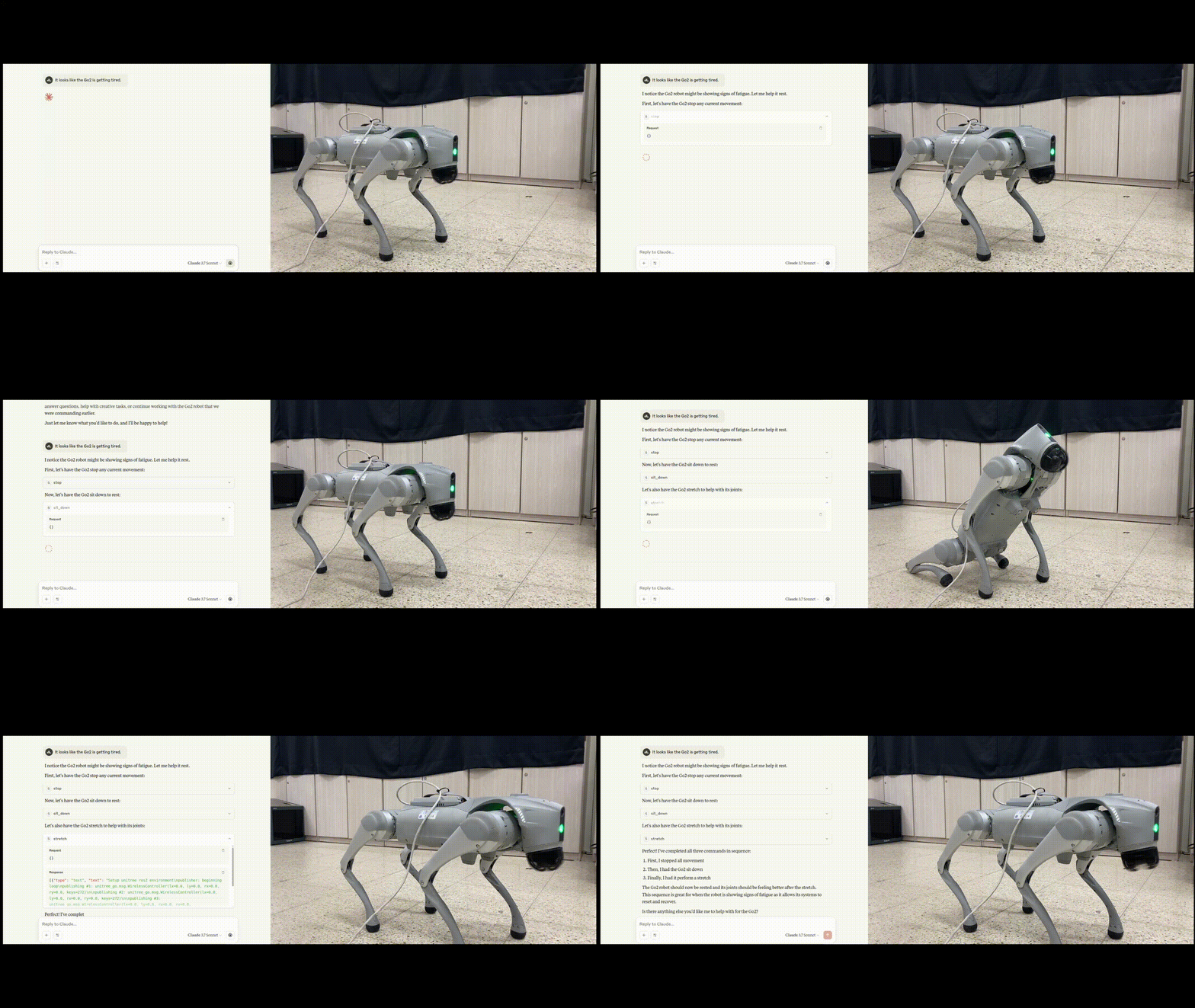 </center>
Simple Task
This task is a comprehensive demo task showcasing the Unitree Go2 robot's obstacle avoidance, direction changing, and user interaction capabilities.<center> </center>
Contributing
Contributions are welcome! Whether you're fixing a typo, adding a new function, or suggesting improvements, your help is appreciated. Please follow the contributing guidelines for more details on how to contribute to this project.Sign in to leave a review
Use Google, GitHub, or an email account so ratings stay tied to real people.
No reviews posted yet.





