
Revit
About
Enables AI interaction with Autodesk Revit models through a Node.js server that provides tools for creating, modifying, and deleting BIM objects in architectural design workflows.
Details
- Author
- revit-mcp
- Repository
- mcp-servers-for-revit/revit-mcp
- GitHub stars
- 59
- Downloads
- 470
- License
- MIT License
- Categories
- Productivity, Design, Developer Tools, AI, Knowledge Base, Frontend, Infrastructure, Other
Jump to
- Allow AI to get data from the Revit project
- Allow AI to drive Revit to create, modify, and delete elements
- Send AI-generated code to Revit to execute (may not be successful, successful rate is higher in some simple scenarios with clear requirements)

Setting up with Highlight
This MCP is not yet compatible with Highlight’s one-click setup. However, you can still use it with Highlight by following these steps:
- Download and install Highlight from highlightai.com/download
- Navigate to the plugins tab and select "Add Custom Plugin"
-
Configure the plugin with the settings below
Plugin Name
RevitCommand (node, npx, python, etc.)nodeArguments-
Argument 1
<path to the built file>/build/index.js
Please refer to the README for specific instructions on how to obtain API keys or other required environment variables.
-
Argument 1
- Enable "Start Automatically" if you want the plugin to start when Highlight launches





From the repository
Claude client
Claude client -> Settings > Developer > Edit Config > claude_desktop_config.json
{
"mcpServers": {
"revit-mcp": {
"command": "node",
"args": ["<path to the built file>\\build\\index.js"]
}
}
}
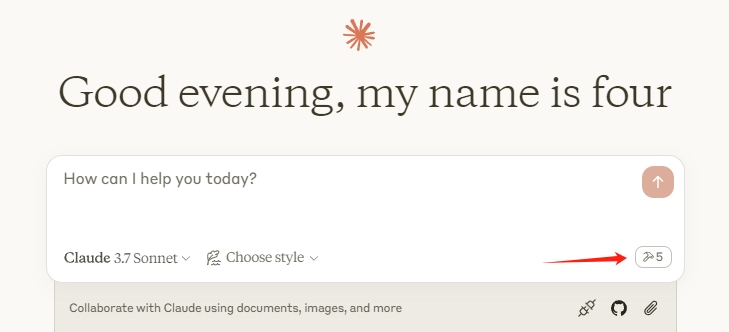
Restart the Claude client. When you see the hammer icon, it means the connection to the MCP service is normal.
get_current_view_info
Get current active view info
get_current_view_elements
Get elements from the current active view
get_available_family_types
Get available family types in current project
get_selected_elements
Get currently selected elements
get_material_quantities
Calculate material quantities and takeoffs
ai_element_filter
Intelligent element querying tool for AI assistants
analyze_model_statistics
Analyze model complexity with element counts
create_point_based_element
Create point-based elements (door, window, furniture)
create_line_based_element
Create line-based elements (wall, beam, pipe)
create_surface_based_element
Create surface-based elements (floor, ceiling, roof)
create_grid
Create a grid system with smart spacing generation
create_level
Create levels at specified elevations
create_room
Create and place rooms at specified locations
create_structural_framing_system
Create a structural beam framing system
delete_element
Delete elements by ID
operate_element
Operate on elements (select, setColor, hide, etc.)
color_elements
Color elements based on a parameter value
tag_all_walls
Tag all walls in the current view
tag_all_rooms
Tag all rooms in the current view
export_room_data
Export all room data from the project
store_project_data
Store project metadata in local database
store_room_data
Store room metadata in local database
query_stored_data
Query stored project and room data
send_code_to_revit
Send C# code to Revit to execute
say_hello
Display a greeting dialog in Revit (connection test)
Claude Desktop / Cursor
Paste into your MCP client config file to install this server.
{
    "mcpServers": {
        "revit": {
            "env": {},
            "args": [
                "<path to the built file>/build/index.js"
            ],
            "shell": false,
            "command": "node"
        }
    }
}Linux
{
"env": [],
"args": [
"<path to the built file>/build/index.js"
],
"shell": false,
"command": "node"
}Macos
{
"env": [],
"args": [
"<path to the built file>/build/index.js"
],
"shell": false,
"command": "node"
}Windows
{
"env": [],
"args": [
"<path to the built file>\\build\\index.js"
],
"shell": false,
"command": "node"
}revit-mcp
English | 简体中文
Description
revit-mcp allows you to interact with Revit using the MCP protocol through MCP-supported clients (such as Claude, Cline, etc.).
This project is the server side (providing Tools to AI), and you need to use revit-mcp-plugin (driving Revit) in conjunction.
Features
- Allow AI to get data from the Revit project
- Allow AI to drive Revit to create, modify, and delete elements
- Send AI-generated code to Revit to execute (may not be successful, successful rate is higher in some simple scenarios with clear requirements)
Requirements
- nodejs 18+
> Complete installation environment still needs to consider the needs of revit-mcp-plugin, please refer to revit-mcp-plugin
Installation
1. Build local MCP service
Install dependencies
npm install
Build
npm run build
2. Client configuration
Claude client
Claude client -> Settings > Developer > Edit Config > claude_desktop_config.json
{
    "mcpServers": {
        "revit-mcp": {
            "command": "node",
            "args": ["<path to the built file>\\build\\index.js"]
        }
    }
}
Restart the Claude client. When you see the hammer icon, it means the connection to the MCP service is normal.
Framework
flowchart LR
	ClaudeDesktop --> revit-mcp --> SocketService--commandName-->CommandSet--command-->CommandExecute
	CommandManager --> CommandSet
	CommandExecute --executeResult--> SocketService
	CommandProject1 --> CommandManager
	CommandProject2 --> CommandManager
	CommandProject... --> CommandManager
	subgraph ide1 [MCPClient]
	ClaudeDesktop
	end
	subgraph ide2 [MCPServer]
	revit-mcp
	end
	subgraph ide3 [Revit]
			subgraph ide3.1 [revit-mcp-plugin]
				SocketService
				CommandSet
				CommandManager
				CommandExecute
			end
	end
Supported Tools
| Name | Description |
| ---- | ----------- |
| get_current_view_info | Get current active view info |
| get_current_view_elements | Get elements from the current active view |
| get_available_family_types | Get available family types in current project |
| get_selected_elements | Get currently selected elements |
| get_material_quantities | Calculate material quantities and takeoffs |
| ai_element_filter | Intelligent element querying tool for AI assistants |
| analyze_model_statistics | Analyze model complexity with element counts |
| create_point_based_element | Create point-based elements (door, window, furniture) |
| create_line_based_element | Create line-based elements (wall, beam, pipe) |
| create_surface_based_element | Create surface-based elements (floor, ceiling, roof) |
| create_grid | Create a grid system with smart spacing generation |
| create_level | Create levels at specified elevations |
| create_room | Create and place rooms at specified locations |
| create_structural_framing_system | Create a structural beam framing system |
| delete_element | Delete elements by ID |
| operate_element | Operate on elements (select, setColor, hide, etc.) |
| color_elements | Color elements based on a parameter value |
| tag_all_walls | Tag all walls in the current view |
| tag_all_rooms | Tag all rooms in the current view |
| export_room_data | Export all room data from the project |
| store_project_data | Store project metadata in local database |
| store_room_data | Store room metadata in local database |
| query_stored_data | Query stored project and room data |
| send_code_to_revit | Send C# code to Revit to execute |
| say_hello | Display a greeting dialog in Revit (connection test) |
Sign in to leave a review
Use Google, GitHub, or an email account so ratings stay tied to real people.
No reviews posted yet.





