AlphaVantage MCP Server with Azure Functions
About
A demo to showcase a MCP Server with Azure Functions
Details
- Author
- dsaad68
- Downloads
- 291
- Categories
- Cloud Service
Jump to
- Exposes five financial data endpoints as MCP tools
- Provides company overview, income statement, balance sheet, cash flow, and earnings report
- Easy local development with Azure Functions Core Tools
- Simple deployment to Azure using Azure Developer CLI (azd)
- Includes a demo agent using the Agno framework
- Supports VS Code integration for MCP development

Setting up with Highlight
This MCP is not yet compatible with Highlight’s one-click setup. However, you can still use it with Highlight by following these steps:
- Download and install Highlight from highlightai.com/download
- Navigate to the plugins tab and select "Add Custom Plugin"
-
Configure the plugin with the settings below
Plugin Name
AlphaVantage MCP Server with Azure FunctionsCommand (node, npx, python, etc.)Please refer to the README for specific instructions on how to obtain API keys or other required environment variables.
- Enable "Start Automatically" if you want the plugin to start when Highlight launches





From the repository
Clone the repository, create a virtual environment with uv sync --frozen, and add your AlphaVantage API key to a local.settings.json file in the src directory. Run locally with cd src && func start. For deployment, use azd up after logging in with azd auth login. After deployment, retrieve your MCP endpoint URL by fetching the Azure Functions MCP extension system key.
Claude Desktop / Cursor
Paste into your MCP client config file to install this server.
{
    "mcpServers": {
        "alphavantage mcp server with azure functions": {
            "remote-mcp-azure-function": {
                "command": "uv",
                "args": [
                    "sync",
                    "--frozen"
                ]
            }
        }
    }
}McpServers
{
    "remote-mcp-azure-function": {
        "command": "uv",
        "args": [
            "sync",
            "--frozen"
        ]
    }
}
AlphaVantage MCP Server with Azure Functions
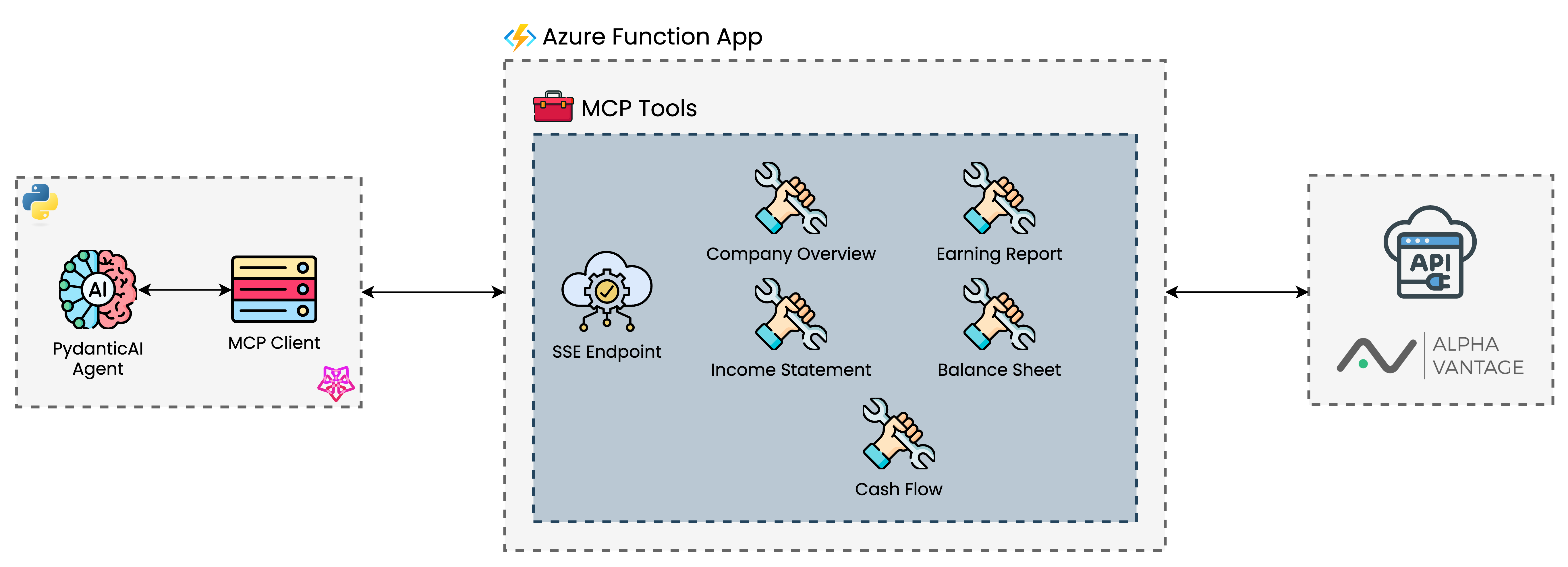
This project implements an Azure Function that serves as a bridge between an Agent as a MCP Server and the AlphaVantage Financial API.
It allows AI agents to access financial data and perform financial analysis through tools exposed via MCP.
<div align="center">
</div>
The Azure Function exposes the following financial data endpoints as MCP tools:
- Company Overview
- Income Statement
- Balance Sheet
- Cash Flow
- Earnings Report
There is a demo agent created with PydanticAI in the agent directory that can be used to test the MCP server. More information Demo Agent file.
Prerequisites
- An Azure subscription
- Azure Developer CLI (azd)
- Azure Functions Core Tools
- Python 3.11
- An AlphaVantage API key (see AlphaVantage)
Local Development
1. Clone this repository
2. Create a virtual environment and install dependencies:
uv sync --frozen
3. Create a local.settings.json file in the src directory with your AlphaVantage API key:
{

  "IsEncrypted": false,

  "Values": {

    "FUNCTIONS_WORKER_RUNTIME": "python",

    "AzureWebJobsStorage": "UseDevelopmentStorage=true",

    "ALPHAVANTAGE_API_KEY": "your-alphavantage-api-key"

  }

}
4. Run the function locally:
cd src

func start
Deployment
1. Log in to Azure:
azd auth login
2. Deploy the application:
azd up
This will provision the necessary Azure resources and deploy the Function App.
> Note: For setting up environment variables, refer to the Adding Environment Variables section.
Getting the MCP Endpoint URL
After deployment, retrieve your MCP extension system key:
az functionapp keys list \
  --resource-group <resource_group> \
  --name <function_app_name>
Your MCP endpoint URL will be:
https://<funcappname>.azurewebsites.net/runtime/webhooks/mcp/sse?code=<your-mcp-extension-system-key>
Adding Environment Variables
You can add environment variables to your Azure Function in two ways:
1. Using the parameters file (recommended for deployment)
Add your environment variables to the infra/main.parameters.json file:
{
  "parameters": {
    // Other parameters...
    "functionAppEnvironmentVariables": {
      "value": {
        "ALPHAVANTAGE_API_KEY": "your-api-key",
        "MY_VARIABLE": "my-value"
      }
    }
  }
}
Then deploy with:
azd up
2. Using Azure CLI (for updating existing deployments)
az functionapp config appsettings set \
  --name <function_app_name> \
  --resource-group <resource-group> \
  --settings ALPHAVANTAGE_API_KEY=<your-api-key>
Setting up VS Code for MCP Development
This project includes a .vscode/mcp.json configuration file that helps you connect to your MCP endpoint during development. This file contains:
1. Input definitions - Prompts for:
- The Azure Functions MCP Extension System Key (stored securely)
- Your Azure Functions App Name
2. Server configurations:
- remote-mcp-function - Connects to your deployed Azure Function using the inputs above
- local-mcp-function - Connects to a locally running function on port 7071
This allows you to test your MCP tools directly from VS Code during development, either against your local function app or your deployed Azure instance.
Demo Agent
The agent directory contains an example of how to use this MCP endpoint with an AI agent using the Agno framework. You can use this as a starting point for your own financial analysis agent.
Infrastructure Code Attribution
The infrastructure code for this project was adapted from Azure-Samples/remote-mcp-functions-python, which provides a template for deploying Python functions as remote MCP tools on Azure.
Sign in to leave a review
Use Google, GitHub, or an email account so ratings stay tied to real people.
No reviews posted yet.