Plaud MCP
About
Connect your Plaud recordings to any MCP-compatible AI client. Search recordings, read transcripts, and generate documents without leaving your AI assistant.
Details
- Author
- Unknown
- Categories
- Communication, Knowledge Base, Other, Search
Jump to
Connect your Plaud recordings to your AI assistant to search, read, and summarize meeting notes.
- List recordings— Ask to list your recordings, optionally filtered by keyword or date range vialist_files.
- Get recording details— Retrieve full metadata and a temporary audio link for a specific recording withget_file.
- Read AI notes— Pull the AI-generated summary, action items, and key topics for a recording usingget_note.
- Fetch transcript— Get the full timestamped transcript with speaker labels viaget_transcript.
Connect your Plaud recordings to any MCP-compatible AI client — Claude, Cursor, ChatGPT, Codex, and more. Search recordings, read transcripts, and generate documents without leaving your AI assistant.
Run this once. The installer detects your AI clients, writes the MCP configuration, and opens your browser for sign-in:
When your browser opens, clickAuthorize, then restart the clients listed in the installer output. Plaud tools will be available immediately in your next session.
If your client isn't auto-detected, add Plaud manually by pasting this into your client's MCP configuration:
{ "mcpServers": { "plaud": { "command": "npx", "args": ["-y", "@plaud-ai/mcp@latest"] } } }
HTTP-based clients (Claude Web, ChatGPT Web)
When connecting via HTTP, your recording data passes through Plaud's MCP server (hosted in the US). Plaud does not store this data after the request completes — it is processed in transit only. Data handling is governed byPlaud's privacy policy.
<Frame> 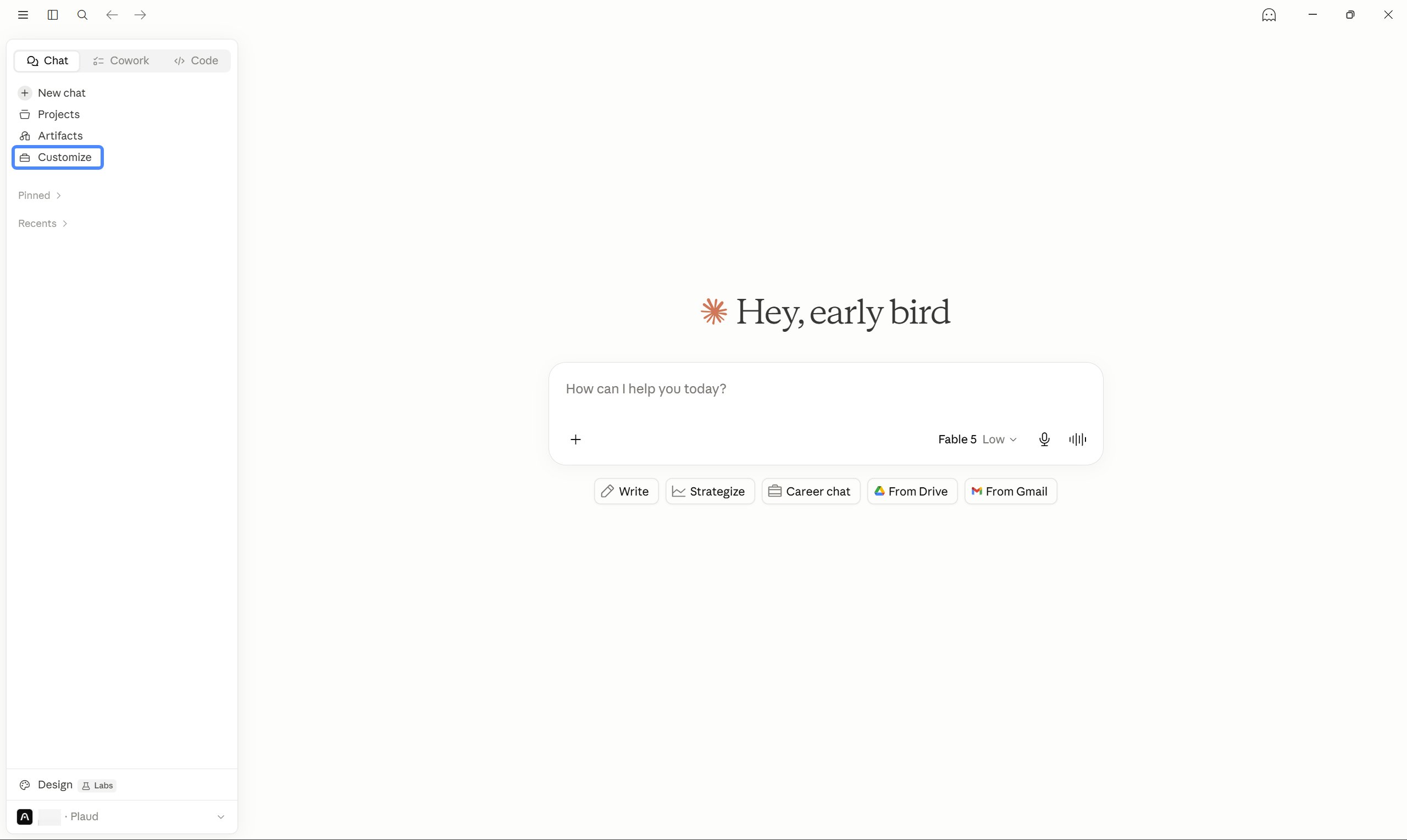 </Frame>
<Frame> 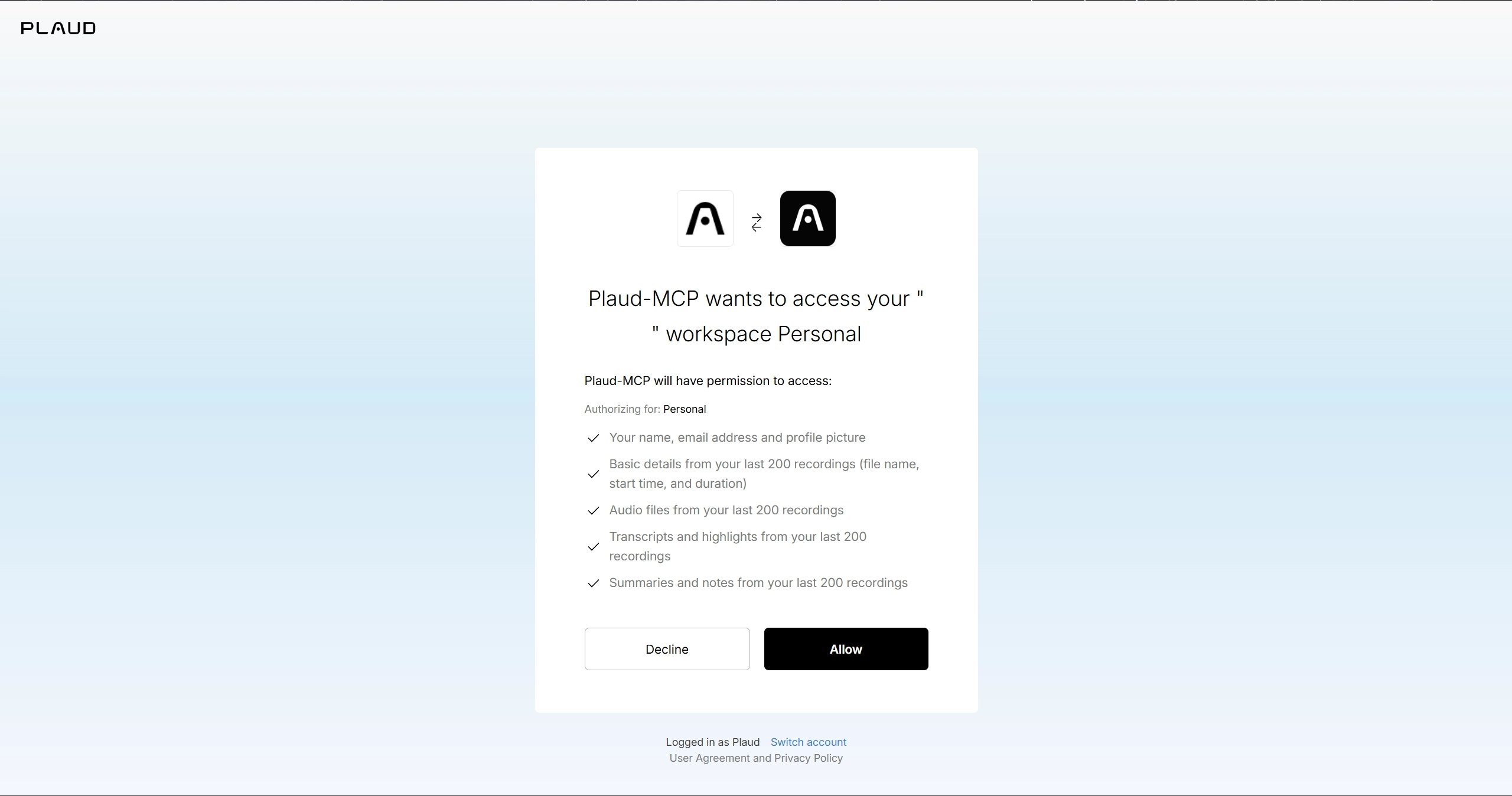 </Frame>
<Frame> 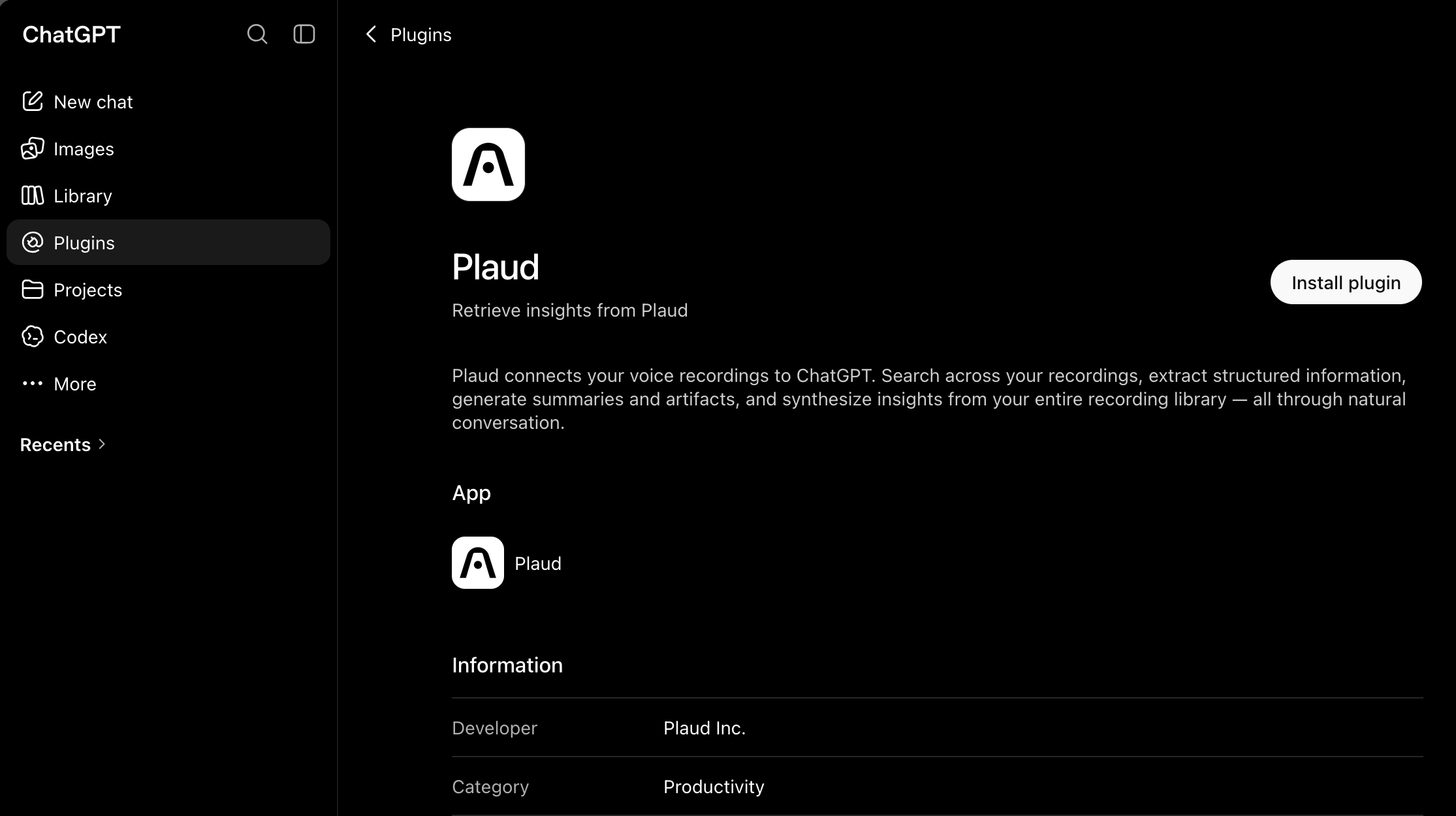 </Frame>
<Step title="Add the Plaud MCP Server"> <Frame> 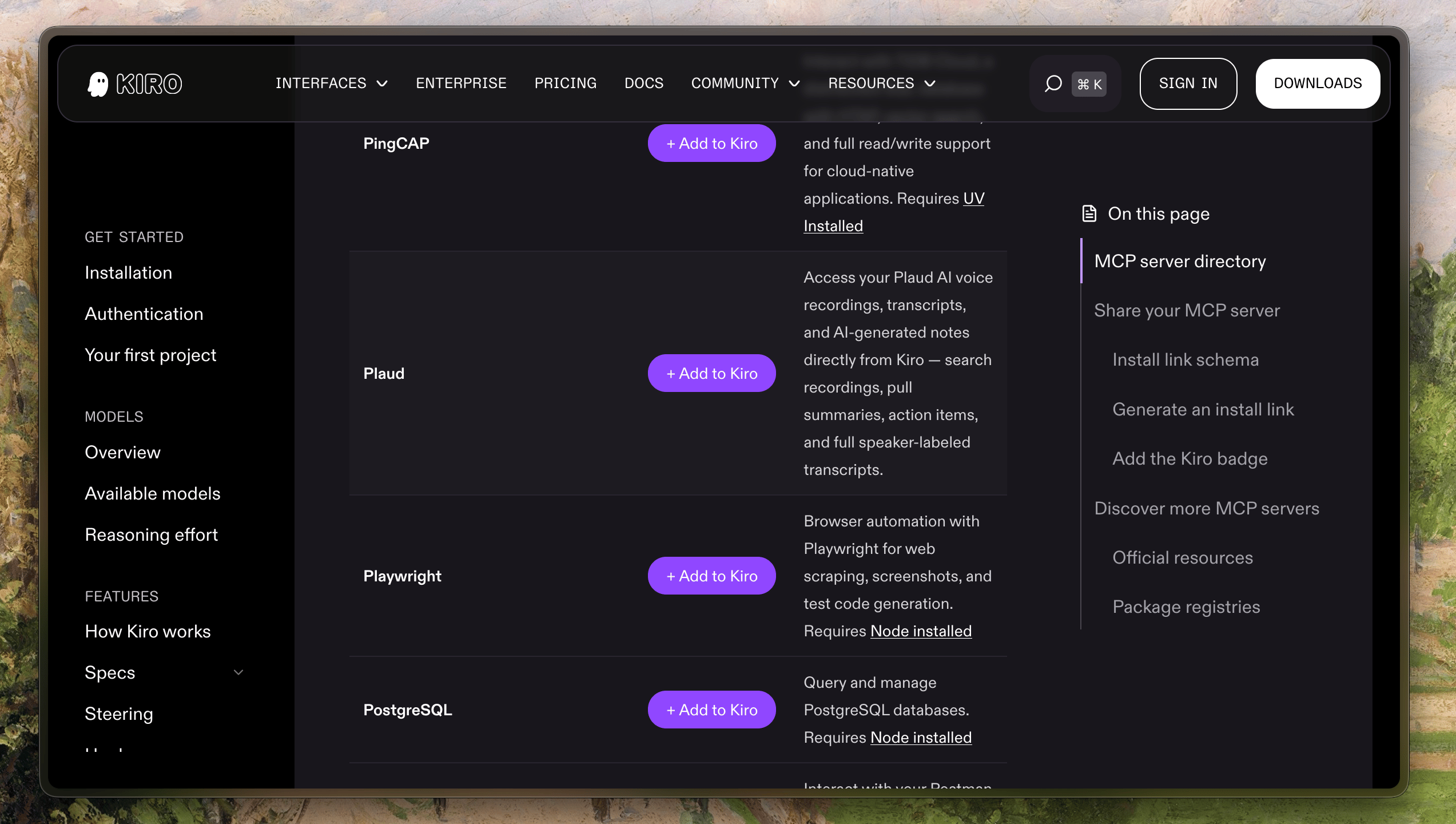 </Frame> </Step>
Your browser will open the Plaud authorization page. ClickAuthorizeand return to your client — you're signed in.
Draft a follow-up email from this meeting's action items
These tools are available to your AI client once Plaud MCP is connected:
Fields returned bylist_filesandget_file
Additional fields returned only byget_file
Skills are pre-built instructions that help your AI client handle common Plaud workflows automatically. They load when the installer runs — no extra steps needed.
npm uninstall -g @plaud-ai/mcp rm -rf ~/.plaud
Privacy-first email inboxes for AI agents. Read, search, draft, send, and triage mail over Streamable HTTP MCP.
Fetch, convert, and search AWS documentation pages, with recommendations for related content.
Create and read feature flags, review experiments, generate flag types, search docs, and interact with GrowthBook's feature flagging and experimentation platform.
Quran-focused MCP server for ayah translation, tafsir, mutashabihat lookups, recitation playlists, and prayer times.
Provides AI assistants with intelligent access to ML textbook content for creating accurate, source-grounded documentation.
Search Apple's Developer Documentation with smart search and wildcard support.
Access, search, and get recommendations from public AWS documentation.
Caesar is a free, keyless web search API for AI agents. Its remote MCP server exposes web_search (ranked results with citable provenance) and web_fetch (full pages as clean markdown), and works anonymously with no API key.
CatchAll is a web search API built for comprehensive event retrieval — not ranked results, but all matching records.
The AI search visibility platform that tells you why AI won't cite your brand, then hands you the fix.
Sign in to leave a review
Use Google, GitHub, or an email account so ratings stay tied to real people.
No reviews posted yet.





