
Plantuml Validation MCP Server
Description
# Plantuml Validation MCP Server This project is an MCP server for validating Plantuml code. 🏅 Certified by MCPHub [This project is certified by MCPHub.](https://mcphub.com/mcp-servers/kwhrkzk/plantuml-validator-mcp-server) ## Tools ### ValidatePlantuml Validates the provided…
About
# Plantuml Validation MCP Server This project is an MCP server for validating Plantuml code. 🏅 Certified by MCPHub [This project is certified by MCPHub.](https://mcphub.com/mcp-servers/kwhrkzk/plantuml-validator-mcp-server) ## Tools ### ValidatePlantuml Validates the provided Plantuml message. If valid, it returns…
Details
- Author
- kwhrkzk
- GitHub stars
- 6
- Downloads
- 205
- Categories
- Other
Jump to
- Validates Plantuml code and returns clear pass/fail results.
- Provides detailed error messages with line numbers and descriptions.
- Supports both SSE and stdio MCP transports.
- Easily deployable via Docker Compose or plain Docker.
- Configured directly in VSCode’s MCP settings.
- Certified by MCPHub for quality assurance.

Setting up with Highlight
This MCP is not yet compatible with Highlight’s one-click setup. However, you can still use it with Highlight by following these steps:
- Download and install Highlight from highlightai.com/download
- Navigate to the plugins tab and select "Add Custom Plugin"
-
Configure the plugin with the settings below
Plugin Name
Plantuml Validation MCP ServerCommand (node, npx, python, etc.)Please refer to the README for specific instructions on how to obtain API keys or other required environment variables.
- Enable "Start Automatically" if you want the plugin to start when Highlight launches





From the repository
The server can be run via Docker Compose for SSE transport or via Docker for stdio transport. In VSCode, configure the MCP server in settings.json by specifying the transport type and URL (SSE) or the Docker run command with arguments (stdio). For stdio usage, you must provide a PlantumlBaseUrl argument pointing to your Plantuml server instance.
Claude Desktop / Cursor
Paste into your MCP client config file to install this server.
{
    "mcpServers": {
        "plantuml validation mcp server": {
            "plantuml-validator-mcp-server": {
                "command": "docker",
                "args": [
                    "compose",
                    "up",
                    "-d"
                ]
            }
        }
    }
}McpServers
{
    "plantuml-validator-mcp-server": {
        "command": "docker",
        "args": [
            "compose",
            "up",
            "-d"
        ]
    }
}
Plantuml Validation MCP Server
This project is an MCP server for validating Plantuml code.
🏅 Certified by MCPHub
This project is certified by MCPHub.
Tools
ValidatePlantuml
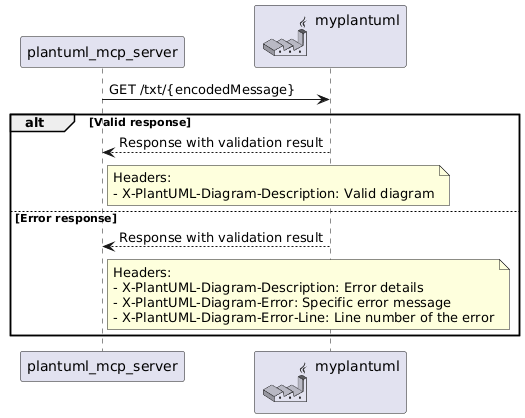
Validates the provided Plantuml message. If valid, it returns "Ok". If invalid, it returns detailed error information, including the error description, the line where the error occurred, and other metadata.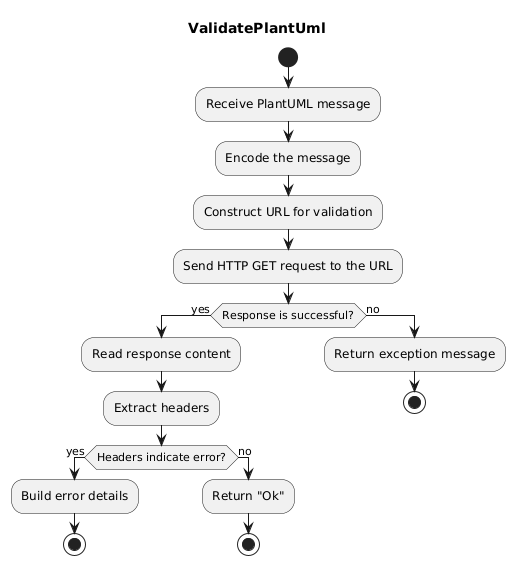
Usage with SSE
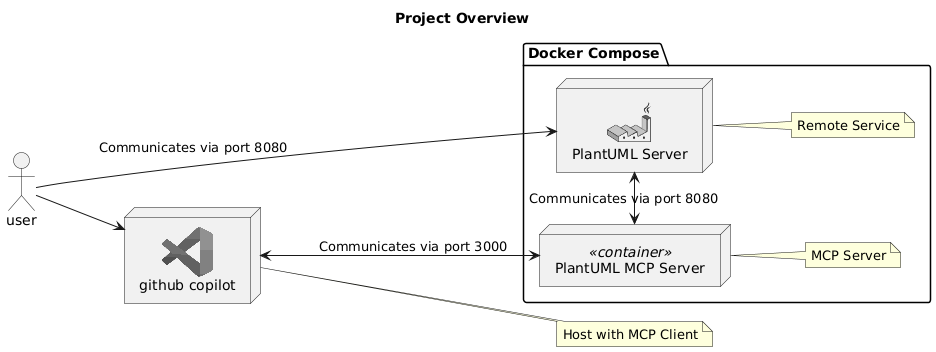
1. Run Docker Compose
Run the following command to start the server:docker compose up -d
2. MCP Configuration in VSCode
``json: settings.json
"mcp": {
"servers": {
"my-plantuml-mcp-server": {
"type": "sse",
"url": "http://localhost:3000/sse"
}
}
}
Usage with Docker
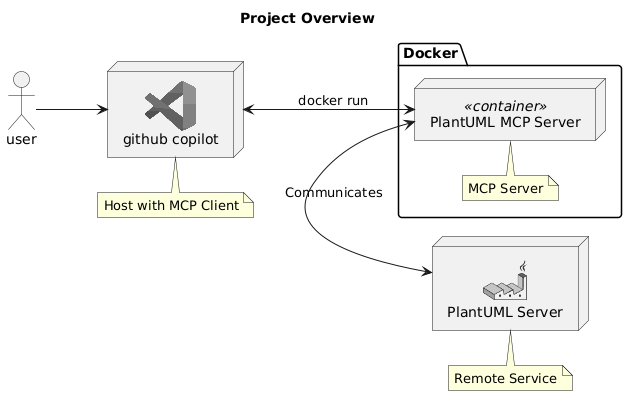
1. Build and Publish the Container
bash cd plantuml-mcp-server-stdio dotnet publish /t:PublishContainer
2. MCP Configuration in VSCode
"mcp": {
"servers": {
"my-plantuml-mcp-server-docker": {
"type": "stdio",
"command": "docker",
"args": [
"run",
"--rm",
"-i",
"--network=host",
"kwhrkzk/plantuml-validator-mcp-server",
"PlantumlBaseUrl=http://your_plantuml_server/"
],
},
}
}
``
Sign in to leave a review
Use Google, GitHub, or an email account so ratings stay tied to real people.
No reviews posted yet.





