
Paprika 3
About
Manage your Paprika 3 recipes with an LLM. Read, create, and update recipes in your Paprika app.
Details
- Author
- soggycactus
- GitHub stars
- 30
- Downloads
- 219
- Categories
- Productivity, AI, Other
Jump to
- Exposes Paprika 3 recipes as MCP resources (photos planned).
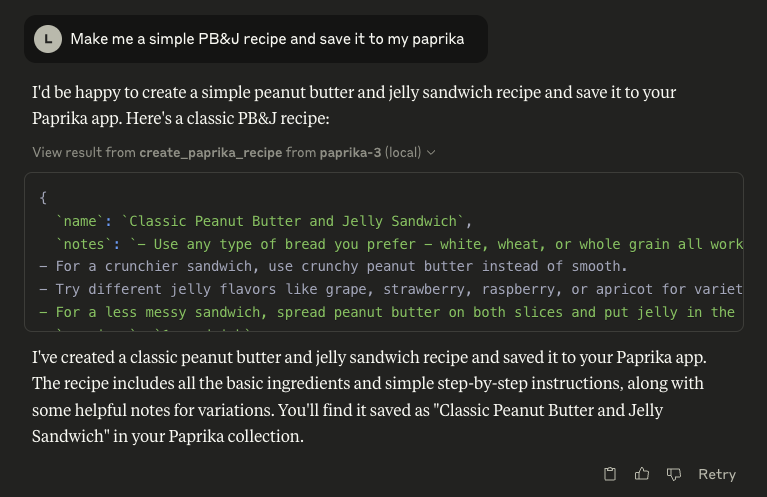
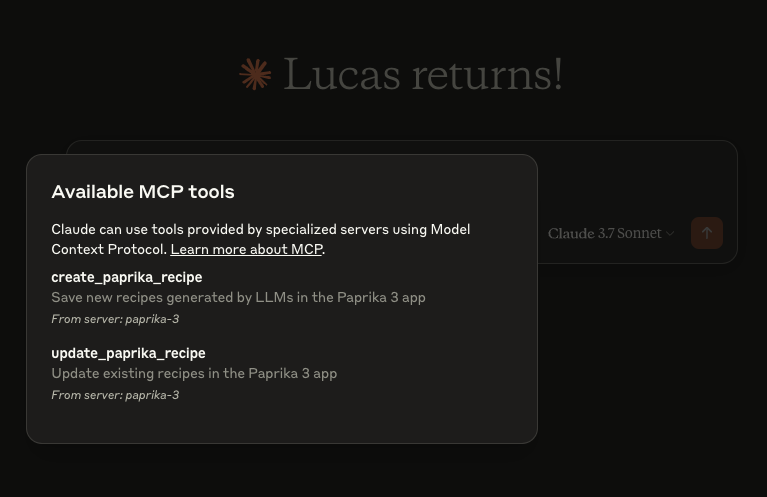
- create_paprika_recipe tool for adding new recipes.
- update_paprika_recipe tool for modifying existing recipes.
- Prebuilt binaries for macOS, Linux, and Windows.
- Homebrew installation on macOS.
- Structured logs with automatic rotation and retention.
Install the server via a prebuilt binary (or Homebrew on macOS), then configure your MCP client (e.g., Claude Desktop) to launch it with your Paprika 3 username and password as command‑line arguments. The server provides tools that the LLM can invoke to read, create, and update recipes.
paprika-3-mcp
A Model Context Protocol (MCP) server that exposes your Paprika 3 recipes as LLM-readable resources — and lets an LLM like Claude create or update recipes in your Paprika app.
🖼️ Example: Claude using the Paprika MCP server
<p align="center">
</p>
🚀 Features
See anything missing? Open an issue on this repo to request a feature!
📄 Resources
- Recipes ✅
- Recipe Photos 🚧
🛠 Tools
- create_paprika_recipe
Allows Claude to save a new recipe to your Paprika app
- update_paprika_recipe
Allows Claude to modify an existing recipe
⚙️ Prerequisites
- ✅ A Mac, Linux, or Windows system
- ✅ Paprika 3 installed with cloud sync enabled
- ✅ Your Paprika 3 username and password
- ✅ Claude or any LLM client with MCP tool support enabled
🛠 Installation
You can download a prebuilt binary from the Releases page.
🍎 macOS (via Homebrew)
If you're on macOS, the easiest way to install is with Homebrew:
brew tap soggycactus/tap
brew install paprika-3-mcp
🐧 Linux / 🪟 Windows
1. Go to the latest release.
2. Download the appropriate archive for your operating system and architecture:
- paprika-3-mcp_<version>_linux_amd64.zip for Linux
- paprika-3-mcp_<version>_windows_amd64.zip for Windows
3. Extract the zip archive:
- Linux:
unzip paprika-3-mcp_<version>_<os>_<arch>.zip
- Windows:
- Right-click the
.zip file and select Extract All, or use a tool like 7-Zip.4. Move the binary to a directory in your system's
$PATH:
- Linux:
sudo mv paprika-3-mcp /usr/local/bin/
- Windows:
- Move paprika-3-mcp.exe to any folder in your PATH (e.g., %USERPROFILE%\bin)
✅ Test the installation
You can verify the server is installed by checking:
paprika-3-mcp --version
You should see:
paprika-3-mcp version v0.1.0
🤖 Setting up Claude
If you haven't setup MCP before, first read more about how to install Claude Desktop client & configure an MCP server.
To add paprika-3-mcp to Claude, all you need to do is create another entry in the mcpServers section of your claude_desktop_config.json file:
{
  "mcpServers": {
    "paprika-3": {
      "command": "paprika-3-mcp",
      "args": [
        "--username",
        "<your paprika 3 username (usually email)>",
        "--password",
        "<your paprika 3 password>"
      ]
    }
  }
}
Restart Claude and you should see the MCP server tools after clicking on the hammerhead icon:
📄 License
This project is open source under the MIT License © 2025 Lucas Stephens.
---
🗂 Miscellaneous
📄 Where can I see the server logs?
The MCP server writes structured logs using Go’s slog with rotation via lumberjack. Log files are automatically created based on your operating system:
| Operating System | Log File Path |
| ---------------- | ----------------------------------------- |
| macOS | ~/Library/Logs/paprika-3-mcp/server.log |
| Linux | /var/log/paprika-3-mcp/server.log |
| Windows | %APPDATA%\paprika-3-mcp\server.log |
| Other / Unknown | /tmp/paprika-3-mcp/server.log |
> 💡 Logs are rotated automatically at 100MB, with only 5 backup files kept. Logs are also wiped after 10 days.
Sign in to leave a review
Use Google, GitHub, or an email account so ratings stay tied to real people.
No reviews posted yet.





