
Nutrient DWS MCP Server
About
A Model Context Protocol (MCP) server implementation that integrates with the Nutrient Document Web Service (DWS) Processor API, providing powerful PDF processing capabilities for AI assistants.
Details
- Author
- PSPDFKit
- GitHub stars
- 67
- Downloads
- 384
- Categories
- Other
Jump to
- Local stdio MCP server for Claude Desktop and compatible clients
- Browser-based OAuth with optional API-key fallback
- Document conversion, OCR, extraction, redaction, and watermarking
- PAdES-compliant digital signing with visible/invisible appearance
- Sandbox-aware local file handling with explicit output paths
- Read-only account lookup for DWS credits and usage

Setting up with Highlight
This MCP is not yet compatible with Highlight’s one-click setup. However, you can still use it with Highlight by following these steps:
- Download and install Highlight from highlightai.com/download
- Navigate to the plugins tab and select "Add Custom Plugin"
-
Configure the plugin with the settings below
Plugin Name
Nutrient DWS MCP ServerCommand (node, npx, python, etc.)Please refer to the README for specific instructions on how to obtain API keys or other required environment variables.
- Enable "Start Automatically" if you want the plugin to start when Highlight launches





From the repository
Install via Claude Desktop Settings → Extensions or manually by adding an MCP server entry in your client’s configuration JSON (e.g., claude_desktop_config.json). The server is run with npx -y @nutrient-sdk/dws-mcp-server and requires a SANDBOX_PATH environment variable. Authentication uses browser-based OAuth on the first API request, or you can set NUTRIENT_DWS_API_KEY for CI/headless environments.
Claude Desktop / Cursor
Paste into your MCP client config file to install this server.
{
    "mcpServers": {
        "nutrient dws mcp server": {
            "nutrient-dws": {
                "command": "npx",
                "args": [
                    "-y",
                    "@nutrient-sdk/dws-mcp-server",
                    "--sandbox",
                    "</your/sandbox/directory>"
                ],
                "env": {
                    "NUTRIENT_DWS_API_KEY": "<YOUR_API_KEY_HERE>"
                }
            }
        }
    }
}McpServers
{
    "nutrient-dws": {
        "command": "npx",
        "args": [
            "-y",
            "@nutrient-sdk/dws-mcp-server",
            "--sandbox",
            "</your/sandbox/directory>"
        ],
        "env": {
            "NUTRIENT_DWS_API_KEY": "<YOUR_API_KEY_HERE>"
        }
    }
}
Nutrient DWS MCP Server
<a href="https://glama.ai/mcp/servers/@PSPDFKit/nutrient-dws-mcp-server">
</a>

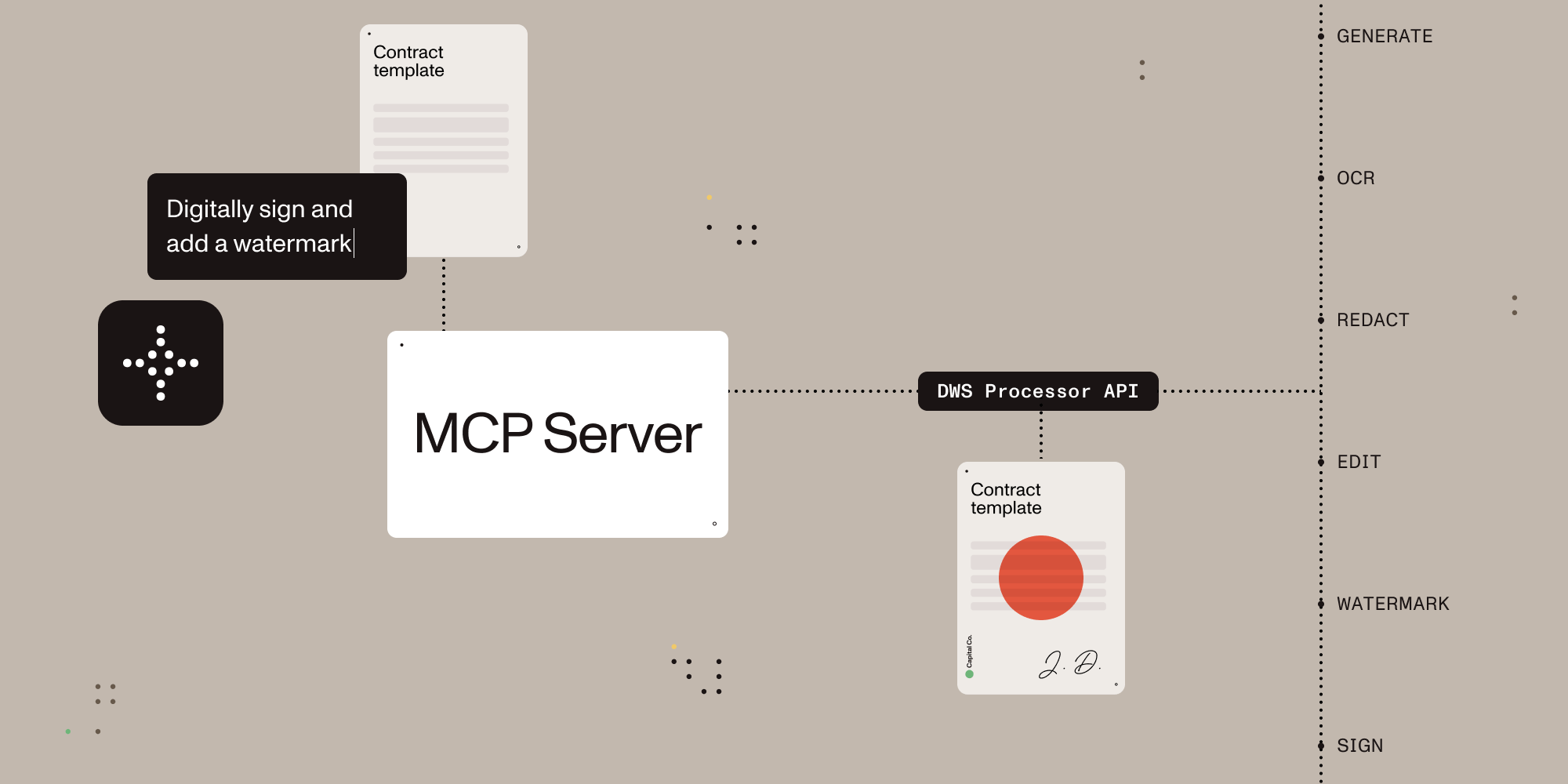
Give AI agents the power to process, sign, and transform documents.
Description
A Model Context Protocol (MCP) server that connects AI assistants to the Nutrient Document Web Service (DWS) Processor API — enabling document creation, editing, conversion, digital signing, OCR, redaction, and more through natural language.
Features
- Local stdio MCP server for Claude Desktop and other MCP-compatible clients
- Browser-based OAuth on the first request that uses the Nutrient API, with optional API-key fallback for CI and headless environments
- Document conversion, OCR, extraction, redaction, watermarking, annotation flattening, and digital signing
- Sandbox-aware local file handling with explicit output paths
- Read-only account lookup for DWS credits and usage
What You Can Do
Once configured, you (or your AI agent) can process documents through natural language:
You: _"Merge report-q1.pdf and report-q2.pdf into a single document"_
AI: _"Done! I've merged both reports into combined-report.pdf (24 pages total)."_
You: _"Redact all social security numbers and email addresses from application.pdf"_
AI: _"I found and redacted 5 SSNs and 3 email addresses. The redacted version is saved as application-redacted.pdf."_
You: _"Digitally sign this contract with a visible signature on page 3"_
AI: _"I've applied a PAdES-compliant digital signature to contract.pdf. The signed document is saved as contract-signed.pdf."_
You: _"Convert this PDF to markdown"_
AI: _"Here's the markdown content extracted from your document..."_
You: _"OCR this scanned document in German and extract the text"_
AI: _"I've processed the scan with German OCR. Here's the extracted text..."_
Installation
Install it from Claude Desktop Settings -> Extensions if you are using Claude Desktop. If you are developing locally, use the manual setup below.
1. Create a Nutrient Account
Sign up for free at nutrient.io/api.
For local desktop use, the recommended path is to omit NUTRIENT_DWS_API_KEY and complete the browser sign-in flow on the first request that uses the Nutrient API. For CI, headless environments, or scripted setups, create an API key in the dashboard and set NUTRIENT_DWS_API_KEY.
2. Configure Your AI Client
Choose your platform and add the configuration:
<details>
<summary><strong>Claude Desktop</strong></summary>
Open Settings → Developer → Edit Config, then add:
macOS: ~/Library/Application Support/Claude/claude_desktop_config.json
Windows: %APPDATA%\Claude\claude_desktop_config.json
{
  "mcpServers": {
    "nutrient-dws": {
      "command": "npx",
      "args": ["-y", "@nutrient-sdk/dws-mcp-server"],
      "env": {
        "SANDBOX_PATH": "/your/sandbox/directory",
        // "C:\\your\\sandbox\\directory" for Windows
        // Optional for CI or headless usage:
        // "NUTRIENT_DWS_API_KEY": "YOUR_API_KEY_HERE"
      }
    }
  }
}
</details>
<details>
<summary><strong>Cursor</strong></summary>
Create .cursor/mcp.json in your project root:
{
  "mcpServers": {
    "nutrient-dws": {
      "command": "npx",
      "args": ["-y", "@nutrient-sdk/dws-mcp-server"],
      "env": {
        "SANDBOX_PATH": "/your/project/documents",
        // "C:\\your\\project\\documents" for Windows
        // Optional for CI or headless usage:
        // "NUTRIENT_DWS_API_KEY": "YOUR_API_KEY_HERE"
      }
    }
  }
}
</details>
<details>
<summary><strong>Windsurf</strong></summary>
Add to ~/.codeium/windsurf/mcp_config.json:
{
  "mcpServers": {
    "nutrient-dws": {
      "command": "npx",
      "args": ["-y", "@nutrient-sdk/dws-mcp-server"],
      "env": {
        "SANDBOX_PATH": "/your/sandbox/directory",
        // "C:\\your\\sandbox\\directory" for Windows
        // Optional for CI or headless usage:
        // "NUTRIENT_DWS_API_KEY": "YOUR_API_KEY_HERE"
      }
    }
  }
}
</details>
<details>
<summary><strong>VS Code (GitHub Copilot)</strong></summary>
Create .vscode/mcp.json in your project, or add the same server definition to your user mcp.json profile:
{
  "servers": {
    "nutrient-dws": {
      "type": "stdio",
      "command": "npx",
      "args": ["-y", "@nutrient-sdk/dws-mcp-server"],
      "env": {
        "SANDBOX_PATH": "${workspaceFolder}",
        // Optional for CI or headless usage:
        // "NUTRIENT_DWS_API_KEY": "YOUR_API_KEY_HERE"
      }
    }
  }
}
</details>
<details>
<summary><strong>Other MCP Clients</strong></summary>
Any MCP-compatible client can connect using stdio transport:
```bash
SANDBOX_PATH=/your/path npx @nutrient-sdk/dws-mcp-server
Sign in to leave a review
Use Google, GitHub, or an email account so ratings stay tied to real people.
No reviews posted yet.





