
Cursor Mcp For Java
About
一个Cursor或VSCode插件,可将您的VSCode或Cursor作为MCP服务器,为MCP客户端(如Cursor、VSCode copilot、Claude Desktop、Cherry studio)提供高级编码辅助功能。如获取项目中的类,与通过全限定名获取类的源代码等(包含项目源代码,以及项目中所有可访问依赖中的类
Details
- Author
- saikaNya
- Downloads
- 292
- Categories
- Developer Tools
Jump to
- Integrates with VSCode, Cursor, and other MCP clients.
- Requires the Extension Pack for Java to be installed.
- Launched via npx with the vscode-as-mcp-server command.
- Status indicator in the editor’s bottom-right bar.
- Works only when a Java project is fully loaded.
- Supports clients like Claude Desktop, Windsurf, and Cherry Studio.

Setting up with Highlight
This MCP is not yet compatible with Highlight’s one-click setup. However, you can still use it with Highlight by following these steps:
- Download and install Highlight from highlightai.com/download
- Navigate to the plugins tab and select "Add Custom Plugin"
-
Configure the plugin with the settings below
Plugin Name
Cursor Mcp For JavaCommand (node, npx, python, etc.)Please refer to the README for specific instructions on how to obtain API keys or other required environment variables.
- Enable "Start Automatically" if you want the plugin to start when Highlight launches





From the repository
First, install the Extension Pack for Java and the MCP Server for Java plugin. Configure your MCP client by adding the command npx with args ["vscode-as-mcp-server"] to the client's config file (e.g., claude_desktop_config.json). Open a Java project and ensure it is fully loaded. Check the status indicator in the bottom-right corner of VSCode or Cursor (✅ running, ∅ click to start).
Claude Desktop / Cursor
Paste into your MCP client config file to install this server.
{
    "mcpServers": {
        "cursor mcp for java": {
            "vscode-java": {
                "command": "npx",
                "args": [
                    "vscode-as-mcp-server"
                ]
            }
        }
    }
}McpServers
{
    "vscode-java": {
        "command": "npx",
        "args": [
            "vscode-as-mcp-server"
        ]
    }
}
MCP Server For Java
首次安装与设置
1. 确认已经安装插件Extension Pack for Java 且可正常运行java项目
2. 下载安装本插件MCP Server for Java。
3. 配置您的MCP客户端:
- 如Claude Desktop,Curosr,Winsurf,Vsocde,Cherry studio等客户端:添加以下内容到您的配置文件(claude_desktop_config.json)中:
    {
      "mcpServers": {
        "vscode-java": {
          "command": "npx",
          "args": ["vscode-as-mcp-server"]
        }
      }
    }
- ✅: 服务器正在运行
- ∅: 点击启动服务器
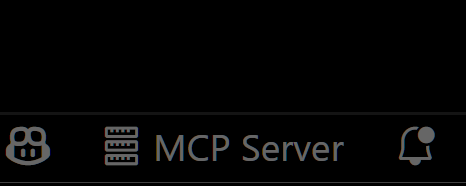
5. 打开一个java项目,并确保项目完全加载完毕

Sign in to leave a review
Use Google, GitHub, or an email account so ratings stay tied to real people.
No reviews posted yet.





