
MCP Server ODBC via PyODBC
About
An MCP server for connecting to databases like Virtuoso using ODBC drivers via pyodbc.
Details
- Author
- OpenLinkSoftware
- GitHub stars
- 4
- Downloads
- 152
- Categories
- Database, Other
Jump to
- List database schemas via podbc_get_schemas
- Retrieve table names and metadata per schema
- Describe table structure including columns, keys, and nullability
- Search tables by name substring
- Execute SQL queries returning JSONL or Markdown results
- Support for Virtuoso‑specific SPASQL queries and AI assistant

Setting up with Highlight
This MCP is not yet compatible with Highlight’s one-click setup. However, you can still use it with Highlight by following these steps:
- Download and install Highlight from highlightai.com/download
- Navigate to the plugins tab and select "Add Custom Plugin"
-
Configure the plugin with the settings below
Plugin Name
MCP Server ODBC via PyODBCCommand (node, npx, python, etc.)Please refer to the README for specific instructions on how to obtain API keys or other required environment variables.
- Enable "Start Automatically" if you want the plugin to start when Highlight launches





From the repository
Install uv and configure an ODBC Data Source Name (DSN) in ~/.odbc.ini. Clone the repository, set environment variables (ODBC_DSN, ODBC_USER, ODBC_PASSWORD, API_KEY) in a .env file. For Claude Desktop, add the server to claude_desktop_config.json using the uv command. The server exposes tools such as podbc_get_schemas, podbc_get_tables, podbc_describe_table, podbc_filter_table_names, podbc_query_database, and Virtuoso‑specific tools.
Claude Desktop / Cursor
Paste into your MCP client config file to install this server.
{
    "mcpServers": {
        "mcp server odbc via pyodbc": {
            "mcp-pyodbc-server": {
                "command": "npx",
                "args": [
                    "@modelcontextprotocol/inspector",
                    "uv",
                    "--directory",
                    "/path/to/mcp-pyodbc-server",
                    "run",
                    "mcp-pyodbc-server"
                ]
            }
        }
    }
}McpServers
{
    "mcp-pyodbc-server": {
        "command": "npx",
        "args": [
            "@modelcontextprotocol/inspector",
            "uv",
            "--directory",
            "/path/to/mcp-pyodbc-server",
            "run",
            "mcp-pyodbc-server"
        ]
    }
}
---
OpenLink MCP Server for ODBC via PyODBC
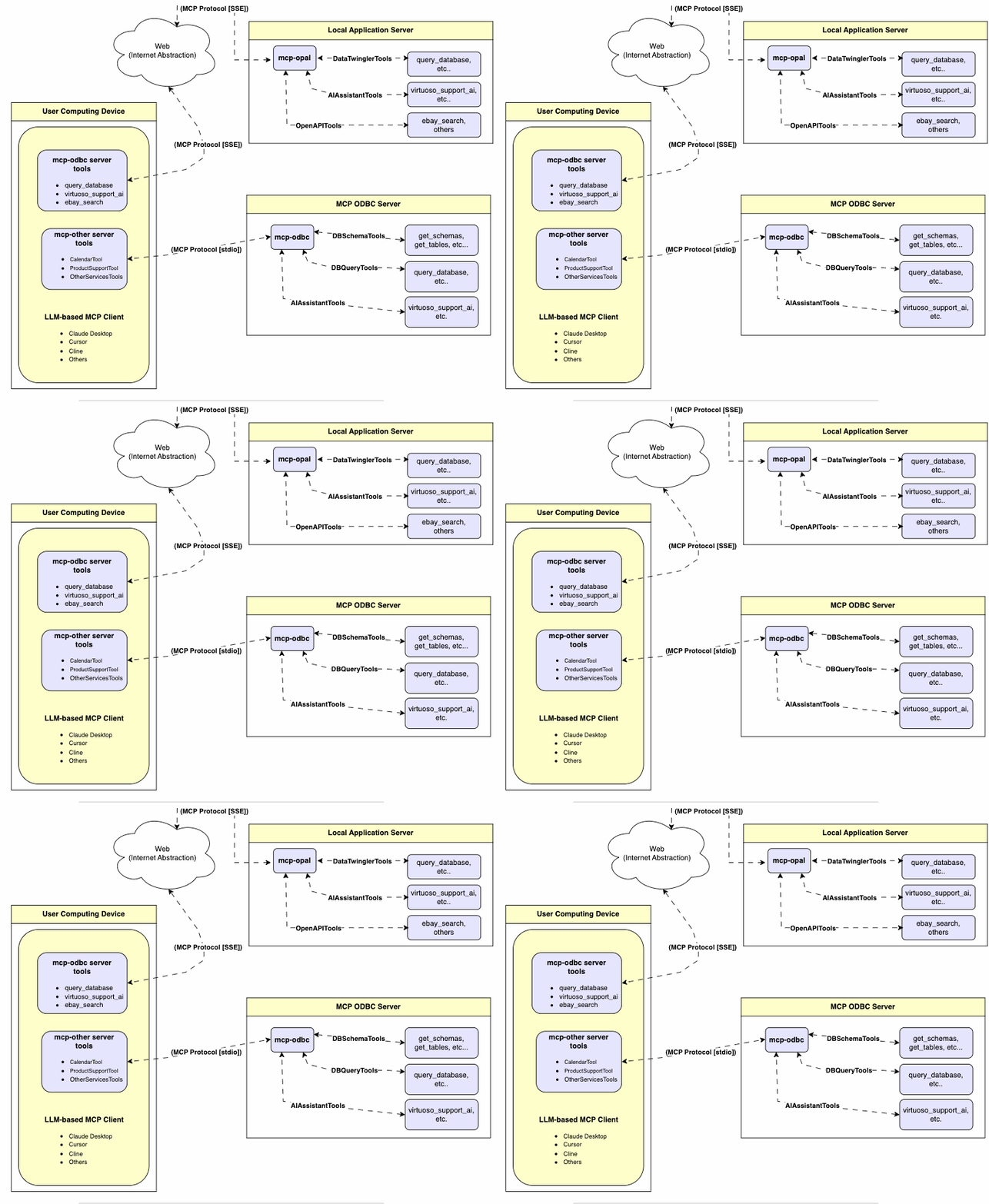
A lightweight MCP (Model Context Protocol) server for ODBC built with FastAPI and pyodbc. This server is compatible with Virtuoso DBMS and any other DBMS backend that has an ODBC driver.
---
Features
- Get Schemas: Fetch and list all schema names from the connected database.
- Get Tables: Retrieve table information for specific schemas or all schemas.
- Describe Table: Generate a detailed description of table structures, including:
- Column names and data types
- Nullable attributes
- Primary and foreign keys
- Search Tables: Filter and retrieve tables based on name substrings.
- Execute Stored Procedures: When connected to Virtuoso, execute stored procedures and retrieve results.
- Execute Queries:
- JSONL result format: Optimized for structured responses.
- Markdown table format: Ideal for reporting and visualization.
---
Prerequisites
1. Install uv:
pip install uv
Or use Homebrew:
brew install uv
2. unixODBC Runtime Environment Checks:
3. Check installation configuration (i.e., location of key INI files) by running: odbcinst -j
4. List available data source names by running: odbcinst -q -s
5. ODBC DSN Setup: Configure your ODBC Data Source Name (typically in ~/.odbc.ini) for the target database. Example for Virtuoso DBMS:
   [VOS]

   Description = OpenLink Virtuoso

   Driver = /path/to/virtodbcu_r.so

   Database = Demo

   Address = localhost:1111

   WideAsUTF16 = Yes
---
Installation
Clone this repository:
git clone https://github.com/OpenLinkSoftware/mcp-pyodbc-server.git
cd mcp-pyodbc-server
Environment Variables
Update your .env by overriding the defaults to match your preferences.
ODBC_DSN=VOS

ODBC_USER=dba

ODBC_PASSWORD=dba

API_KEY=xxx
---
Configuration
For Claude Desktop users:
Add the following to claude_desktop_config.json:
{
  "mcpServers": {
    "my_database": {
      "command": "uv",
      "args": ["--directory", "/path/to/mcp-pyodbc-server", "run", "mcp-pyodbc-server"],
      "env": {
        "ODBC_DSN": "dsn_name",
        "ODBC_USER": "username",
        "ODBC_PASSWORD": "password",
        "API_KEY": "sk-xxx"
      }
    }
  }
}
Usage
Tools Provided
After successful installation, the following tools will be available to MCP client applications.Overview
|name|description| |---|---| |podbc_get_schemas|List database schemas accessible to connected database management system (DBMS).|
|podbc_get_tables|List tables associated with a selected database schema.|
|podbc_describe_table|Provide the description of a table associated with a designated database schema. This includes information about column names, data types, null handling, autoincrement, primary keys, and foreign keys|
|podbc_filter_table_names|List tables, based on a substring pattern from the q input field, associated with a selected database schema.|
|podbc_query_database|Execute a SQL query and return results in JSONL format.|
|podbc_execute_query|Execute a SQL query and return results in JSONL format.|
|podbc_execute_query_md|Execute a SQL query and return results in Markdown table format.|
|podbc_spasql_query|Execute a SPASQL query and return results.|
|podbc_virtuoso_support_ai|Interact with the Virtuoso Support Assistant/Agent -- a Virtuoso-specific feature for interacting with LLMs|
Detailed Description
- podbc_get_schemas
- Retrieve and return a list of all schema names from the connected database.
- Input parameters:
- user (string, optional): Database username. Defaults to "demo".
- password (string, optional): Database password. Defaults to "demo".
- dsn (string, optional): ODBC data source name. Defaults to "Local Virtuoso".
- Returns a JSON string array of schema names.
- podbc_get_tables
- Retrieve and return a list containing information about tables in a specified schema. If no schema is provided, it uses the connection's default schema.
- Input parameters:
- schema (string, optional): Database schema to filter tables. Defaults to connection default.
- user (string, optional): Database username. Defaults to "demo".
- password (string, optional): Database password. Defaults to "demo".
- dsn (string, optional): ODBC data source name. Defaults to "Local Virtuoso".
- Returns a JSON string containing table information (e.g., TABLE_CAT, TABLE_SCHEM, TABLE_NAME, TABLE_TYPE).
- podbc_filter_table_names
- Filters and returns information about tables whose names contain a specific substring.
- Input parameters:
- q (string, required): The substring to search for within table names.
- schema (string, optional): Database schema to filter tables. Defaults to connection default.
- user (string, optional): Database username. Defaults to "demo".
- password (string, optional): Database password. Defaults to "demo".
- dsn (string, optional): ODBC data source name. Defaults to "Local Virtuoso".
- Returns a JSON string containing information for matching tables.
- podbc_describe_table
- Retrieve and return detailed information about the columns of a specific table.
- Input parameters:
- schema (string, required): The database schema name containing the table.
- table (string, required): The name of the table to describe.
- user (string, optional): Database username. Defaults to "demo".
- password (string, optional): Database password. Defaults to "demo".
- dsn (string, optional): ODBC data source name. Defaults to "Local Virtuoso".
- Returns a JSON string describing the table's columns (e.g., COLUMN_NAME, TYPE_NAME, COLUMN_SIZE, IS_NULLABLE).
- podbc_query_database
- Execute a standard SQL query and return the results in JSON format.
- Input parameters:
- query (string, required): The SQL query string to execute.
- user (string, optional): Database username. Defaults to "demo".
- password (string, optional): Database password. Defaults to "demo".
- dsn (string, optional): ODBC data source name. Defaults to "Local Virtuoso".
- Returns query results as a JSON string.
- podbc_query_database_md
- Execute a standard SQL query and return the results formatted as a Markdown table.
- Input parameters:
- query (string, required): The SQL query string to execute.
- user (string, optional): Database username. Defaults to "demo".
- password (string, optional): Database password. Defaults to "demo".
- dsn (string, optional): ODBC data source name. Defaults to "Local Virtuoso".
- Returns query results as a Markdown table string.
- podbc_query_database_jsonl
- Execute a standard SQL query and return the results in JSON Lines (JSONL) format (one JSON object per line).
- Input parameters:
- query (string, required): The SQL query string to execute.
- user (string, optional): Database username. Defaults to "demo".
- password (string, optional): Database password. Defaults to "demo".
- dsn (string, optional): ODBC data source name. Defaults to "Local Virtuoso".
- Returns query results as a JSONL string.
- podbc_spasql_query
- Execute a SPASQL (SQL/SPARQL hybrid) query return results. This is a Virtuoso-specific feature.
- Input parameters:
- query (string, required): The SPASQL query string.
- max_rows (number, optional): Maximum number of rows to return. Defaults to 20.
- timeout (number, optional): Query timeout in milliseconds. Defaults to 30000.
- user (string, optional): Database username. Defaults to "demo".
- password (string, optional): Database password. Defaults to "demo".
- dsn (string, optional): ODBC data source name. Defaults to "Local Virtuoso".
- Returns the result from the underlying stored procedure call (e.g., Demo.demo.execute_spasql_query).
- podbc_virtuoso_support_ai
- Utilizes a Virtuoso-specific AI Assistant function, passing a prompt and optional API key. This is a Virtuoso-specific feature.
- Input parameters:
- prompt (string, required): The prompt text for the AI function.
- api_key (string, optional): API key for the AI service. Defaults to "none".
- user (string, optional): Database username. Defaults to "demo".
- password (string, optional): Database password. Defaults to "demo".
- dsn (string, optional): ODBC data source name. Defaults to "Local Virtuoso".
- Returns the result from the AI Support Assistant function call (e.g., DEMO.DBA.OAI_VIRTUOSO_SUPPORT_AI).
---
Troubleshooting
For easier troubleshooting:
1. Install the MCP Inspector:
npm install -g @modelcontextprotocol/inspector
2. Start the inspector:
npx @modelcontextprotocol/inspector uv --directory /path/to/mcp-pyodbc-server run mcp-pyodbc-server
Access the provided URL to troubleshoot server interactions.

Sign in to leave a review
Use Google, GitHub, or an email account so ratings stay tied to real people.
No reviews posted yet.