
NextApp Payments MCP Server Demo
About
Demo project showcasing MCP server integration with MongoDB Atlas for payment data retrieval.
Details
- Author
- Denyme24
- Downloads
- 137
- Categories
- Other
Jump to
- Retrieves payment records where done: true via a single MCP resource
- Exposes data as JSON with MIME type application/json
- Integrates with MCP Inspector for developer debugging
- Works with Claude Desktop for natural language querying
- Includes error handling for MongoDB connection and query failures
- Demonstrates end-to-end MCP server implementation patterns

Setting up with Highlight
This MCP is not yet compatible with Highlight’s one-click setup. However, you can still use it with Highlight by following these steps:
- Download and install Highlight from highlightai.com/download
- Navigate to the plugins tab and select "Add Custom Plugin"
-
Configure the plugin with the settings below
Plugin Name
NextApp Payments MCP Server DemoCommand (node, npx, python, etc.)Please refer to the README for specific instructions on how to obtain API keys or other required environment variables.
- Enable "Start Automatically" if you want the plugin to start when Highlight launches





From the repository
Configure the server in Claude Desktop's config file (Windows, macOS, or Linux) using the stdio transport, then invoke the resource by asking Claude: “Use the MCP resource payments://done and show me all successful payments.” Developers can also test the server using MCP Inspector.
Claude Desktop / Cursor
Paste into your MCP client config file to install this server.
{
    "mcpServers": {
        "nextapp payments mcp server demo": {
            "YourServerName": {
                "transport": "stdio",
                "command": "node",
                "args": [
                    "path/to/your/server.js"
                ],
                "env": {
                    "YOUR_ENV_VARIABLE": "your_value"
                },
                "cwd": "path/to/your/project"
            }
        }
    }
}McpServers
{
    "YourServerName": {
        "transport": "stdio",
        "command": "node",
        "args": [
            "path/to/your/server.js"
        ],
        "env": {
            "YOUR_ENV_VARIABLE": "your_value"
        },
        "cwd": "path/to/your/project"
    }
}
NextApp Payments MCP Server Demo
A demonstration project showcasing how to implement a Model Context Protocol (MCP) server that exposes MongoDB payment data through both MCP Inspector and Claude AI integration. This project serves as an example of how to use the MCP protocol to expose database resources through a standardized interface.
Project Overview
This demo project demonstrates:
- Implementation of an MCP server using the official SDK
- Connection to a specific MongoDB Atlas database
- Retrieval of payment records where done: true (successfully completed payments)
- Integration with both MCP Inspector and Claude AI
- How LLMs can interact with structured database data
MCP Inspector View
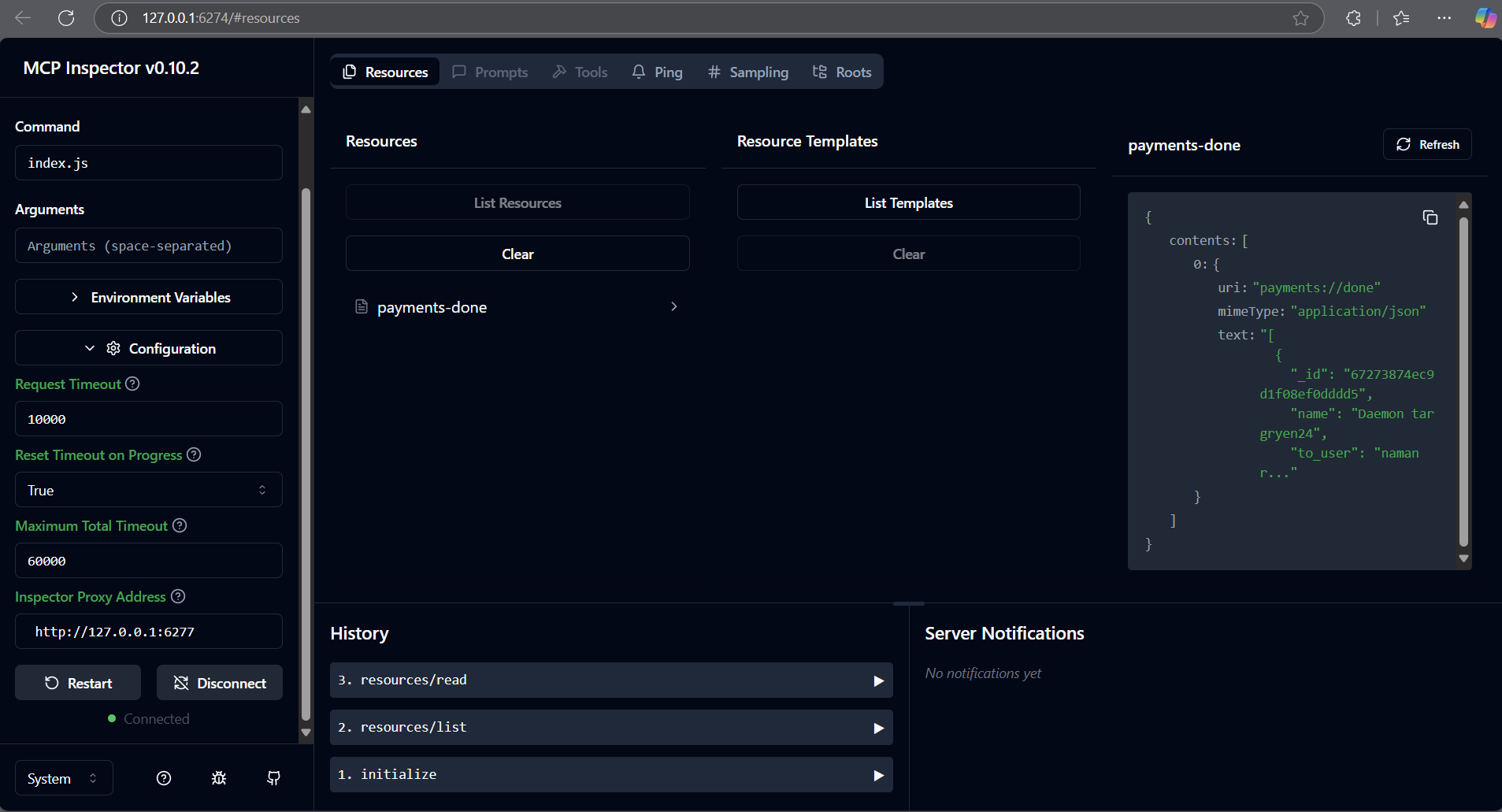
The image above shows the MCP Inspector interface displaying the payment records retrieved from MongoDB Atlas through the MCP server. MCP Inspector is a developer tool that helps verify and debug MCP server implementations.
Claude AI Integration
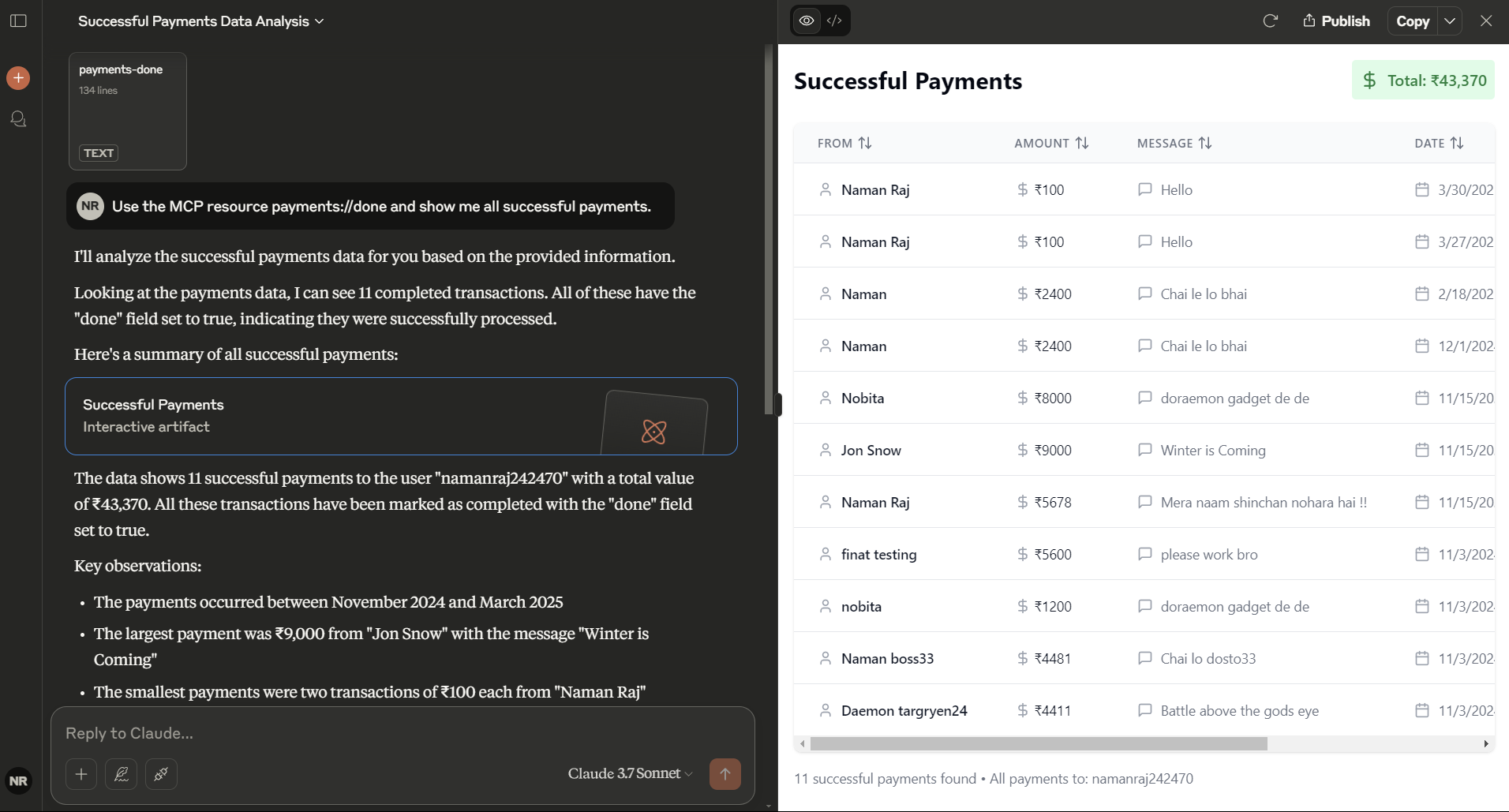
The image above demonstrates Claude AI successfully:
- Connecting to the MCP server
- Accessing the payments resource
- Analyzing payment data
- Presenting structured results with total amounts, date ranges, and key observations
Setting Up Your MCP Resource in Claude Desktop
If you have created your own MCP server and want to use it with Claude Desktop:
1. Locate Claude Desktop Config
- Windows: C:\Users\<username>\AppData\Roaming\claude\claude_desktop_config.json
- macOS: ~/Library/Application Support/claude/claude_desktop_config.json
- Linux: ~/.config/claude/claude_desktop_config.json
2. Configure Your MCP Server
   {
     "mcpServers": {
       "YourServerName": {
         "transport": "stdio",
         "command": "node",
         "args": ["path/to/your/server.js"],
         "env": {
           "YOUR_ENV_VARIABLE": "your_value"
         },
         "cwd": "path/to/your/project"
       }
     }
   }
Replace:
- YourServerName: A unique name for your server
- path/to/your/server.js: Full path to your server file
- YOUR_ENV_VARIABLE: Any environment variables your server needs
3. Verify Connection
- Open Claude Desktop
- Go to Settings → Developer
- Your server should appear with a "running" status
4. Use Your Resource
- In Claude chat, use:
Use the MCP resource your-resource-uri and [your query]
Example: "Use the MCP resource payments://done and show me all successful payments"
Implementation Details
MCP Resource
- URI: payments://done
- Purpose: Retrieves payment records where done: true
- Response Format: JSON
- MIME Type: application/json
Technologies Used
- MCP SDK: For protocol handling and resource exposure
- MongoDB Driver: For database access and query execution
- Claude Desktop: For LLM integration and natural language querying
Error Handling
The implementation includes error handling for:
- MongoDB connection issues
- Query execution errors
- Connection closure errors
- JSON-formatted logging for Claude Desktop compatibility
Important Notes
This is a demonstration project showing:
1. How to implement an MCP server
2. How to expose MongoDB data as MCP resources
3. Two ways to access the data:
- Through MCP Inspector (for developers)
- Through Claude AI (for end users)
4. How LLMs can interact with structured data
The MongoDB connection and resource configurations are specific to this demo. You'll need to modify them for your use case.
Resources
- Model Context Protocol Documentation
- Claude Desktop Documentation
- MongoDB Node.js Driver Documentation
Sign in to leave a review
Use Google, GitHub, or an email account so ratings stay tied to real people.
No reviews posted yet.





