
return0
About
Debug your remote Node.js and Next.js applications directly from your AI IDE like Cursor.
Details
- Author
- getreturn0
- Downloads
- 314
- Categories
- Developer Tools
Jump to
- Provides a variable_extractor tool for extracting runtime variable values.
- Reads source files from the local filesystem.
- Uses TypeScript AST analysis to correct variable line numbers.
- Connects to live production applications to retrieve runtime data.
- Returns real‑time variable values, types, and timestamps.

Setting up with Highlight
This MCP is not yet compatible with Highlight’s one-click setup. However, you can still use it with Highlight by following these steps:
- Download and install Highlight from highlightai.com/download
- Navigate to the plugins tab and select "Add Custom Plugin"
-
Configure the plugin with the settings below
Plugin Name
return0Command (node, npx, python, etc.)Please refer to the README for specific instructions on how to obtain API keys or other required environment variables.
- Enable "Start Automatically" if you want the plugin to start when Highlight launches





From the repository
Install by configuring the MCP server in Cursor IDE. Use the one‑click install button or manual setup by adding a server named return0 with command npx, args -y @return-0/mcp-server, and environment variable RETURN0_API_KEY set to your API key. Provide an API key (or "demo" for testing) to authenticate.
Claude Desktop / Cursor
Paste into your MCP client config file to install this server.
{
    "mcpServers": {
        "return0": {
            "return0": {
                "command": "npx",
                "args": [
                    "-y",
                    "@return-0/mcp-server"
                ],
                "env": {
                    "RETURN0_API_KEY": "YOUR-API-KEY"
                }
            }
        }
    }
}McpServers
{
    "return0": {
        "command": "npx",
        "args": [
            "-y",
            "@return-0/mcp-server"
        ],
        "env": {
            "RETURN0_API_KEY": "YOUR-API-KEY"
        }
    }
}
@return-0/mcp-server
MCP (Model Context Protocol) server for return0 - a tool for debugging production applications in real-time.
About return0
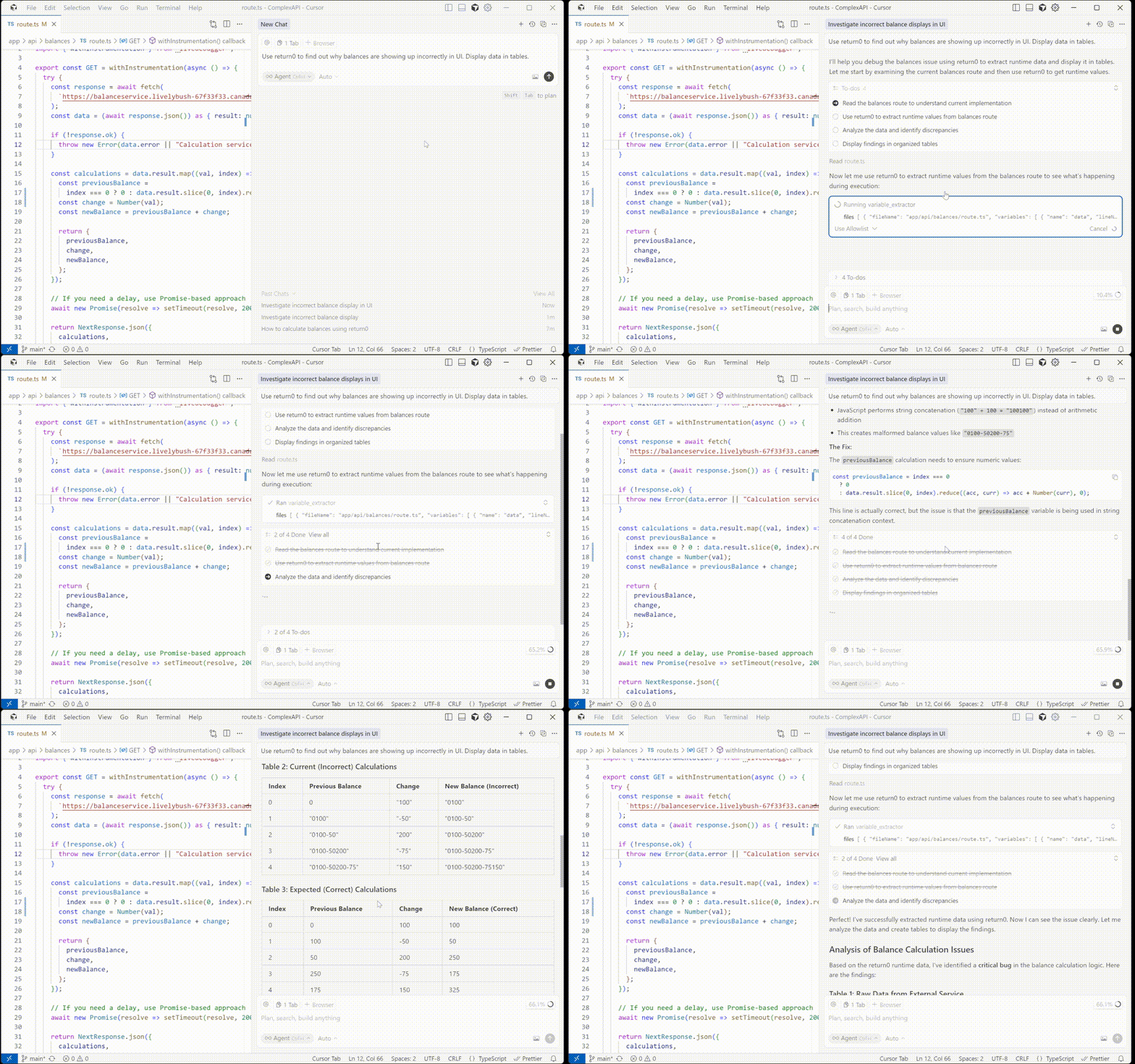
return0 enables developers to debug production Node.js applications in real-time. It allows you to monitor and troubleshoot your applications by connecting to live variables, observing execution flow, and understanding runtime behavior directly within the Cursor IDE. This is especially powerful for debugging production applications built with Next.js and deployed on platforms like Vercel, where traditional debugging methods can be challenging.
- Website: getreturn0.com
- Live Demo: getreturn0.com/livedemo
- Documentation: getreturn0.com/docs
Configuration in Cursor
To use this MCP server with Cursor IDE, you need to configure it in your Cursor settings. First, you'll need to get your return0 API key.
Getting Your API Key
To get your return0 API key, visit the return0 documentation. The documentation will guide you through the process of obtaining your API key.
Once you have your API key, you can configure the MCP server in one of two ways:
Option 1: One-Click Installation
Click the button below to automatically install and configure the return0 MCP server in Cursor:

This will automatically configure the MCP server. Note: You'll need to add your return0 API key to the configuration after installation. See the Getting Your API Key section above for instructions on obtaining your API key, and the manual configuration section below for details on how to add it.
Option 2: Manual Configuration
If you prefer to configure manually, follow these steps in Cursor IDE:
1. Open Cursor IDE
2. Go to Settings (or Preferences on macOS):
- Click the gear icon (⚙️) in the bottom left corner, or
- Use the keyboard shortcut: Ctrl+, (Windows/Linux) or Cmd+, (macOS)
3. In the settings search bar, type "MCP" or "Model Context Protocol"
4. Click on MCP Servers or navigate to the MCP configuration section
5. Click Add Server or the + button to add a new MCP server
6. Enter the following configuration:
- Name: return0
- Command: npx
- Args: -y, @return-0/mcp-server
- Environment Variables: Add RETURN0_API_KEY with your API key as the value
7. Click Save or Apply to save the configuration
The configuration should look like this in your mcp.json file:
{
  "mcpServers": {
    "return0": {
      "command": "npx",
      "args": ["-y", "@return-0/mcp-server"],
      "env": {
        "RETURN0_API_KEY": "your-api-key-here"
      }
    }
  }
}
Note: Replace "your-api-key-here" with your actual return0 API key. If you don't have an API key yet, see the Getting Your API Key section above for instructions, or you can use "demo" for testing purposes. The MCP server will be automatically installed via npx when Cursor starts.
Tools
This MCP server provides a variable_extractor tool that can be used by MCP-compatible clients.
Tool: variable_extractor
Extracts the runtime value, type, and timestamp of variables from production code.
Input Schema:
{

  files: Array<{

    fileName: string;        // Full absolute path to the file

    variables: Array<{

      name: string;          // Variable name to extract

      lineNumber: number;    // Line number where variable is defined

    }>

  }>

}
Example:
{

  "files": [

    {

      "fileName": "C:\\Users\\username\\project\\src\\app\\api\\route.ts",

      "variables": [

        {

          "name": "userData",

          "lineNumber": 42

        }

      ]

    }

  ]

}
How It Works
1. The MCP server receives requests to extract runtime variable values from production code
2. It reads the source files from the local filesystem
3. Uses TypeScript AST analysis to correct line numbers for accurate variable location
4. Connects to the running production application to retrieve live variable values
5. Returns the corrected variable extraction data with real-time runtime values, types, and timestamps
License
See LICENSE file for details.
Author
return0
Links
- Website
- Live Demo
- Documentation
Sign in to leave a review
Use Google, GitHub, or an email account so ratings stay tied to real people.
No reviews posted yet.





