
Mcp Cornell Resume
About
A Model Context Protocol (MCP) server that automatically generates Cornell-style study notes and summaries from the conversational context, with RAG active recall question generation and Notion integration.
Details
- Author
- johndezr
- Downloads
- 321
- Categories
- Knowledge Base
Jump to
- Real-time Cornell-style note generation from chat conversation history
- Context-aware active recall question generation using vector similarity
- Semantic search integration with Pinecone for relevant note retrieval
- Automatic Notion database synchronization with proper block formatting
- OpenAI-powered text processing and question generation

Setting up with Highlight
This MCP is not yet compatible with Highlight’s one-click setup. However, you can still use it with Highlight by following these steps:
- Download and install Highlight from highlightai.com/download
- Navigate to the plugins tab and select "Add Custom Plugin"
-
Configure the plugin with the settings below
Plugin Name
Mcp Cornell ResumeCommand (node, npx, python, etc.)Please refer to the README for specific instructions on how to obtain API keys or other required environment variables.
- Enable "Start Automatically" if you want the plugin to start when Highlight launches





From the repository
Set up by cloning the repository, installing dependencies with uv, and configuring environment variables (OpenAI, Pinecone, Notion API keys). Add the server to an MCP‑compatible client (e.g., Claude Desktop) using a JSON configuration pointing to uv run main.py. The tool save_resume_to_notion accepts a text string and returns a Notion page ID.
Claude Desktop / Cursor
Paste into your MCP client config file to install this server.
{
    "mcpServers": {
        "mcp cornell resume": {
            "resume_to_notion": {
                "command": "/path-to-uv/uv",
                "args": [
                    "--directory",
                    "/path-to-project/mcp-cornell-resume",
                    "run",
                    "main.py"
                ]
            }
        }
    }
}McpServers
{
    "resume_to_notion": {
        "command": "/path-to-uv/uv",
        "args": [
            "--directory",
            "/path-to-project/mcp-cornell-resume",
            "run",
            "main.py"
        ]
    }
}
MCP: Cornell Resume
A Model Context Protocol (MCP) server that automatically generates Cornell-style study notes and summaries from the conversational context, with RAG active recall question generation and Notion integration.
Features
The server processes text from the conversational context, generates contextual summaries, creates active recall questions (context-aware), and automatically saves everything to your Notion.
- Real-time Cornell-style note generation from the client chat conversation history
- Context-aware active recall question generation using vector similarity
- Semantic search integration with Pinecone for relevant note retrieval
- Automatic Notion database synchronization with proper block formatting
- OpenAI-powered text processing and question generation
Setup Guide
Requirements
- Python 3.13+
- uv
- OpenAI account
- Pinecone account
Installation
1. Clone the repository
git clone
cd mcp-cornell-resume
2. Install dependencies
# Create virtual environment
uv venv
source venv/bin/activate  # On Windows: venv\Scripts\activate
Install required packages
uv pip sync docs/requirements.txt
3. Environment Configuration - Create a .env file in the project root:
OPENAI_API_KEY=your_openai_api_key
PINECONE_API_KEY=your_pinecone_api_key
PINECONE_INDEX_NAME=cornell-notes
NOTION_API_KEY=your_notion_api_key
NOTION_DATABASE_ID=your_database_id
4. Set up Notion
- Create a Notion Integration at the notion developers page (Set appropriate capabilities at minimum, select "Read content" and "Update content").
- Get your API Key
- Share Pages with your Integration.
- Get the database key of the page: You will find the database in in the link of the page.
5. Configure Pinecone Index - Create a Pinecone index with:
- Dimension: 1536 (for OpenAI embeddings)
- Index name matching your .env configuration
Usage
Using with Claude Client Desktop or other MCP-compatible applications
Add this to your MCP configuration JSON file:
code ~/Library/Application\ Support/Claude/claude_desktop_config.json
{
  "mcpServers": {
    "resume_to_notion": {
      "command": "/Users/<USER></USER>/.local/bin/uv",
      "args": [
        "--directory",
        "/<PATH_TO_PROJECT/mcp-cornell-resume",
        "run",
        "main.py"
      ]
    }
  }
}
Available Tools
save_resume_to_notion
Summarize the full ongoing chat conversation in send it as 'text'.
Parameters:
- text: text string a resume of the client chat window.
Return:
- notion_page_id
How It Works
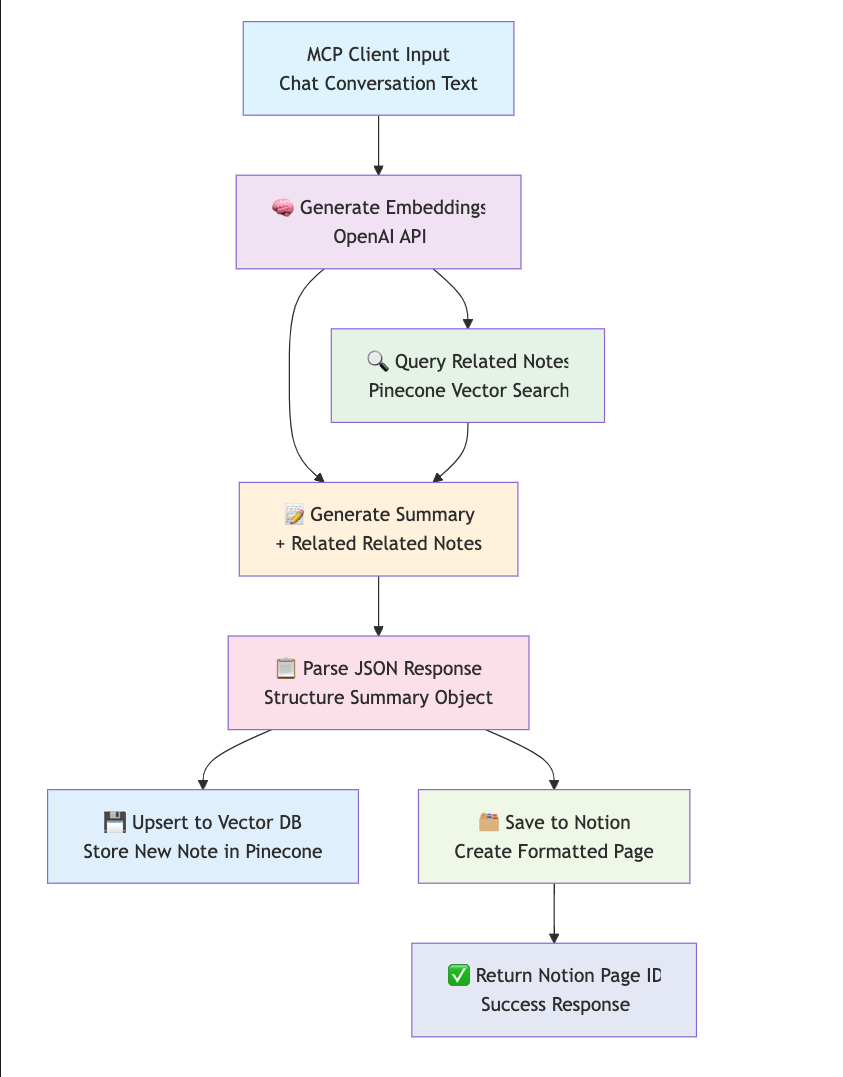
Process Flow
1. Input Processing: The MCP client sends chat conversation text to the save_resume_to_notion tool
2. Embedding Generation: OpenAI creates vector embeddings from the input text content
3. Context Retrieval: Pinecone searches for semantically similar existing notes using the embeddings
4. Cornell Summary Generation: OpenAI generates a structured Cornell-style summary using:
- Original conversation content
- Related notes from Pinecone for context awareness
5. Vector Storage: The new note is stored in Pinecone with its embeddings for future context retrieval
6. Notion Integration: The formatted Cornell summary is saved to your Notion database
7. Response: Returns the Notion page ID to the client
Visual Flow Diagram
Development
You can use the Model Context Protocol inspector to try out the server:
fastmcp dev main.py
Limitations and Future Improvements
- LLM Context Window Limitations: The MCP client has a finite context window (typically 8k-32k tokens depending on the model).
- If a chat session is too long, summarizing only the available context might lose important information.
- Latency in Multi-Integration Workflows: Each integration adds latency and increases the risk of slower processing.
- Notion and Pinecone Sync Complexity.
- Create a tag RAG feature for the notes.
Security Considerations
- API Key Management: Store all API keys securely in .env
- Input Validation: All inputs are sanitized and validated
- Error Handling: Sensitive information is never exposed in errors
- Access Control: Notion integration respects workspace permissions
- Data Privacy: No chat content is permanently stored without consent
License
MIT License
Sign in to leave a review
Use Google, GitHub, or an email account so ratings stay tied to real people.
No reviews posted yet.





