
Litmus Mcp Server
About
Enables LLMs and intelligent systems to interact with Litmus Edge for device configuration, monitoring, and management.
Details
- Author
- litmusautomation
- GitHub stars
- 9
- Downloads
- 427
- Categories
- Cloud Service, Other, Infrastructure
Jump to
- Dockerized HTTP/SSE MCP server with Web UI
- Built‑in chat interface for natural language interaction
- Multiple LLM provider support: Anthropic, OpenAI, Google Gemini
- Persistent configuration via host‑mounted .env file
- Live Litmus documentation served as MCP Resources
- Manage multiple Litmus Edge instances from a single server

Setting up with Highlight
This MCP is not yet compatible with Highlight’s one-click setup. However, you can still use it with Highlight by following these steps:
- Download and install Highlight from highlightai.com/download
- Navigate to the plugins tab and select "Add Custom Plugin"
-
Configure the plugin with the settings below
Plugin Name
Litmus Mcp ServerCommand (node, npx, python, etc.)Please refer to the README for specific instructions on how to obtain API keys or other required environment variables.
- Enable "Start Automatically" if you want the plugin to start when Highlight launches





From the repository
Run the server via Docker (docker run -d --name litmus-mcp-server -p 8000:8000 ghcr.io/litmusautomation/litmus-mcp-server:latest) to expose HTTP and SSE endpoints. Configure clients (Claude Desktop, Cursor, VS Code, Windsurf) with headers like EDGE_URL, EDGE_API_CLIENT_ID, and EDGE_API_CLIENT_SECRET. Optionally use the built‑in Web UI (port 9000) for zero‑client chat and environment management.
Claude Desktop / Cursor
Paste into your MCP client config file to install this server.
{
    "mcpServers": {
        "litmus mcp server": {
            "litmus-mcp-server": {
                "url": "http://<IP Address>:8000/sse"
            }
        }
    }
}McpServers
{
    "litmus-mcp-server": {
        "url": "http://<IP Address>:8000/sse"
    }
}
Litmus MCP Server
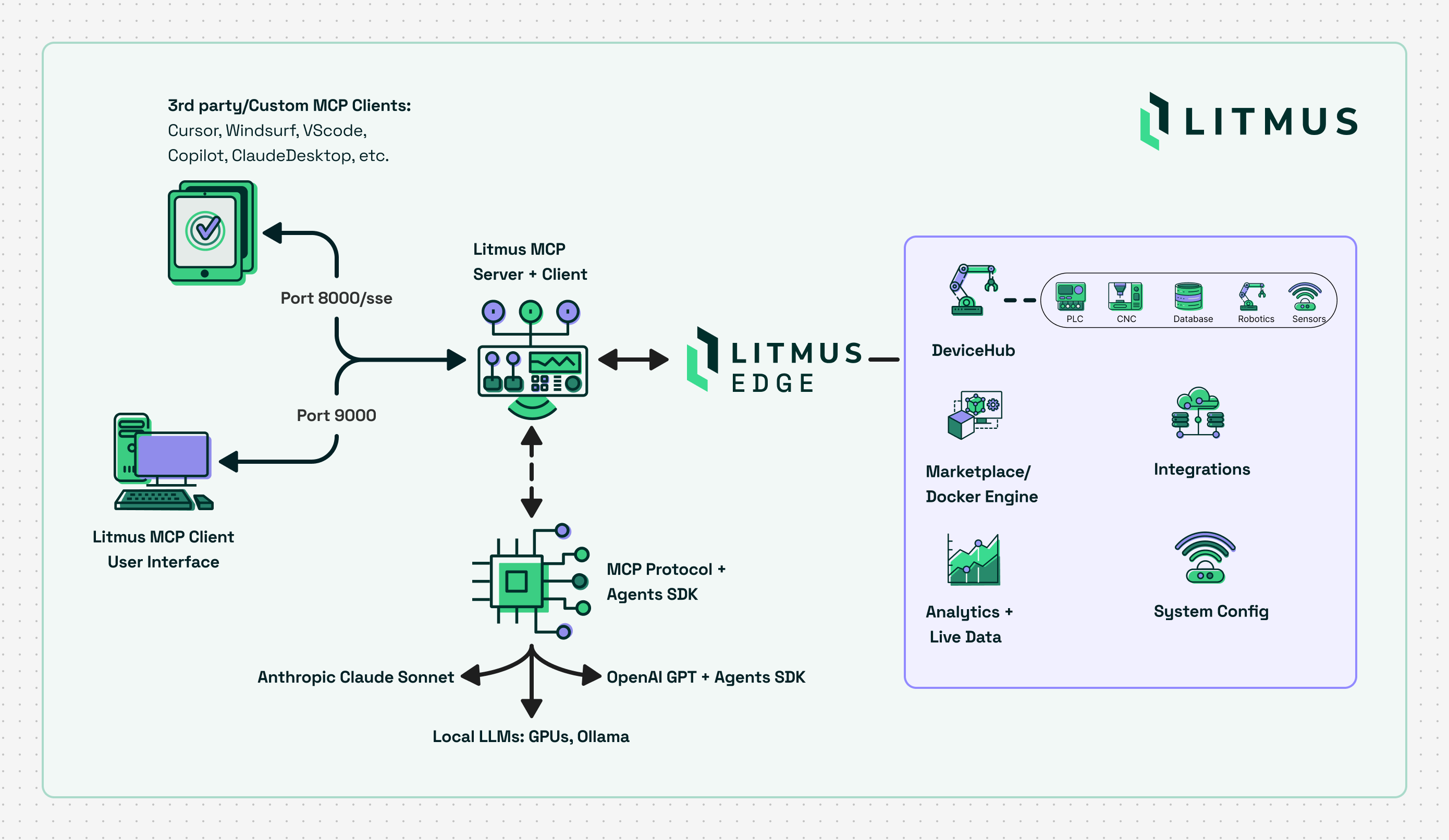
The official Litmus Automation Model Context Protocol (MCP) Server enables LLMs and intelligent systems to interact with Litmus Edge for device configuration, monitoring, and management. It is built on top of the MCP SDK and adheres to the Model Context Protocol spec.
<div>
<picture>
<source media="(prefers-color-scheme: light)" srcset="static/MCP-server-arch-diagram.png" />
</picture>
</div>
Table of Contents
- Quick Launch
- Web UI
- Persistent Configuration
- Claude Code CLI
- Cursor IDE
- VS Code / Copilot
- Windsurf
- STDIO - Claude Desktop
- Tips
- Tools
- Litmus Central
---
Quick Launch
Start an HTTP MCP Server using Docker
Run the server in Docker (HTTP only)
docker run -d --name litmus-mcp-server -p 8000:8000 ghcr.io/litmusautomation/litmus-mcp-server:latest
The HTTP server exposes both MCP transports on port 8000:
- http://<host>:8000/mcp - Streamable HTTP (current MCP spec, recommended)
- http://<host>:8000/sse - HTTP+SSE (legacy transport, kept for older clients)
Clients that support Streamable HTTP should point at /mcp (e.g. "type": "http", as in the Claude Code example below). The remaining client examples use the SSE endpoint; swap in /mcp if your client supports it, keeping the same headers.
NOTE: The Litmus MCP Server is built for linux/AMD64 platforms. If running in Docker on ARM64, specify the AMD64 platform type by including the --platform argument:
docker run -d --name litmus-mcp-server --platform linux/amd64 -p 8000:8000 ghcr.io/litmusautomation/litmus-mcp-server:main
---
Web UI
The Docker image includes a built-in chat interface that lets you interact with Litmus Edge using natural language — no MCP client configuration required.
Start the server with both ports exposed:
docker run -d --name litmus-mcp-server \
  -p 8000:8000 -p 9000:9000 \
  -e ANTHROPIC_API_KEY=<key> \
  ghcr.io/litmusautomation/litmus-mcp-server:latest
- :9000 — Web UI (chat interface). Open http://localhost:9000 in your browser, add a Litmus Edge instance via the config page, and start chatting.
- :8000 — SSE endpoint for external MCP clients (Claude Desktop, Cursor, VS Code, etc.) — still available as normal.
Supported LLM providers: Anthropic Claude, OpenAI, and Google Gemini. Provide one or more keys at startup (ANTHROPIC_API_KEY, OPENAI_API_KEY, GEMINI_API_KEY) or enter them through the Web UI's setup screen. The active provider and model are switchable from the Web UI's config page at any time.
Multiple Litmus Edge instances: The Web UI lets you register and switch between multiple Litmus Edge devices from a single MCP server. Each instance keeps its own URL and OAuth2 credentials; the active instance's credentials are mirrored into EDGE_URL / EDGE_API_CLIENT_ID / EDGE_API_CLIENT_SECRET automatically. Manage instances under Config → Litmus Edge Instances, or check status per-instance from the Health page.
Live Litmus documentation as MCP Resources: The server exposes litmus://docs/<section> URIs that fetch live content from docs.litmus.io on demand, so MCP-aware clients can pull current reference material directly into the model's context.
If you deploy the MCP server and web client on separate hosts, set MCP_SSE_URL to point the web client at the server:
-e MCP_SSE_URL=http://<mcp-server-host>:8000/sse
Persistent Configuration
By default, configuration saved through the Web UI (API keys, Litmus Edge instances, model preferences, connection settings) is written to .env inside the container and is lost when the container is removed.
To retain configuration across container restarts and replacements, mount a host file over /app/.env:
```bash
Sign in to leave a review
Use Google, GitHub, or an email account so ratings stay tied to real people.
No reviews posted yet.





