
Lighthouse Portfolio Tracker
About
Integrates with Lighthouse.one cryptocurrency portfolio tracker to fetch and display detailed portfolio data including total value, asset allocations, and major holdings through secure token-based authentication.
Details
- Author
- l3wi
- Repository
- l3wi/mcp-lighthouse
- GitHub stars
- 1
- Downloads
- 8,502
- Categories
- Design, Developer Tools, AI, Infrastructure, Other
- Tags
- #integration, #web
Jump to
- Authentication: Securely authenticate with Lighthouse using transfer token URLs
- Portfolio Overview: Get detailed breakdowns of your portfolio including:
- Total portfolio value
- Asset type distribution
- Major holdings (≥ $1,000)
- List of connected wallets/accounts
- Asset Details: View detailed information about specific assets in your portfolio
- Transaction History: Access your transaction history across wallets
- Performance Analysis: Get insights on portfolio performance over time
You can ask Claude any form of natural language questions about performance, assets distribution etc and it will try its best to invoke the right tools and generate an asnwer for you.

Setting up with Highlight
This MCP is not yet compatible with Highlight’s one-click setup. However, you can still use it with Highlight by following these steps:
- Download and install Highlight from highlightai.com/download
- Navigate to the plugins tab and select "Add Custom Plugin"
-
Configure the plugin with the settings below
Plugin Name
Lighthouse Portfolio TrackerCommand (node, npx, python, etc.)npxArguments-
Argument 1
-y -
Argument 2
mcp-lighthouse
Please refer to the README for specific instructions on how to obtain API keys or other required environment variables.
-
Argument 1
- Enable "Start Automatically" if you want the plugin to start when Highlight launches





From the repository
> NOTE: You must have at least Node LTS installed to use this MCP server. Try N-Install to quickly install Node on your system.
Add this to your claude_desktop_config.json:
{
"mcpServers": {
"lighthouse": {
"command": "npx",
"args": ["-y", "mcp-lighthouse"]
}
}
}
Then restart the Claude app. If you don't get any errors on startup, then the MCP server is working.
You'll be asked for the authentication URL. To get it, follow these steps:
1. Go to the Settings page on Lighthouse.one
2. Click on "Link Mobile Device" option
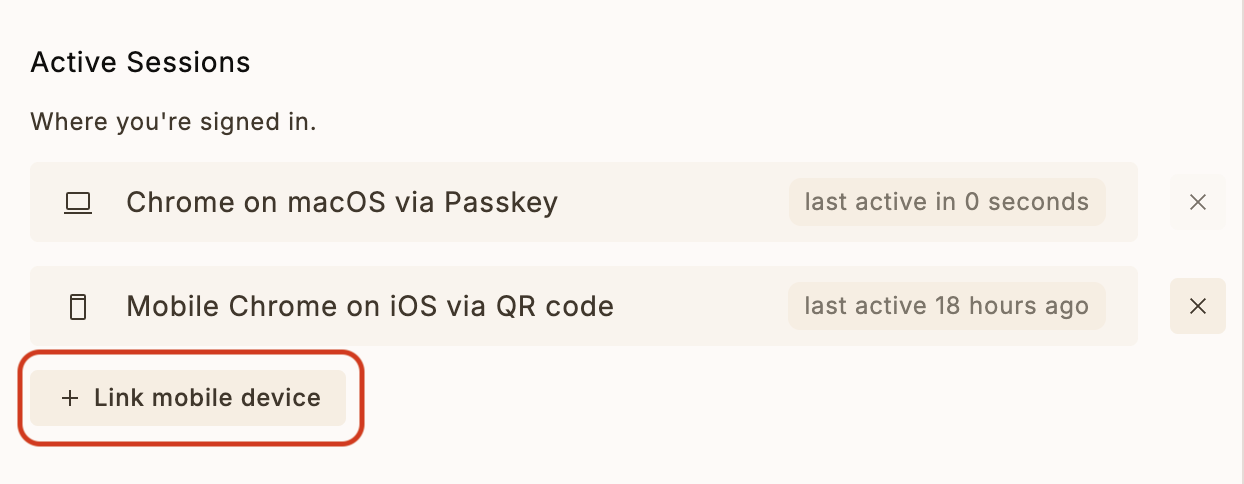
3. Click on "Copy transfer link"
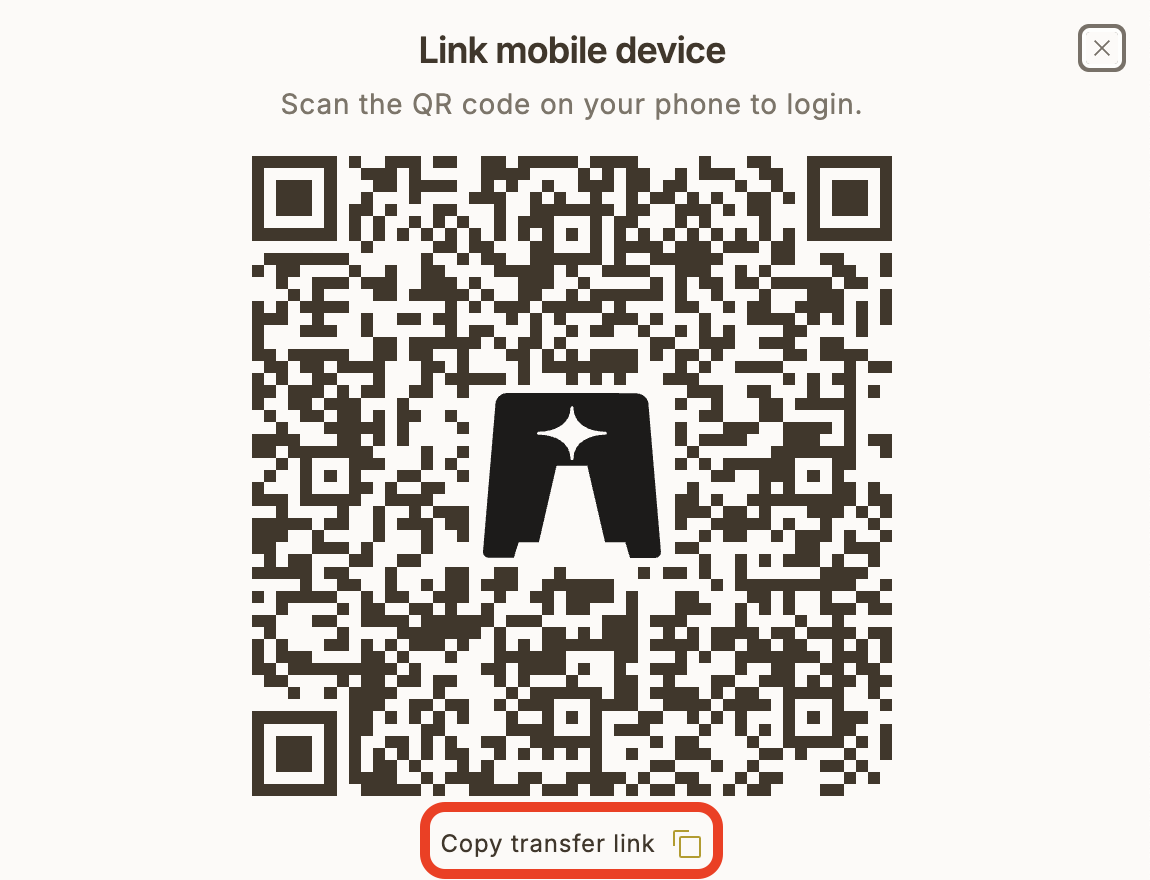
Authenticate
Use the authenticate command with a Lighthouse transfer token URL to log in.
List Portfolios
Use the listLighthousePortfolios command to see all your portfolios and their total values.
Get Portfolio Overview
Use the getLighthousePortfolio command to view your current portfolio status with detailed breakdowns.
Get Yield Data
Use the getLighthouseYieldData command to see yield information for your portfolio.
Get Performance Data
Use the getLighthousePerformanceData command to analyze your portfolio's performance over time.
Claude Desktop / Cursor
Paste into your MCP client config file to install this server.
{
    "mcpServers": {
        "lighthouse portfolio tracker": {
            "cwd": "path/to/this/folder/mcp-lighthouse/dist",
            "env": {},
            "args": [
                "-y",
                "mcp-lighthouse"
            ],
            "shell": false,
            "command": "npx"
        }
    }
}Linux
{
"cwd": "path/to/this/folder/mcp-lighthouse/dist",
"env": [],
"args": [
"-y",
"mcp-lighthouse"
],
"shell": false,
"command": "npx"
}Macos
{
"cwd": "path/to/this/folder/mcp-lighthouse/dist",
"env": [],
"args": [
"-y",
"mcp-lighthouse"
],
"shell": false,
"command": "npx"
}Windows
{
"cwd": "path\\to\\this\\folder\\mcp-lighthouse\\dist",
"env": [],
"args": [
"/c",
"npx",
"-y",
"mcp-lighthouse"
],
"shell": false,
"command": "cmd"
}Lighthouse MCP
A Model Context Protocol (MCP) server that enables Claude to interact with your Lighthouse.one portfolio data. This integration allows you to query and analyze your crypto portfolio directly through Claude.
Features
- Authentication: Securely authenticate with Lighthouse using transfer token URLs
- Portfolio Overview: Get detailed breakdowns of your portfolio including:
- Total portfolio value
- Asset type distribution
- Major holdings (≥ $1,000)
- List of connected wallets/accounts
- Asset Details: View detailed information about specific assets in your portfolio
- Transaction History: Access your transaction history across wallets
- Performance Analysis: Get insights on portfolio performance over time
You can ask Claude any form of natural language questions about performance, assets distribution etc and it will try its best to invoke the right tools and generate an asnwer for you.
Usage with Claude Desktop
> NOTE: You must have at least Node LTS installed to use this MCP server. Try N-Install to quickly install Node on your system.
Add this to your claude_desktop_config.json:
{
  "mcpServers": {
    "lighthouse": {
      "command": "npx",
      "args": ["-y", "mcp-lighthouse"]
    }
  }
}
Then restart the Claude app. If you don't get any errors on startup, then the MCP server is working.
Authentication Walkthrough
You'll be asked for the authentication URL. To get it, follow these steps:
1. Go to the Settings page on Lighthouse.one
2. Click on "Link Mobile Device" option
3. Click on "Copy transfer link"
Sign in to leave a review
Use Google, GitHub, or an email account so ratings stay tied to real people.
No reviews posted yet.





