
OpenPyXL Excel
About
Enables Excel file interaction with capabilities for retrieving cell values, searching ranges, examining formatting and formulas, and listing worksheet information for data analysis workflows.
Details
- Author
- jonemo
- Repository
- jonemo/openpyxl-mcp-server
- GitHub stars
- 17
- Downloads
- 285
- License
- MIT License
- Categories
- File Management, Other, Productivity, Developer Tools, Design, AI, Search, Knowledge Base, Infrastructure, Frontend
Jump to
- Exposes OpenPyXl features via the Model Context Protocol
- Runs as a local executable (no cloud dependency)
- Works with any MCP‑compatible client (

Setting up with Highlight
This MCP is not yet compatible with Highlight’s one-click setup. However, you can still use it with Highlight by following these steps:
- Download and install Highlight from highlightai.com/download
- Navigate to the plugins tab and select "Add Custom Plugin"
-
Configure the plugin with the settings below
Plugin Name
OpenPyXL ExcelCommand (node, npx, python, etc.)/Users/<YOUR-USERNAME>/Downloads/openpyxl_mcp_serverPlease refer to the README for specific instructions on how to obtain API keys or other required environment variables.
- Enable "Start Automatically" if you want the plugin to start when Highlight launches





From the repository
_Note that this only works with the Claude Desktop app, not with Claude running in the web browser._
1. Have Claude Desktop installed.
2. Have the MCP server executable downloaded (see previous section).
This assumes that you have downloaded the executable to your Downloads folder.
You can use any other folder, adjust the paths in the configuration below accordingly.
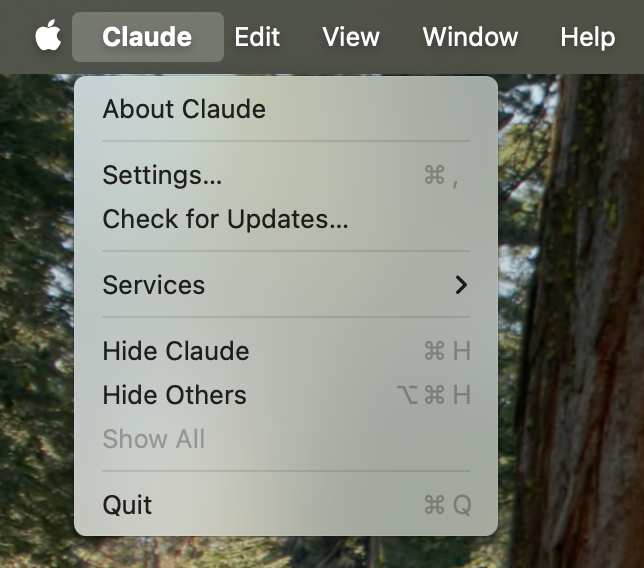
3. In Claude Desktop, open the "Settings..." menu:
4. Navigate to the "Developer" section of the settings.
5. Click "Edit Config". This will create a config file for MCP servers if you didn't have one already.
The default location of this file is:
- macOS: ~/Library/Application Support/Claude/claude_desktop_config.json
- Windows: %APPDATA%\Claude\claude_desktop_config.json
6. On MacOS, add the following to your claude_desktop_config.json.
Replace <YOUR-USERNAME> with your MacOS username.
If you already use other MCP servers, you'll have to merge the JSON into the existing contents.
{
"mcpServers": {
"inspect_excel_xlsx_file": {
"command": "/Users/<YOUR-USERNAME>/Downloads/openpyxl_mcp_server",
"args": []
}
}
}
7. On Windows, add the following to your
claude_desktop_config.json.Replace
<YOUR-USERNAME> with your MacOS username.If you already use other MCP servers, you'll have to merge the JSON into the existing contents.
{
"mcpServers": {
"inspect_excel_xlsx_file": {
"command": "C:\\Users\\<YOUR-USERNAME>\\Downloads\\openpyxl_mcp_server.exe",
"args": []
}
}
}
8. After updating your configuration file, you need to restart the Claude app for the changes to take effect. It is not enough to close the Claude app window. On Windows you must right click the Claude icon in your system tray and select "Quit". On macOS you can use Command+Q.
If you encounter problems, please consult these resources:
- Anthropic's documentation for users.
- The "Testing your server with Claude for Desktop" section of Anthropic's documentation for developers
- Someone also made a config file generator at https://claudedesktopconfiggenerator.com/
Instructions for configuring MCP servers in other tools that support them:
Claude Desktop / Cursor
Paste into your MCP client config file to install this server.
{
    "mcpServers": {
        "openpyxl excel": {
            "cwd": null,
            "env": {},
            "args": [],
            "shell": false,
            "command": "/Users/<YOUR-USERNAME>/Downloads/openpyxl_mcp_server"
        }
    }
}Linux
{
"cwd": null,
"env": [],
"args": [],
"shell": false,
"command": null
}Macos
{
"cwd": null,
"env": [],
"args": [],
"shell": false,
"command": "/Users/<YOUR-USERNAME>/Downloads/openpyxl_mcp_server"
}Windows
{
"cwd": null,
"env": [],
"args": [],
"shell": false,
"command": "C:\\Users\\<YOUR-USERNAME>\\Downloads\\openpyxl_mcp_server.exe"
}An MCP server that wraps the OpenPyXL library, enabling clients to retrieve data from Excel files.
A thin wrapper around the OpenPyXl Python library that exposes some of its features as Model Context Protocol (MCP) server. This allows Claude and other MCP clients to fetch data from Excel files.
- https://openpyxl.readthedocs.io/en/stable/index.html
- https://modelcontextprotocol.io/quickstart/server
- Download the latest version of the executable fromhttps://github.com/jonemo/openpyxl-mcp-server/releases.openpyxl_mcp_serveris for MacOS,openpyxl_mcp_server.exeis for Windows.
- For MacOS users, make sure to set executable permissions on the downloaded file:chmod a+x /path/to/openpyxl_mcp_server(replace/path/to/with your actual download location).
- Configure your MCP Client. Most commonly this will be Claude Desktop, see instructions in next section.
Windows will try to talk you out of running a random executable downloaded from the internet. You will have to click "Keep" or "Keep anyway" in various places to convince it to not delete the file. The details of this depend on which browser you use and what your Windows Defender settings are.
Alternatively, if you don't trust my executables, you can also install the source version of the code directly from this repo. See the "From Source" section below.
Note that this only works with theClaude Desktop app, not with Claude running in the web browser.
- Have Claude Desktop installed.
- Have the MCP server executable downloaded (see previous section). This assumes that you have downloaded the executable to your Downloads folder. You can use any other folder, adjust the paths in the configuration below accordingly.
- In Claude Desktop, open the "Settings..." menu:
- Navigate to the "Developer" section of the settings.
- Click "Edit Config". This will create a config file for MCP servers if you didn't have one already. The default location of this file is:
- macOS:~/Library/Application Support/Claude/claude_desktop_config.json
- Windows:%APPDATA%\Claude\claude_desktop_config.json
   {

     "mcpServers": {

       "inspect_excel_xlsx_file": {

         "command": "/Users/<YOUR-USERNAME>/Downloads/openpyxl_mcp_server",

         "args": []

       }

     }

   }
   {

     "mcpServers": {

       "inspect_excel_xlsx_file": {

         "command": "C:\\Users\\<YOUR-USERNAME>\\Downloads\\openpyxl_mcp_server.exe",

         "args": []

       }

     }

   }
If you encounter problems, please consult these resources:
- Anthropic's documentation for users.
- The "Testing your server with Claude for Desktop" section ofAnthropic's documentation for developers
- Someone also made a config file generator athttps://claudedesktopconfiggenerator.com/
Instructions for configuring MCP servers in other tools that support them:
- Cursor
- Windsurf
- Zed
- RooCode
- Cline
- LibreChat
This section only applies if you wish to modify the source code or if you do not trust the provided executables and prefer to run from source code.
git clone git@github.com:jonemo/openpyxl-mcp-server.git cd openpyxl-mcp-server python -m venv venv source venv/bin/activate pip install -r requirements.txt
Assuming you've cloned your repo to/Users/jonas/repos/openpyxl_mcp_server, the configuration file contents should now change to:
{ "mcpServers": { "inspect_excel_xlsx_file": { "command": "/Users/jonas/repos/openpyxl_mcp_server/venv/bin/python", "args": ["/Users/jonas/repos/openpyxl_mcp_server/openpyxl_mcp_server.py"] } } }
Uses the fileKimbroughEvelyn_A-5qg0_Dataset_20160624.xlsxfrom the "Near-Port Air Quality Assessment Utilizing a Mobile Monitoring Approach" dataset fromhttps://catalog.data.gov/dataset/near-port-air-quality-assessment-utilizing-a-mobile-monitoring-approach
From a quick glance at description and file contents it wasn't obvious to me what ports this dataset is about. Let's ask Claude:
I have an Excel file in ~/Downloads/KimbroughEvelyn_A-5qg0_Dataset_20160624.xlsx that contains data associated with some study about air pollution near one or more ports in the United States. Can you infer from the file contents which ports are covered by this study?
https://claude.ai/share/d87f67a9-dbc0-4223-86ff-3b4c1f9fa2e7
After 11 calls to the MCP server, the response is:
Looking at the latitude and longitude coordinates from the Fig 2 sheet and combining this with the location information, I can infer that this study is focused on the Port of Charleston, South Carolina.
The coordinates in the dataset (approximately latitude 32.83 and longitude -79.87) correspond to the Charleston area, and the references to downtown, rail yard, and airport monitoring stations are consistent with air quality monitoring around a port city.
This dataset appears to contain air pollution measurements (PM2.5 and PM10) collected near the Port of Charleston, with comparisons between port locations and background/reference sites.
I'm the treasurer of a small 10-unit home owners association. Our book keeping happens in an Excel file in Google Sheets. The file has 9 sheets with nine sheets for things like the transactions list, members' dues accounts, quarterly reports.
The file contains non-public information, therefore this example only shows the prompt, a few key "insights", and the final answer:
~/Downloads/CASH FLOW 2024.xlsx are the finances of my home owner association. How much did we get billed for sprinkler system maintenance in 2024? How many transactions contributed to this total? When did each transaction happen?
I see a "Transactions" sheet that likely contains the detailed expense records. Let me search for "sprinkler" in this sheet to find relevant transactions:
Let me examine the YEAR 2024 summary sheet to see if sprinkler maintenance is listed as a category:
Great! I found "Sprinkler Maintenance" listed as a category in row 24 of the YEAR 2024 sheet. Now, let me check the actual transactions related to sprinkler maintenance:
Let me check more entries by searching specifically for "Sprinkler Maintenance" in the entire Transactions sheet:
Based on my analysis of your HOA's financial records in the "CASH FLOW 2024.xlsx" file, here's what I found about the sprinkler system maintenance expenses in 2024:
Total amount billed for sprinkler system maintenance in 2024: $565.00 Number of transactions: 1 transaction Transaction date: September 9, 2024
The expense appears as a single transaction in the Transactions sheet. The spreadsheet also contains a budgeted amount for sprinkler maintenance of $750.00 for the year > in the "YEAR 2024 Actuals vs Planned" sheet, with a note stating "Not received any invoices yet" (which may be outdated since there is now one invoice recorded). Would you like me to analyze any other aspects of your HOA's sprinkler maintenance expenses or other financial information from the spreadsheet?
True story. Our sprinkler guy only billed us for the one visit in the spring and forgot to send the bill for the work later in the year. Don't worry, he got paid but it's booked in 2025.
My Google searches for interesting Excel workbooks turned up form DPR 973 by the California Natural Resources Agency:https://www.parks.ca.gov/pages/22374/files/Annual%20Report%20DPR973.xlsThis appears to be a form that gets filled out by "associations" that support the California State Parks. To be clear, I am not affiliated with such an association. But I converted the form from .xls format to .xlsx and asked Claude to help me fill it out:
I need to file DPR973 because I work for a "cooperating association" for California State Parks. The form I have to fill out is this Excel sheet: /Users/jonas/Downloads/Annual Report DPR973.xlsx. We supported the State Parks by publishing books and generated revenue by selling firewood. Where in the workbook do I have to fill out cells?
After 11 calls to the tool the response seems correct, although I don't understand why Claude did not look at the remaining sheets at all:
Based on my examination of the DPR973 form, I'll now provide guidance on where you need to fill out cells for your cooperating association that publishes books and sells firewood:
- You'll need to fill out the Association Information (Part I) with your organization's details (name, address, contact information)
- Update the year in cell C4 to the current reporting year
Page 2 (A)- This is where you'll record your sales information:
-
For your book sales (which would be considered interpretive/educational):
- Line 1 (Cell F22): Gross Sales - Materials (for your published books)
- Line 2 (Cell F23): Any returns or refunds
- Line 3 (Cell F24): Cost of Goods Sold for the books
- Line 23 (Cell F51): Gross Sales - Firewood
- Line 24 (Cell F52): Any refunds/returned/damaged firewood
- Line 25 (Cell F53): Cost of Goods Sold for firewood
The form will automatically calculate totals in cells F25 (book profits), F54 (firewood profits), and F58 (total net profits)
-
Your sales figures will automatically populate from Page 2(A) into:
- Line 6 (Cell F11): Total gross sales
- Line 7 (Cell F12): Total cost of goods/services + returns/refunds
- Line 8 (Cell H13): Net profits for all materials and services
- Any donations/contributions (Line 1, Cell F6)
- Membership dues if applicable (Line 4, Cell H9)
- Interest/investment income if any (Line 5, Cell H10)
- Fundraising information if applicable (Lines 9-11)
- Other income if applicable (Line 12, Cell H17)
- Line 15 (Cell F21): Any direct grants to California State Parks
- Line 16 (Cell F22): Interpretive program support expenses
- Line 17 (Cell F23): Other CSP program support
- Line 19 (Cell H25): Management and general expenses
- Line 22 (Cell F30): Total assets
- Line 23 (Cell H31): Total liabilities
- Lines 24-26 (Cells F32-F34): Net assets by restriction type
Page 4(not fully examined but likely contains):
- Additional notes, explanations, and signatures
For your specific activities (book publishing and firewood sales), focus on accurately completing:
- The Interpretive and Educational Sales section on Page 2(A) for your book sales
- The Firewood Sales section on Page 2(A) for your firewood revenue
- The complete financial summary on Page 3
Would you like me to explain any specific section in more detail?
This uses the file2025-3-7-iolp-buildings.xlsxfrom the Inventory of Owned and Leased Properties (IOLP) dataset available athttps://catalog.data.gov/dataset/inventory-of-owned-and-leased-properties-iolpIf you've followed the news in recent weeks you will know why this is currently the most popular dataset on data.gov.
Using the Excel file in "/Users/jonas/Downloads/2025-3-7-iolp-buildings.xlsx": What is the largest federal building by square footage in the state of Utah?
I used this file and prompt repeatedly as test case and got mixed results:
- Chats that terminated without a response because they had reached the context limit. This happened when Claude got into a loop of querying many rows one at a time.
- Incorrect answers because Claude made "bad assumptions" along the way. For example inthis chatit decides that the largest building must be in Salt Lake City and starts to search the spreadsheet for arbitrary terms.
- Correct answers, for examplethis chat: The IRS Service Center in Ogden is the largest federally-owned building in Utah on the list.
Footnote: The IRS Service Center is correct insofar that it is the largest building on the list. The "Bumblehive" aka "Utah Data Center" aka "Intelligence Community Comprehensive National Cybersecurity Initiative Data Center" is almost certainly larger but is not included in the file.
To create standalone executables that don't require Python installation:
-
Make sure you have all dependencies installed:
pip install -r requirements.txt pip install -r requirements-dev.txt
The executable will be created in thedistdirectory. On Windows, it will be namedopenpyxl_mcp_server.exe. On macOS, it will be namedopenpyxl_mcp_server.
Note: When building on macOS, you might need to sign the executable for it to run properly. You can do this with:
codesign --force --deep --sign - dist/openpyxl_mcp_server
openpyxl-mcp-server is currently listed in these MCP server directories:
- https://mcp.so/server/openpyxl-mcp-server/jonemo
- https://mcpserver.cloud/server/openpyxl-mcp-server
- https://www.mcpserverfinder.com/servers/jonemo/openpyxl-mcp-server
Read and analyze Excel (.xlsx) and CSV (.csv) files with scalable, chunked, and column-specific data access, ideal for large datasets.
An MCP server for manipulating and managing Excel files.
An MCP server for accurately reading, analyzing, and editing Excel (.xlsx) workbooks while preserving existing structure, styles, formulas, and data integrity. Supports cell operations, sheet and row/column management, formatting, data aggregation, formula recalculation, and safe concurrent file access.
A server for processing PDF files, allowing text and table extraction, metadata retrieval, and file listing within a specific directory.
Read, analyze, and manipulate data in Excel (XLSX, XLS) and CSV files with advanced filtering and analytics.
A high-performance MCP server for comprehensive JSON file operations, including reading, writing, and advanced querying, optimized for LLM interactions.
Read large Excel files with automatic chunking and pagination support.
Access and manage local music collections with advanced metadata, classification, and analytics.
A minimal MCP server providing read-only access to the file system.
Sign in to leave a review
Use Google, GitHub, or an email account so ratings stay tied to real people.
No reviews posted yet.





