
Isaacsim Mcp Server
About
Connect any MCP-compatible IDE (Cursor, VS Code, Claude Code, Windsurf, JetBrains) to a running Isaac Sim instance and control it with plain-English prompts -- create robots, build scenes, run simulations, and debug physics all from your editor.
Details
- Author
- whats2000
- GitHub stars
- 40
- Downloads
- 306
- Categories
- Developer Tools, Other, AI
Jump to
- 42 tools across 9 categories: scene, objects, lighting, robots, sensors, materials, assets, graphs, simulation.
- Over 107 robots auto‑discovered from the Isaac Sim asset library.
- Step‑and‑observe debugging: step simulation and inspect prim positions, joint states, physics in one call.
- Hot‑reload Python controllers without restarting Isaac Sim.
- Multi‑instance support: run multiple Isaac Sim sessions on different ports.
Install the package via pip install isaacsim-mcp-server, then launch Isaac Sim with the provided extension using ./scripts/run_isaac_sim.sh. Add the MCP server to your IDE’s configuration (e.g., VS Code, Cursor, Claude Code) pointing to scripts/run_mcp_server.sh. After setup, issue natural language prompts such as “Create a physics scene and add a Franka robot at the origin.”
Isaac Sim MCP Server
<!-- mcp-name: io.github.whats2000/isaacsim-mcp-server -->




> Natural language control for NVIDIA Isaac Sim through the Model Context Protocol (MCP).
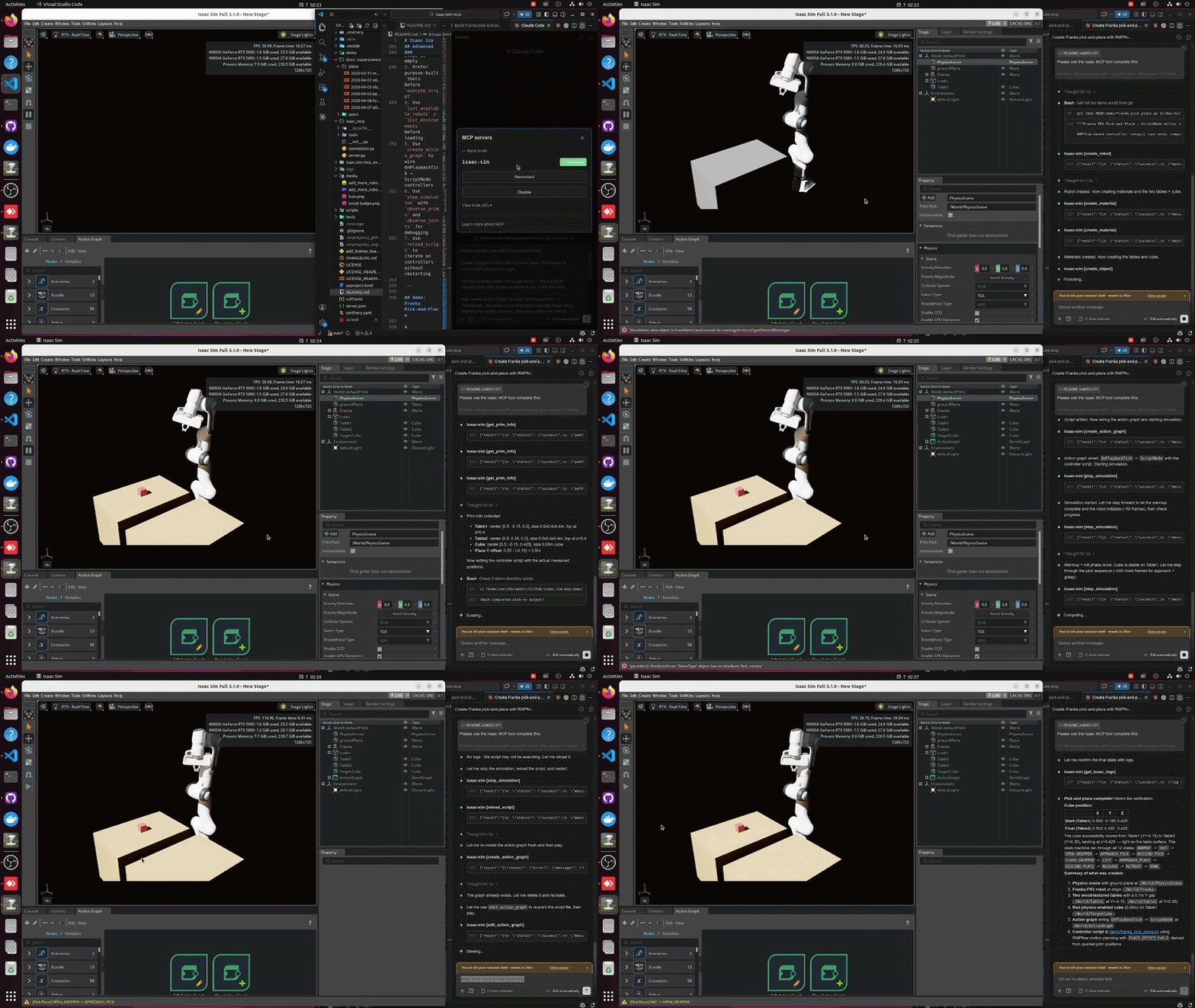
Connect any MCP-compatible IDE (Cursor, VS Code, Claude Code, Windsurf, JetBrains) to a running Isaac Sim instance and control it with plain-English prompts -- create robots, build scenes, run simulations, and debug physics all from your editor.
---
Highlights
- 42 tools across 9 categories -- scene, objects, lighting, robots, sensors, materials, assets, simulation, graphs
- 107+ robots auto-discovered from the Isaac Sim asset library (Franka, UR, Unitree, Boston Dynamics, and more)
- Step-and-observe debugging -- step the simulation and inspect prim positions, joint states, and physics in one call
- Hot-reload -- iterate on Python controllers without restarting Isaac Sim
- Multi-instance -- run multiple Isaac Sim sessions side by side on different ports
- Built for Isaac Sim 5.1.0 with a modular adapter layer for version isolation
---
Installation
Option A: pip install (recommended)
pip install isaacsim-mcp-server
This installs the MCP server and the isaacsim-mcp-server CLI. You still need the Isaac Sim extension from the repo (see Launching Isaac Sim below).
Option B: From source
git clone https://github.com/whats2000/isaacsim-mcp-server
cd isaacsim-mcp-server
./scripts/setup_python_env.sh
Requirements
| Requirement | Version |
|-------------|---------|
| NVIDIA Isaac Sim | 5.1.0 |
| Python | 3.10+ |
| uv | latest (for source install) |
| Platform | Linux (Ubuntu 22.04+) |
> [!IMPORTANT]
> Currently only Linux is supported. Windows support is planned.
> macOS is not supported because NVIDIA Isaac Sim does not run on macOS.
> [!NOTE]
> We are welcoming contributions to support other Isaac Sim versions.
> The adapter layer is designed for easy version isolation.
---
Quick Start
1. Set up the environment
If you installed from source:
./scripts/setup_python_env.sh
2. Launch Isaac Sim with the extension
./scripts/run_isaac_sim.sh
You should see in the logs:
Registered 41 command handlers
Isaac Sim MCP server started on localhost:8766
<details>
<summary>Optional: Beaver3D / NVIDIA API keys for 3D generation</summary>
export BEAVER3D_MODEL="<your beaver3d model name>"
export ARK_API_KEY="<your beaver3d api key>"
export NVIDIA_API_KEY="<your nvidia api key>"
</details>
3. Connect your IDE
Add the MCP server to your editor. Replace the path with your actual repo location.
<details>
<summary><strong>Claude Code (CLI)</strong></summary>
claude mcp add isaac-sim /path/to/isaacsim-mcp-server/scripts/run_mcp_server.sh
Or edit ~/.claude.json / .mcp.json:
{
  "mcpServers": {
    "isaac-sim": {
      "command": "/path/to/isaacsim-mcp-server/scripts/run_mcp_server.sh"
    }
  }
}
</details>
<details>
<summary><strong>VS Code</strong></summary>
Create .vscode/mcp.json in your workspace:
{
  "servers": {
    "isaac-sim": {
      "command": "/path/to/isaacsim-mcp-server/scripts/run_mcp_server.sh"
    }
  }
}
</details>
<details>
<summary><strong>Cursor</strong></summary>
Open Cursor Settings > MCP, or edit ~/.cursor/mcp.json:
{
  "mcpServers": {
    "isaac-sim": {
      "command": "/path/to/isaacsim-mcp-server/scripts/run_mcp_server.sh"
    }
  }
}
</details>
<details>
<summary><strong>Claude Desktop</strong></summary>
Edit the config file for your platform:
- macOS: ~/Library/Application Support/Claude/claude_desktop_config.json
- Windows: %APPDATA%\Claude\claude_desktop_config.json
- Linux: ~/.config/Claude/claude_desktop_config.json
{
  "mcpServers": {
    "isaac-sim": {
      "command": "/path/to/isaacsim-mcp-server/scripts/run_mcp_server.sh"
    }
  }
}
</details>
<details>
<summary><strong>Windsurf</strong></summary>
Open Windsurf Settings > MCP or edit ~/.codeium/windsurf/mcp_config.json:
{
  "mcpServers": {
    "isaac-sim": {
      "command": "/path/to/isaacsim-mcp-server/scripts/run_mcp_server.sh"
    }
  }
}
</details>
<details>
<summary><strong>JetBrains IDEs</strong></summary>
Go to Settings > Tools > AI Assistant > MCP Servers and add the server. See the JetBrains MCP docs for details.
</details>
4. Start prompting
Check the connection with get_scene_info.
If the scene is empty, create a physics scene.
Add a Franka robot at the origin and a Go1 quadruped at [2, 0, 0].
---
Architecture
MCP Client (IDE)
      |
      v
isaacsim-mcp-server          (PyPI package / CLI)
      |
      v  TCP socket (localhost:8766)
      |
isaac.sim.mcp_extension      (Omniverse extension)
      |
      v
Handlers -> Adapter -> Isaac Sim 5.1.0 APIs
---
Tools
42 tools across 9 categories:
| Category | Count | What you can do |
|----------|------:|-----------------|
| Scene | 7 | Inspect scenes, create physics, list/load environments, browse prims |
| Objects | 4 | Create, delete, transform, and clone primitives |
| Lighting | 2 | Create and tune lights |
| Robots | 6 | Spawn 107+ robots, inspect joints, set positions, refresh library |
| Sensors | 4 | Create cameras/LiDAR, capture images, get point clouds |
| Materials | 2 | Create and apply materials |
| Assets | 4 | Import URDF, load/search USD, generate 3D models |
| Graphs | 2 | Build and edit Action Graphs (OnPlaybackTick, ScriptNode, script file attachment) |
| Simulation | 11 | Play/pause/stop/step, execute Python, inspect physics, hot-reload |
<details>
<summary>Full tool list</summary>
Scene: get_scene_info create_physics_scene clear_scene list_prims get_prim_info list_environments load_environment
Objects: create_object delete_object transform_object clone_object
Lighting: create_light modify_light
Robots: create_robot list_available_robots refresh_robot_library get_robot_info set_joint_positions get_joint_positions
Sensors: create_camera capture_image create_lidar get_lidar_point_cloud
Materials: create_material apply_material
Assets: import_urdf load_usd search_usd generate_3d
Graphs: create_action_graph edit_action_graph
Simulation: play_simulation pause_simulation stop_simulation step_simulation set_physics_params get_isaac_logs get_simulation_state get_physics_state get_joint_config execute_script reload_script
</details>
---
Example Prompts
Scene bootstrap
Check the connection with get_scene_info. If the scene is empty, create a physics scene.

Add stronger lighting and place a camera that looks at the workspace.
Robot layout
Create three Franka robots in a row at [0,0,0], [2,0,0], and [4,0,0].

Then add a Go1 robot at [1, 3, 0].
…
Sign in to leave a review
Use Google, GitHub, or an email account so ratings stay tied to real people.
No reviews posted yet.





