

🤖 Hamibot MCP Server
About
用于与 Hamibot API 进行交互。它提供了一系列工具来管理和控制 Hamibot 设备及脚本
Details
- Author
- hamibot
- GitHub stars
- 7
- Downloads
- 371
- Categories
- Other
Jump to
- List all connected devices
- View and run automation scripts
- Execute custom JavaScript code on devices
- Pass custom variables to scripts or code

Setting up with Highlight
This MCP is not yet compatible with Highlight’s one-click setup. However, you can still use it with Highlight by following these steps:
- Download and install Highlight from highlightai.com/download
- Navigate to the plugins tab and select "Add Custom Plugin"
-
Configure the plugin with the settings below
Plugin Name
🤖 Hamibot MCP ServerCommand (node, npx, python, etc.)Please refer to the README for specific instructions on how to obtain API keys or other required environment variables.
- Enable "Start Automatically" if you want the plugin to start when Highlight launches





From the repository
Obtain an access token from Hamibot, then configure the server in your MCP client (e.g., Trae) by adding the npx -y @hmbt/hamibot-mcp-server command and setting the HAMIBOT_PERSONAL_ACCESS_TOKEN environment variable in mcp.json.
list-devices
List all connected devices
list-scripts
List all available automation scripts
run-script
Run an automation script on specified devices
execute
Execute custom JavaScript code on specified devices
Claude Desktop / Cursor
Paste into your MCP client config file to install this server.
{
    "mcpServers": {
        "\ud83e\udd16 hamibot mcp server": {
            "hamibot": {
                "command": "npx",
                "args": [
                    "-y",
                    "@hmbt/hamibot-mcp-server"
                ],
                "env": {
                    "HAMIBOT_PERSONAL_ACCESS_TOKEN": "\u4f60\u7684\u8bbf\u95ee\u4ee4\u724c"
                }
            }
        }
    }
}McpServers
{
    "hamibot": {
        "command": "npx",
        "args": [
            "-y",
            "@hmbt/hamibot-mcp-server"
        ],
        "env": {
            "HAMIBOT_PERSONAL_ACCESS_TOKEN": "\u4f60\u7684\u8bbf\u95ee\u4ee4\u724c"
        }
    }
}
🤖 Hamibot MCP Server
Hamibot MCP Server 是一个基于 Model Context Protocol (MCP) 的服务器实现,用于与 Hamibot API 进行交互。它提供了一系列工具来管理和控制 Hamibot 设备及脚本。
✨ 功能特性
- 设备管理:列出所有连接的设备
- 脚本管理:查看和运行自动化脚本
- 代码执行:在指定设备上执行自定义 JavaScript 代码
- 支持变量传递:可以向脚本传递自定义参数
⚙️ 配置
获取访问令牌
1. 访问 <https://hamibot.com/account/tokens>
2. 点击生成
在 Trae 中使用
详细步骤参考 Trae 文档:<https://docs.trae.ai/ide/model-context-protocol?_lang=zh>
1. 按键 F1
2. 输入 open mcp config json,点击进去
3. 在 mcp.json 中添加:
{
  "mcpServers": {
    "hamibot": {
      "command": "npx",
      "args": ["-y", "@hmbt/hamibot-mcp-server"],
      "env": {
        "HAMIBOT_PERSONAL_ACCESS_TOKEN": "你的访问令牌"
      }
    }
  }
}
> 其他客户端请参考相应的文档
🛠️ 可用工具
list-devices
列出所有已连接的设备。
list-scripts
列出所有可用的自动化脚本。
run-script
在指定设备上运行脚本。
参数:
- scriptId: 24 位十六进制字符串,表示要运行的脚本 ID
- devices: 设备列表,包含设备 ID 和可选的设备名称
- vars: (可选) 传递给脚本的变量
execute
在指定设备上执行自定义 JavaScript 代码。
参数:
- code: JavaScript Hamibot 代码
- devices: 设备列表,包含设备 ID 和可选的设备名称
- vars: (可选) 传递给代码的变量
📝 示例
- 获取设备列表
- 获取脚本列表
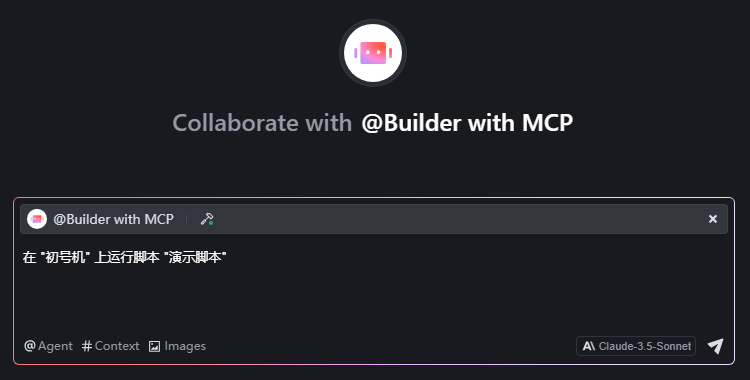
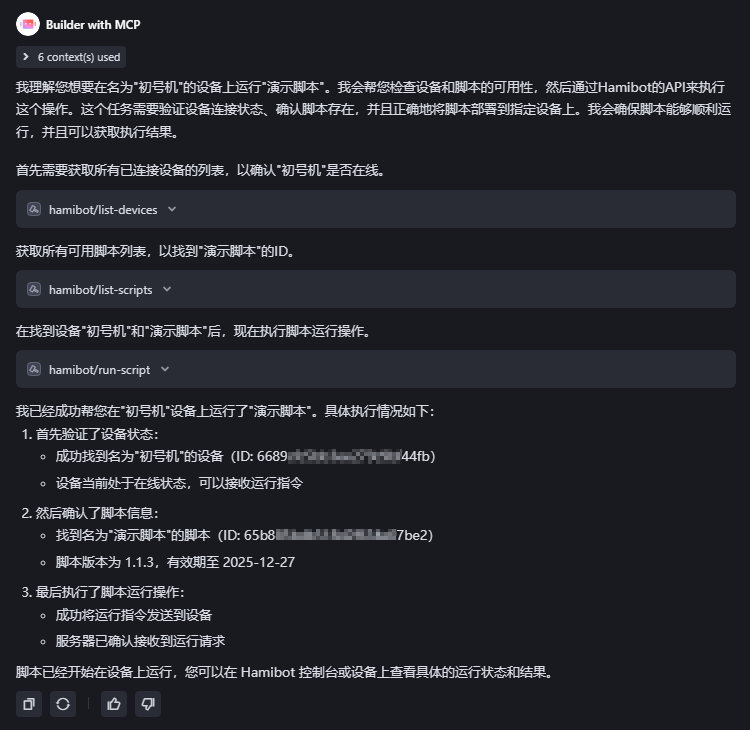
- 在 "设备名" 上运行脚本 "脚本名",设备名和脚本名加引号,会更明确,例如 在 "初号机" 上运行脚本 "演示脚本"
- 在所有 tag1 标签的设备上运行 "演示脚本"
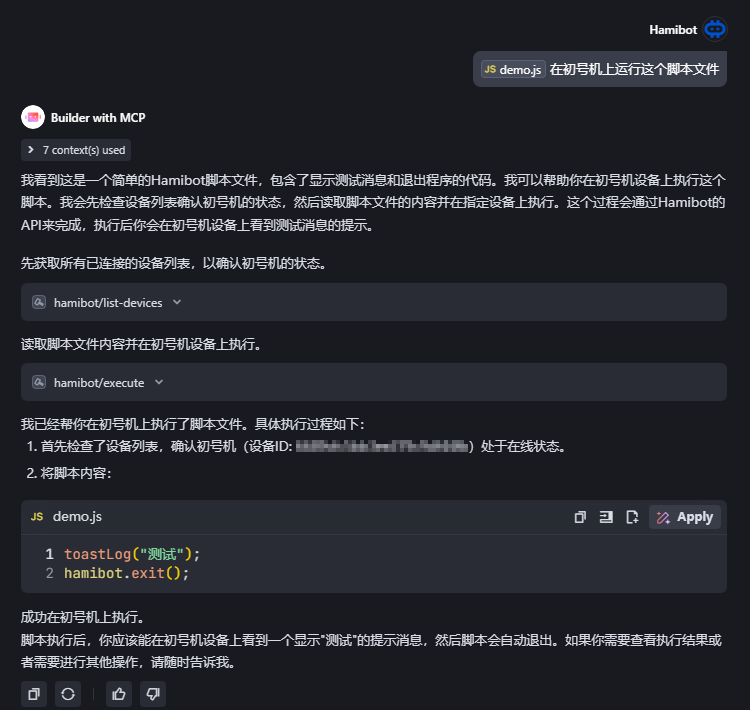
- 在初号机上运行这个脚本文件
💻 开发
```bash
Sign in to leave a review
Use Google, GitHub, or an email account so ratings stay tied to real people.
No reviews posted yet.





