
Dev Tools For Android (dta) Mcp
About
Expose Android's app runtime data to coding agents for efficient navigation, debugging, network monitoring, network mocking/interceptions and a bit more.
Details
- Author
- yamsergey
- Downloads
- 279
- Categories
- Developer Tools, Other
Jump to
- Real UI hierarchy with view classes, bounds, and Compose data.
- Automatic network recording from app launch (HTTP, WebSocket, WebView).
- Create and apply HTTP and WebSocket mock rules.
- Build and launch APK with sidekick injected in one MCP call.
- Tap, swipe, input text, and press keys for verification.

Setting up with Highlight
This MCP is not yet compatible with Highlight’s one-click setup. However, you can still use it with Highlight by following these steps:
- Download and install Highlight from highlightai.com/download
- Navigate to the plugins tab and select "Add Custom Plugin"
-
Configure the plugin with the settings below
Plugin Name
Dev Tools For Android (dta) McpCommand (node, npx, python, etc.)Please refer to the README for specific instructions on how to obtain API keys or other required environment variables.
- Enable "Start Automatically" if you want the plugin to start when Highlight launches





From the repository
Install via the Android Studio Plugin (Settings → Plugins → Marketplace → search "DTA") or the CLI (brew tap yamsergey/packages && brew install dta-cli). The plugin auto-injects the sidekick into debug builds and provides a 4‑tab inspector. For the CLI, use dta-cli run --project <path> to build and launch your app with sidekick. Connect your AI assistant by adding the MCP configuration (e.g., claude mcp add dta -- dta-cli mcp for Claude Code, or add to claude_desktop_config.json for Claude Desktop).
Claude Desktop / Cursor
Paste into your MCP client config file to install this server.
{
    "mcpServers": {
        "dev tools for android (dta) mcp": {
            "dta-cli": {
                "command": "dta-cli",
                "args": [
                    "mcp"
                ]
            },
            "dta-android-studio-http": {
                "type": "http",
                "url": "http://localhost:12321/mcp"
            }
        }
    }
}McpServers
{
    "dta-cli": {
        "command": "dta-cli",
        "args": [
            "mcp"
        ]
    },
    "dta-android-studio-http": {
        "type": "http",
        "url": "http://localhost:12321/mcp"
    }
}
Development Tools for Android (DTA)



A toolkit that gives AI assistants direct access to Android devices through the Model Context Protocol. Your coding agent can see the screen, read network traffic, inspect layout trees, mock responses, and interact with the app — from Android Studio, the terminal, or any MCP client.
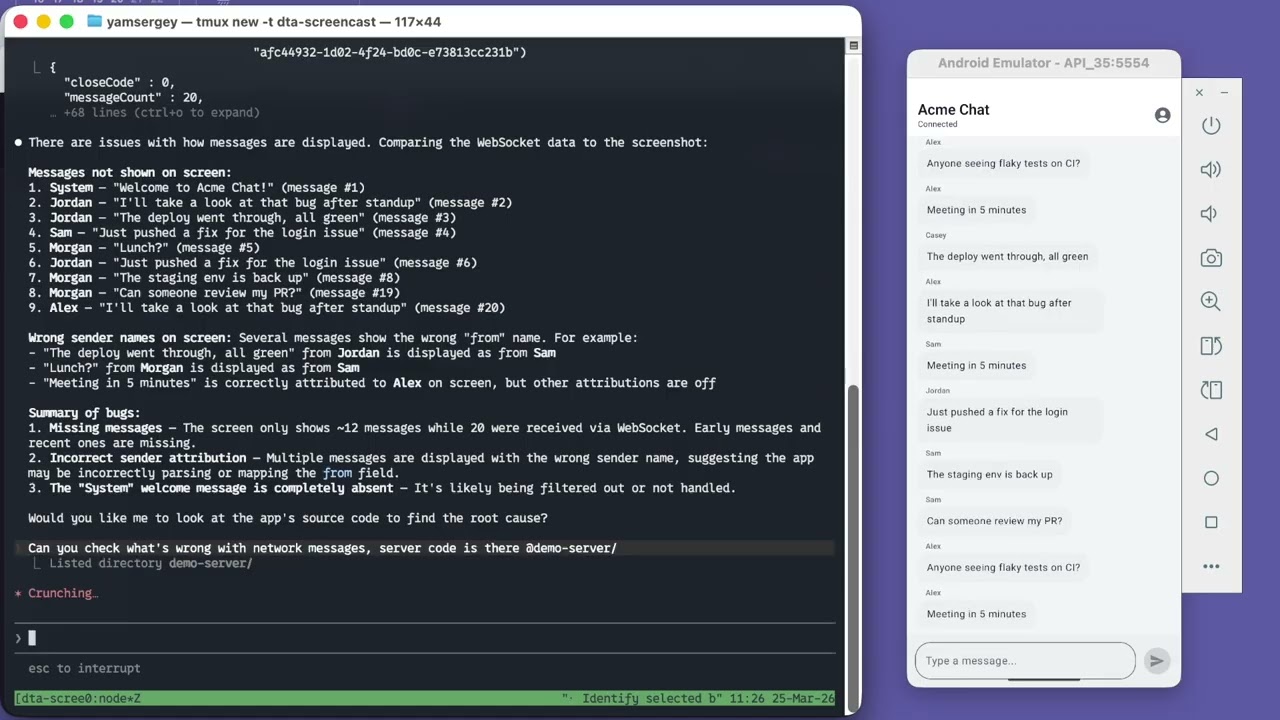
Article: Debugging Android Apps with AI
Quick Start
Option A: Android Studio Plugin
<a href="https://plugins.jetbrains.com/plugin/31236-dta---development-tools-for-android">
</a>

Or: Settings → Plugins → Marketplace → search "DTA"
The plugin embeds the daemon, auto-injects sidekick into debug builds, and provides a 4-tab inspector (Layout, Network, WebSocket, MCP) — no CLI or manual setup needed.
Option B: CLI
brew tap yamsergey/packages
brew install dta-cli
Requirements: Java 21+
Auto-inject (recommended)
No project changes needed. Use the CLI or the MCP run_app tool to build and launch your app with sidekick injected automatically:
dta-cli run --project /path/to/your/android/project
This runs Gradle with an init script that adds dta-sidekick as a debugImplementation dependency, builds the APK, installs it on the device, and launches the main activity. Your AI assistant can do the same via the run_app MCP tool.
Manual (alternative)
If you prefer to add sidekick to your build files directly:
dependencies {
    debugImplementation 'io.github.yamsergey:dta-sidekick:0.9.36'
}
Sidekick auto-initializes via AndroidX Startup — no code changes beyond the dependency.
Connect your AI assistant
With the AS plugin: open the MCP tab, enable the server, pick your agent from the dropdown — it shows the exact config snippet to copy-paste. Works with Claude Code, Cursor, Android Studio Gemini, Claude Desktop, VS Code, and others.
Without the plugin (CLI only):
Claude Code
claude mcp add dta -- dta-cli mcp
Cursor

Claude Desktop
Add to~/Library/Application Support/Claude/claude_desktop_config.json
{
  "mcpServers": {
    "dta": {
      "command": "dta-cli",
      "args": ["mcp"]
    }
  }
}
What Can Your Agent Do?
Screen Analysis
DTA returns the real UI hierarchy — view classes, bounds, positions, layout parameters, Compose-specific data (composable names, recomposition counts), and DOM trees from WebViews and Chrome Custom Tabs. Unlike adb shell uiautomator dump which gives a semantic accessibility tree, your agent gets the full picture.
Network Analysis
Sidekick auto-records from app launch — HTTP requests (OkHttp), WebSocket connections, Chrome Custom Tab traffic, and WebView network requests. No "start recording" button, no missed requests. Your agent can query the full history at any point.
Mocking
Create mock rules for HTTP and WebSocket from captured data or from scratch. Plug in custom adapters for programmatic control:
Sidekick.configure(
    SidekickConfig.builder()
        .httpMockAdapter { transaction, proposedResponse ->
            proposedResponse.withBody("""{"message": "mocked"}""")
        }
        .build()
)
Build & Launch
The run_app tool builds an APK with sidekick auto-injected, installs it, and launches the main activity — all from a single MCP call. No manual Gradle setup. If the tool is blocked by your environment's sandbox, it returns the exact shell commands as a fallback.
Verification
The agent can tap, swipe, input text, and press keys — then check the screen state and network traffic to confirm behavior. A full inspect-mock-interact-verify loop without leaving the conversation.
Android Studio Plugin
The DTA Inspector tool window provides four tabs:
| Tab | Features |
|-----|----------|
| Layout | UI tree + device screenshot with hover highlighting, click-to-select, bidirectional selection sync |
| Network | HTTP request table with headers, bodies, timing; Custom Tab + WebView traffic |
| WebSocket | Connection list → message list → message detail |
| MCP | Enable HTTP server, pick port, per-agent config snippets with copy-to-clipboard |
The plugin auto-injects dta-sidekick into debug builds via a Gradle init script — no changes to your project files.
Inspector Web Interface
dta-cli inspector-web
Open http://localhost:8080 for visual inspection with the same capabilities — layout tree, network, WebSocket, mock rule editor.
The web inspector enables bidirectional communication between developer and agent — select elements with a click instead of describing them in words.
MCP Transports
| Transport | Command | Use case |
|-----------|---------|----------|
| stdio | dta-cli mcp | Claude Desktop, Cursor, any stdio MCP client |
| HTTP | dta-cli mcp serve --http --port 12321 | AS Gemini, Claude Code HTTP, any Streamable HTTP client |
| Plugin | Enable in MCP tab | HTTP server embedded in AS, no CLI needed |
Modules
| Module | Description |
|--------|-------------|
| dta-plugin | Android Studio plugin (4-tab inspector + embedded daemon + MCP server) |
| dta-cli | CLI interface (mcp, inspector-web, run, inspect commands) |
| dta-mcp | MCP server (stdio + HTTP transport, tool definitions) |
| dta-daemon | Javalin HTTP daemon (sidekick connection, CDP watcher, layout enrichment) |
| dta-sidekick | In-app inspection library (Android AAR, auto-init via AndroidX Startup) |
| tools-android | Core Gradle Tooling API integration |
| workspace-kotlin | workspace.json converter for Kotlin Language Server |
CLI Reference
dta-cli --help
dta-cli <command> --help
License
Apache License 2.0 — see LICENSE.txt
Sign in to leave a review
Use Google, GitHub, or an email account so ratings stay tied to real people.
No reviews posted yet.





