
Diagrams
About
MCP server for generating cloud architecture diagrams, flowcharts, sequence diagrams, and more — powered by mingrammer/diagrams, Mermaid, and PlantUML.
Details
- Author
- ByteOverDev
- Downloads
- 324
- Categories
- Other, Developer Tools, Infrastructure, Knowledge Base
Jump to
- Three rendering engines: mingrammer/diagrams, Mermaid, PlantUML
- Hosted server available with no installation required
- Tools for discovering provider nodes, services, and equivalents
- Renders cloud architecture, flowcharts, sequence diagrams, and more
- Supports cross-provider equivalence lookup
- Provides reference documentation via MCP resource URIs

Setting up with Highlight
This MCP is not yet compatible with Highlight’s one-click setup. However, you can still use it with Highlight by following these steps:
- Download and install Highlight from highlightai.com/download
- Navigate to the plugins tab and select "Add Custom Plugin"
-
Configure the plugin with the settings below
Plugin Name
DiagramsCommand (node, npx, python, etc.)Please refer to the README for specific instructions on how to obtain API keys or other required environment variables.
- Enable "Start Automatically" if you want the plugin to start when Highlight launches





From the repository
Connect to the public hosted server by adding its URL to your MCP client configuration (e.g., Claude Desktop, Claude Code, Cursor, Windsurf, VS Code). For local usage, install via uvx or pip, ensure required dependencies (mainly Graphviz), and configure your client.
Claude Desktop / Cursor
Paste into your MCP client config file to install this server.
{
    "mcpServers": {
        "diagrams": {
            "diagrams-mcp": {
                "command": "uvx",
                "args": [
                    "diagrams-mcp-server"
                ]
            }
        }
    }
}McpServers
{
    "diagrams-mcp": {
        "command": "uvx",
        "args": [
            "diagrams-mcp-server"
        ]
    }
}
diagrams-mcp-server


MCP server for generating cloud architecture diagrams, flowcharts, sequence diagrams, and more — powered by three rendering engines: mingrammer/diagrams, Mermaid, and PlantUML.
Getting Started
Hosted (Recommended)
Connect to the public hosted server — no installation required. All rendering engines and dependencies are pre-installed.
<details>
<summary><strong>Claude Desktop</strong></summary>
Add to your claude_desktop_config.json (Settings → Developer → Edit Config):
{
  "mcpServers": {
    "diagrams-mcp": {
      "url": "https://diagrams-mcp-production.up.railway.app/mcp"
    }
  }
}
</details>
<details>
<summary><strong>Claude Code (CLI)</strong></summary>
Run:
claude mcp add diagrams-mcp https://diagrams-mcp-production.up.railway.app/mcp
Or add to your .mcp.json:
{
  "mcpServers": {
    "diagrams-mcp": {
      "url": "https://diagrams-mcp-production.up.railway.app/mcp"
    }
  }
}
</details>
<details>
<summary><strong>Cursor</strong></summary>
Add to your .cursor/mcp.json:
{
  "mcpServers": {
    "diagrams-mcp": {
      "url": "https://diagrams-mcp-production.up.railway.app/mcp"
    }
  }
}
</details>
<details>
<summary><strong>Windsurf</strong></summary>
Add to your ~/.codeium/windsurf/mcp_config.json:
{
  "mcpServers": {
    "diagrams-mcp": {
      "serverUrl": "https://diagrams-mcp-production.up.railway.app/mcp"
    }
  }
}
</details>
<details>
<summary><strong>VS Code</strong></summary>
Add to your .vscode/mcp.json:
{
  "servers": {
    "diagrams-mcp": {
      "type": "http",
      "url": "https://diagrams-mcp-production.up.railway.app/mcp"
    }
  }
}
</details>
Local Installation
Prerequisites
Graphviz is required for the core diagram rendering engine. Mermaid CLI and PlantUML are optional — install them only if you need those specific rendering engines.
| Dependency | Required for | Install |
|---|---|---|
| Graphviz | render_diagram (cloud architecture) | brew install graphviz |
| Mermaid CLI | render_mermaid (flowcharts, sequence, etc.) | npm install -g @mermaid-js/mermaid-cli |
| Java + PlantUML | render_plantuml (UML diagrams) | brew install openjdk + download plantuml.jar |
> Note: The hosted server has all dependencies pre-installed. Local prerequisites only apply if you're running the server yourself.
Install the server
Via uvx (recommended):
uvx diagrams-mcp-server
Via pip:
pip install diagrams-mcp-server
From source:
pip install git+https://github.com/ByteOverDev/diagrams-mcp.git
Configure your MCP client
<details>
<summary><strong>Claude Desktop</strong></summary>
Add to your claude_desktop_config.json (Settings → Developer → Edit Config):
uvx (recommended):
{
  "mcpServers": {
    "diagrams-mcp": {
      "command": "uvx",
      "args": ["diagrams-mcp-server"]
    }
  }
}
pip:
{
  "mcpServers": {
    "diagrams-mcp": {
      "command": "diagrams-mcp-server"
    }
  }
}
</details>
<details>
<summary><strong>Claude Code (CLI)</strong></summary>
Run:
claude mcp add diagrams-mcp -- uvx diagrams-mcp-server
Or add to your .mcp.json:
uvx (recommended):
{
  "mcpServers": {
    "diagrams-mcp": {
      "command": "uvx",
      "args": ["diagrams-mcp-server"]
    }
  }
}
pip:
{
  "mcpServers": {
    "diagrams-mcp": {
      "command": "diagrams-mcp-server"
    }
  }
}
</details>
<details>
<summary><strong>Cursor</strong></summary>
Add to your .cursor/mcp.json:
uvx (recommended):
{
  "mcpServers": {
    "diagrams-mcp": {
      "command": "uvx",
      "args": ["diagrams-mcp-server"]
    }
  }
}
pip:
{
  "mcpServers": {
    "diagrams-mcp": {
      "command": "diagrams-mcp-server"
    }
  }
}
</details>
<details>
<summary><strong>Windsurf</strong></summary>
Add to your ~/.codeium/windsurf/mcp_config.json:
uvx (recommended):
{
  "mcpServers": {
    "diagrams-mcp": {
      "command": "uvx",
      "args": ["diagrams-mcp-server"]
    }
  }
}
pip:
{
  "mcpServers": {
    "diagrams-mcp": {
      "command": "diagrams-mcp-server"
    }
  }
}
</details>
<details>
<summary><strong>VS Code</strong></summary>
Add to your .vscode/mcp.json:
uvx (recommended):
{
  "servers": {
    "diagrams-mcp": {
      "type": "stdio",
      "command": "uvx",
      "args": ["diagrams-mcp-server"]
    }
  }
}
pip:
{
  "servers": {
    "diagrams-mcp": {
      "type": "stdio",
      "command": "diagrams-mcp-server"
    }
  }
}
</details>
Available Tools
Discovery
- list_providers() → list[str] — List all diagram providers (aws, gcp, k8s, azure, onprem, etc.)
- list_services(provider) → list[str] — List service categories within a provider (e.g. aws → compute, database, network)
- list_nodes(provider, service) → list[dict] — List node classes for a provider.service pair with import paths
- search_nodes(query) → list[dict] — Search for nodes by keyword across all providers (e.g. "postgres", "lambda")
Rendering
- render_diagram(code) → Image (PNG) — Execute a Python script using mingrammer/diagrams in a sandboxed subprocess. Returns a rendered cloud architecture diagram.
- render_mermaid(definition) → Image (PNG/SVG) — Render a Mermaid diagram definition (flowcharts, sequence, class, ER, state, Gantt, and more).
- render_plantuml(definition) → Image (PNG) — Render a PlantUML diagram definition (sequence, class, component, activity, state, deployment).
Cross-Provider Equivalence
- find_equivalent(node, target_provider?) → dict — Find equivalent services across cloud providers (e.g. EC2 → ComputeEngine on GCP).
- list_categories() → list[dict] — List all 30 infrastructure role categories with mapped nodes across providers.
Resources
The server provides reference documentation accessible via MCP resource URIs:
| URI | Description |
|---|---|
| diagrams://reference/diagram | Diagram constructor parameters, defaults, and usage |
| diagrams://reference/edge | Edge operators, labels, styling, and chaining |
| diagrams://reference/cluster | Cluster nesting, styling, and graph attributes |
| diagrams://reference/mermaid | Mermaid syntax examples for 6 diagram types |
| diagrams://reference/plantuml | PlantUML syntax examples for 6 diagram types |
Examples
Cloud Architecture (mingrammer/diagrams)
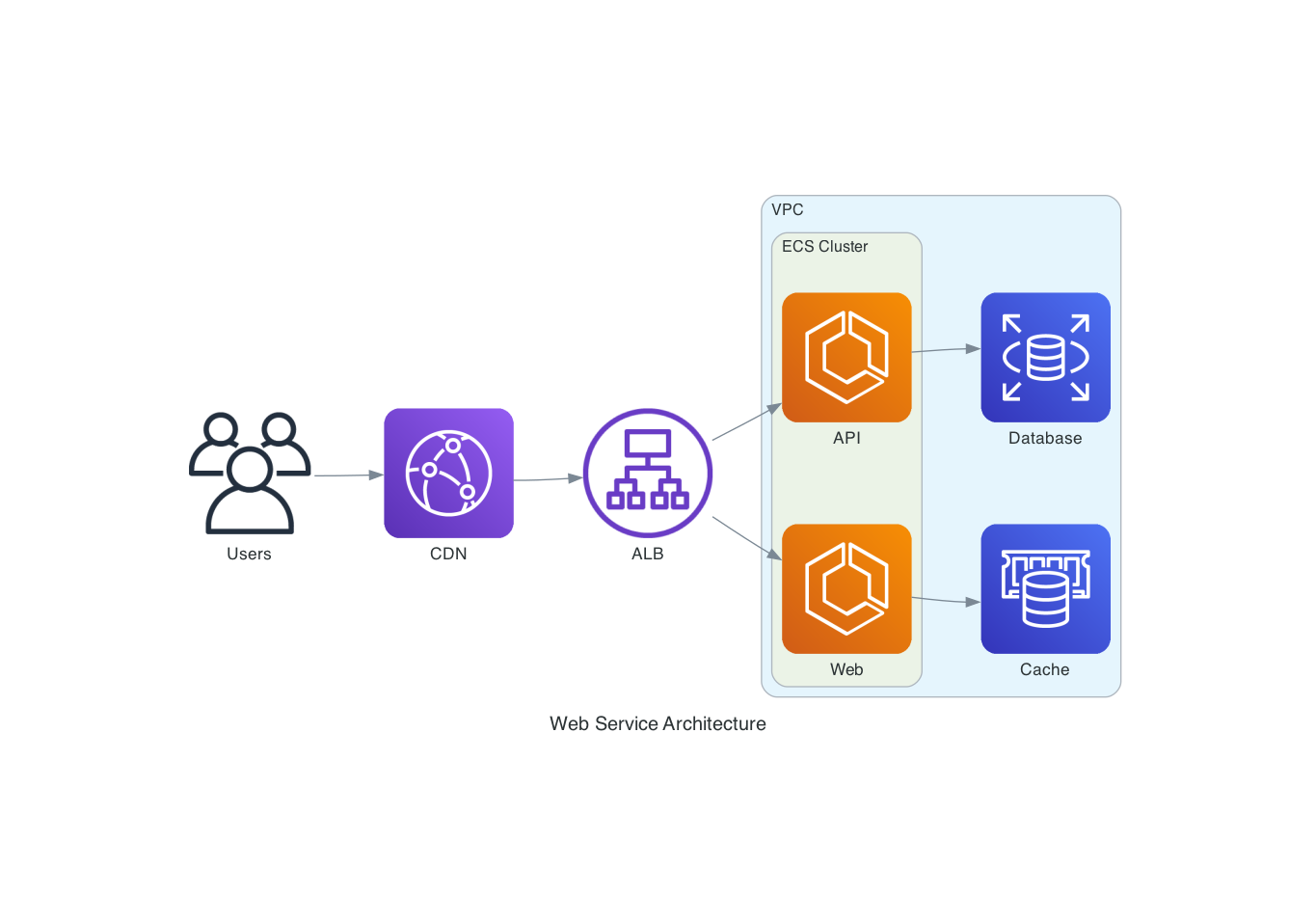
> "Draw an AWS architecture with an ALB routing to two ECS services, backed by RDS and ElastiCache"
from diagrams import Diagram, Cluster
from diagrams.aws.network import ALB
from diagrams.aws.compute import ECS
from diagrams.aws.database import RDS, ElastiCache
with Diagram("ECS Service", direction="LR"):

    lb = ALB("ALB")
with Cluster("ECS Cluster"):

        services = [ECS("Web"), ECS("API")]
lb >> services

    services[0] >> ElastiCache("Cache")

    services[1] >> RDS("Database")
Flowchart (Mermaid)
> "Create a flowchart showing a CI/CD pipeline"

Sequence Diagram (PlantUML)
> "Show the authentication flow between a client, API gateway, and auth service"
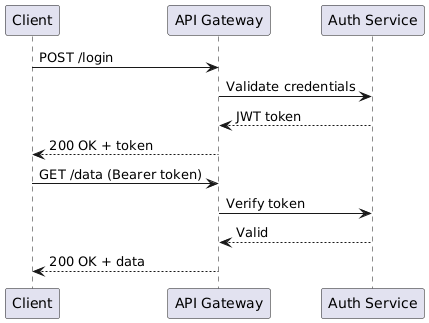
@startuml
Client -> "API Gateway": POST /login
"API Gateway" -> "Auth Service": Validate credentials
"Auth Service" --> "API Gateway": JWT token
"API Gateway" --> Client: 200 OK + token
Client -> "API Gateway": GET /data (Bearer token)
"API Gateway" -> "Auth Service": Verify token
"Auth Service" --> "API Gateway": Valid
"API Gateway" --> Client: 200 OK + data
@enduml
Development
```bash
Sign in to leave a review
Use Google, GitHub, or an email account so ratings stay tied to real people.
No reviews posted yet.





