
Background Process MCP
About
A Model Context Protocol (MCP) server that provides background process management capabilities. This server enables LLMs to start, stop, and monitor long-running command-line processes.
Details
- Author
- waylaidwanderer
- Downloads
- 226
- Categories
- Developer Tools, Infrastructure, Project Management, Other
Jump to
- Start, stop, and clear background processes by UUID.
- Retrieve process output with optional head/tail parameters.
- List all managed processes as a JSON array.
- Get server status (version, port, PID, uptime, process counts).
- Offers a standalone core service and a separate TUI client.

Setting up with Highlight
This MCP is not yet compatible with Highlight’s one-click setup. However, you can still use it with Highlight by following these steps:
- Download and install Highlight from highlightai.com/download
- Navigate to the plugins tab and select "Add Custom Plugin"
-
Configure the plugin with the settings below
Plugin Name
Background Process MCPCommand (node, npx, python, etc.)Please refer to the README for specific instructions on how to obtain API keys or other required environment variables.
- Enable "Start Automatically" if you want the plugin to start when Highlight launches





From the repository
Install the server via npx @waylaidwanderer/background-process-mcp@latest in any MCP client (Claude Code, Claude Desktop, Cursor, Gemini CLI, etc.). For a standalone server, add the --port argument. Alternatively, install globally (pnpm add -g @waylaidwanderer/background-process-mcp) and use the bgpm command to run the core service (bgpm server) or the TUI (bgpm ui --port <port_number>).
Claude Desktop / Cursor
Paste into your MCP client config file to install this server.
{
    "mcpServers": {
        "background process mcp": {
            "backgroundProcess": {
                "command": "npx",
                "args": [
                    "@waylaidwanderer/background-process-mcp@latest"
                ]
            }
        }
    }
}McpServers
{
    "backgroundProcess": {
        "command": "npx",
        "args": [
            "@waylaidwanderer/background-process-mcp@latest"
        ]
    }
}
Background Process MCP
A Model Context Protocol (MCP) server that provides background process management capabilities. This server enables LLMs to start, stop, and monitor long-running command-line processes.
Motivation
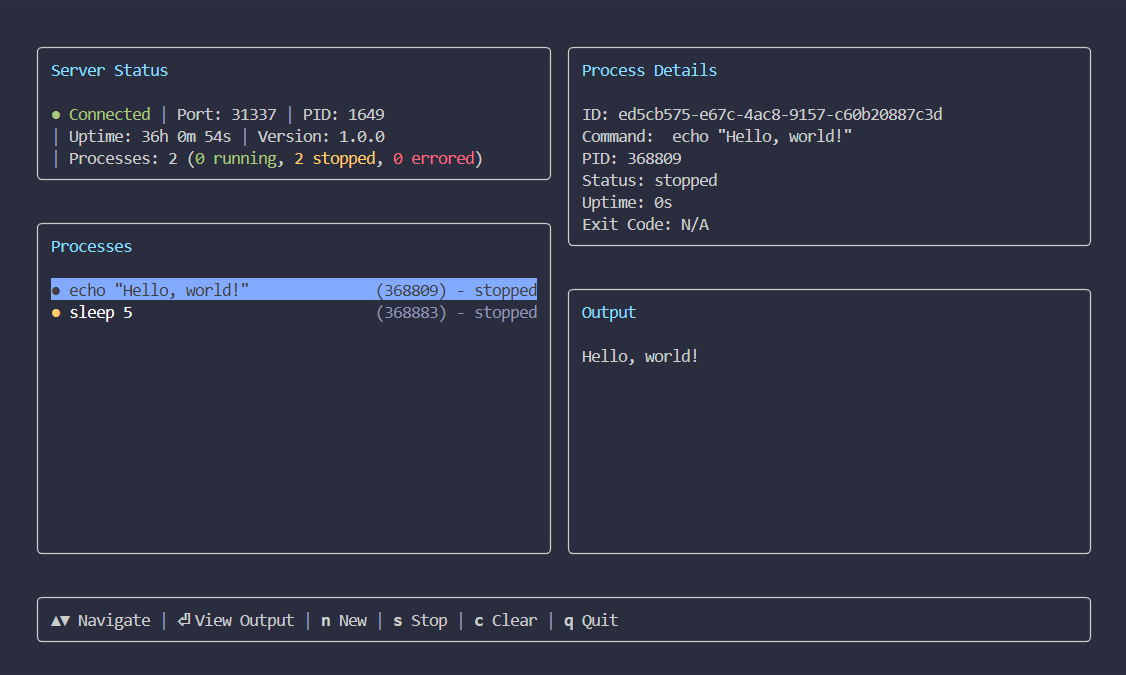
Some AI agents, like Claude Code, can manage background processes natively, but many others can't. This project provides that capability as a standard tool for other agents like Google's Gemini CLI. It works as a separate service, making long-running task management available to a wider range of agents. I also added a TUI because I wanted to be able to monitor the processes myself.
Screenshot
Getting Started
To get started, install the Background Process MCP server in your preferred client.
Standard Config
This configuration works for most MCP clients:
{
  "mcpServers": {
    "backgroundProcess": {
      "command": "npx",
      "args": [
        "@waylaidwanderer/background-process-mcp@latest"
      ]
    }
  }
}
To connect to a standalone server, add the --port argument to the args array (e.g., ...mcp@latest", "--port", "31337"]).
<details>
<summary>Claude Code</summary>
Use the Claude Code CLI to add the Background Process MCP server:
claude mcp add backgroundProcess npx @waylaidwanderer/background-process-mcp@latest
<details>
<summary>Claude Desktop</summary>
Follow the MCP install guide, use the standard config above.
</details>
<details>
<summary>Codex</summary>
Create or edit the configuration file ~/.codex/config.toml and add:
[mcp_servers.backgroundProcess]
command = "npx"
args = ["@waylaidwanderer/background-process-mcp@latest"]
For more information, see the Codex MCP documentation.
</details>
<details>
<summary>Cursor</summary>
Click the button to install:

Or install manually:
Go to Cursor Settings -> MCP -> Add new MCP Server. Name it backgroundProcess, use command type with the command npx @waylaidwanderer/background-process-mcp@latest.
</details>
<details>
<summary>Gemini CLI</summary>
Follow the MCP install guide, use the standard config above.
</details>
<details>
<summary>Goose</summary>
Click the button to install:

Or install manually:
Go to Advanced settings -> Extensions -> Add custom extension. Name it backgroundProcess, use type STDIO, and set the command to npx @waylaidwanderer/background-process-mcp@latest. Click "Add Extension".
</details>
<details>
<summary>LM Studio</summary>
Click the button to install:

Or install manually:
Go to Program in the right sidebar -> Install -> Edit mcp.json. Use the standard config above.
</details>
<details>
<summary>opencode</summary>
Follow the MCP Servers documentation. For example in ~/.config/opencode/opencode.json:
{
  "$schema": "https://opencode.ai/config.json",
  "mcp": {
    "backgroundProcess": {
      "type": "local",
      "command": [
        "npx",
        "@waylaidwanderer/background-process-mcp@latest"
      ],
      "enabled": true
    }
  }
}
<details>
<summary>Qodo Gen</summary>
Open Qodo Gen chat panel in VSCode or IntelliJ → Connect more tools → + Add new MCP → Paste the standard config above.
Click Save.
</details>
<details>
<summary>VS Code (for GitHub Copilot)</summary>
Click the button to install:


Or install manually:
Follow the MCP install guide, use the standard config above. You can also install the server using the VS Code CLI:
```bash
Sign in to leave a review
Use Google, GitHub, or an email account so ratings stay tied to real people.
No reviews posted yet.





