AI Autonomous Data Manager MCP
About
MCP server providing controlled CRUD access to a database
Details
- Author
- Byskov-Soft
- Downloads
- 150
- Categories
- Search
Jump to
- AI-driven collection creation with automatic schema validation
- Autonomous CRUD operations by AI agents
- Persistent data storage that survives across chat sessions
- Support for both STDIO and SSE (Server-Sent Events) modes
- Built-in web interface for human monitoring (SSE mode)

Setting up with Highlight
This MCP is not yet compatible with Highlight’s one-click setup. However, you can still use it with Highlight by following these steps:
- Download and install Highlight from highlightai.com/download
- Navigate to the plugins tab and select "Add Custom Plugin"
-
Configure the plugin with the settings below
Plugin Name
AI Autonomous Data Manager MCPCommand (node, npx, python, etc.)Please refer to the README for specific instructions on how to obtain API keys or other required environment variables.
- Enable "Start Automatically" if you want the plugin to start when Highlight launches





From the repository
Install Node and NPM (developed on Node 22.14.0) and run npm install. Start MongoDB (e.g., via docker-compose up). For STDIO mode, configure your MCP client (e.g., Cursor's mcp.json) to invoke the run.sh script. For SSE mode, run npm start and point the client to http://localhost:3001/sse. Use scripts like start, dev, or start:prod for various development and production scenarios.
Claude Desktop / Cursor
Paste into your MCP client config file to install this server.
{
    "mcpServers": {
        "ai autonomous data manager mcp": {
            "data_service": {
                "command": "/<path>/run.sh",
                "args": []
            }
        }
    }
}McpServers
{
    "data_service": {
        "command": "/<path>/run.sh",
        "args": []
    }
}
AI Autonomous Data Manager MCP
About
The AI Autonomous Data Manager is a specialized data management system designed to give AI agents (like those in Cursor, Cline, or other AI-enabled editors) autonomous control over dynamically structured data collections. It enables AI assistants to maintain persistent memory across conversations, organize information, and manage data without human intervention.
The server was created as an excercise to learn about MCP servers. How useful it is remains to be seen. It is provided as-is under the MIT license.
Key features:
- AI-driven collection creation with automatic schema validation
- Autonomous CRUD operations by AI agents
- Persistent data storage that survives across chat sessions
- Support for both STDIO and SSE (Server-Sent Events) modes
The system empowers AI agents to do things like:
- Build and maintain knowledge bases during conversations
- Track projects and tasks autonomously
- Organize learning content and generate quizzes
- Persist important information for future reference
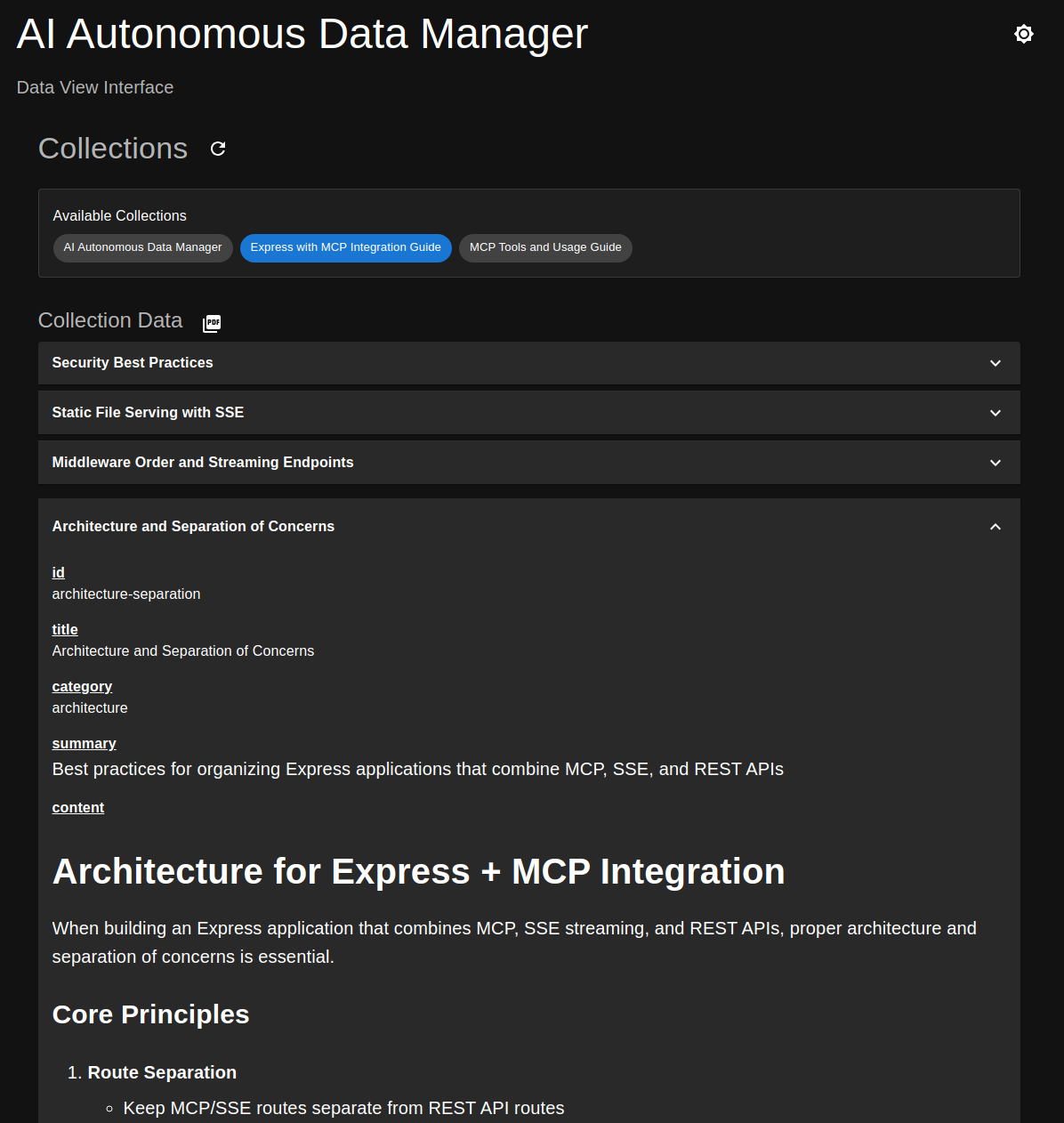
Viewing and Monitoring Collections
While the AI agents interact with collections programmatically, humans can monitor and inspect the data through:
1. Through the built-in web interface when running in SSE mode (http://localhost:3001)
1. Using the MCP Inspector tool (https://modelcontextprotocol.io/docs/tools/inspector)
1. Programmatically via the MCP server API endpoints
To export collections to PDF:
1. Access the web interface when running in SSE mode
1. Navigate to the desired collection and click the PDF icon
Screenshot of the collections viewer
Getting started
- Make sure you have Node and NPM installed
- Development was done using Node version 22.14.0, but other versions will probably work
- Run npm install to install dependencies
Run in STDIO mode
- Copy run-example.sh to run.sh and set the correct path (to the repository directory)
- Copy .env-example to .env and modify it if needed (should work as is)
- Start MongoDB using docker-compose up or use your own Mongo instance
- If using your own instance, remember to change exported MONGO_ and RUN_MODE environment variables in the run.sh file accordingly
- Configure your editor/tool to use the MCP server
Cursor editor example (mpc.json):
    {
        "mcpServers": {
            "data_service": {
                // Same repository path as mentioned above
                "command": "/<path>/run.sh",
                "args": []
            }
        }
    }
Run in SSE mode
Note: Running in SSE mode seems sketchy at times. While it works fine for the MCP Inspector tool. The server has sometimes crashed when Cursor or Cline was the client. So some improvements should be made to make SSE mode a bit sturdier.
- Start MongoDB using docker-compose up or use your own Mongo instance
- If using your own instance, remember to change exported MONGO_ and RUN_MODE environment variables in the .env file accordingly
- Start the server: npm start
- Configure your editor/tool to use the MCP server
Cursor editor example (mpc.json):
    {
        "mcpServers": {
            "data_service": {
                "url": "http://localhost:3001/sse",
            }
        }
    }
Start the app using scripts
NPM Scripts
- start
- Starts the back-end directly from sourcecs using TSX.
- Serves front-end from dist/public/
- No hot-reloading is enabled
- Front- and back-end are both available at port 3001
- dev:back
- Starts the back-end on port 3001
- Hot-reloading is enabled
- dev:front
- Starts the front-end on port 5173 (default Vite port)
- Hot-reloading is enabled
- dev
- Runs dev:back and dev:front concurrently
- Front- and back-end are served from ports 5173 and 3001 respectively
- Hot-reloading is enabled for both
- start:prod
- Run this script when providing the MCP server in SSE mode to an LLM
- Builds the app
- Runs the app from dist/, making available on port 3001
- No hot-reloading (obviously)
Shell script
- run.sh
- You are not supposed to run this shell script. Instead you will provide it for the LLM to run.
- Sets environment variables (NPM scripts above uses dotenv)
- Runs the app directly from dist/ in STDIO mode
- Note that it will not compile the app for you, so make sure to do that beforehand
Available resources
- data://server-description
Server Description: Description of the data service and its use cases.
- data://collections
Metadata about available collections
Available tools
Note: This section will not explain each tool in detail. Fot that please check
src/back-end/mcp/tools/_tools-schema.yml where you can see the descriptions provided for the LLM.
- add_collection_type
Create a new collection type in the database
- add_batch_to_collection
Add one or more entries to a collection
- get_from_collection
Perform a query to retrieve entries from a collection
- delete_from_collection
Delete a collection entry
- collection_summary
Get a summary of a collection (returns all entries but only includes the _id and summary fields)
- get_resource_data
Provides the same information as the data://server-description and data://collections resources.
The reason for incuding it, is that not all MCP clients support resources.
##
Sign in to leave a review
Use Google, GitHub, or an email account so ratings stay tied to real people.
No reviews posted yet.