
Minecraft
About
Integrates with Minecraft to enable AI control and interaction within game environments for research, education, and automation.
Details
- Author
- arjunkmrm
- Repository
- arjunkmrm/mcp-minecraft
- GitHub stars
- 88
- Downloads
- 3,647
- License
- MIT License
- Categories
- Other, AI, Productivity, Developer Tools, Design, Search, Automation, Database
- Tags
- #integration
Jump to

Setting up with Highlight
This MCP is not yet compatible with Highlight’s one-click setup. However, you can still use it with Highlight by following these steps:
- Download and install Highlight from highlightai.com/download
- Navigate to the plugins tab and select "Add Custom Plugin"
-
Configure the plugin with the settings below
Plugin Name
MinecraftCommand (node, npx, python, etc.)npxArguments-
Argument 1
-y -
Argument 2
mcp-minecraft@latest -
Argument 3
--server-jar -
Argument 4
/absolute/path/to/minecraft-server/server.jar
Please refer to the README for specific instructions on how to obtain API keys or other required environment variables.
-
Argument 1
- Enable "Start Automatically" if you want the plugin to start when Highlight launches





From the repository
1. Download and Setup Minecraft Server
- Download Minecraft server v1.21 from mcversions.net/1.21
- Install Java 21.0.5 if not already installed (other versions are untested)
- Create a dedicated directory (e.g., ~/minecraft-server/)
- Place the downloaded server.jar file in this directory
- Note down the absolute path to your server.jar file
2. Install and Configure MCP Integration
Quick Install (Recommended):
npx -y @smithery/cli install mcp-minecraft --client claude
Follow the CLI prompts to complete the setup.
Or Manual Setup:
- Navigate to ~/Library/Application Support/Claude/claude_desktop_config.json
- Add the MCP server configuration:
{
"mcpServers": {
"mcp-minecraft": {
"command": "npx",
"args": [
"-y",
"mcp-minecraft@latest",
"--server-jar",
"/absolute/path/to/minecraft-server/server.jar"
]
}
}
}
> ⚠️ Replace
/absolute/path/to/minecraft-server/server.jar with your actual server.jar path
4. Launch Claude Desktop
- Start Claude Desktop after completing the configuration
5. Connect to Server
- Open Minecraft Launcher
- Install and launch Minecraft Java Edition v1.21
- Click "Play" and Select "Multiplayer"
- Click "Add Server"
- Enter server details:
- Server Name: Minecraft Server
- Server Address: localhost:25565
- Click "Done"
chat
Send chat messages to the server.
jump
Make the bot jump.
moveForward
Make the bot move forward.
moveBack
Make the bot move backward.
turnLeft
Make the bot turn left.
turnRight
Make the bot turn right.
placeBlock
Place a block at specified coordinates.
digBlock
Break a block at specified coordinates.
getBlockInfo
Get information about a block at specified coordinates.
selectSlot
Select a hotbar slot (0-8).
getInventory
Get contents of bot's inventory.
equipItem
Equip an item by name to specified destination.
getStatus
Get bot's current status (health, food, position, etc.).
getNearbyEntities
Get list of nearby entities within range.
attack
Attack a nearby entity by name.
useItem
Use/activate the currently held item.
stopUsingItem
Stop using/deactivate the current item.
lookAt
Make the bot look at specific coordinates.
followPlayer
Follow a specific player.
stopFollowing
Stop following current target.
goToPosition
Navigate to specific coordinates.
Available MCP tools:
- chat - Send chat messages to the server
- jump - Make the bot jump
- moveForward - Make the bot move forward
- moveBack - Make the bot move backward
- turnLeft - Make the bot turn left
- turnRight - Make the bot turn right
- placeBlock - Place a block at specified coordinates
- digBlock - Break a block at specified coordinates
- getBlockInfo - Get information about a block at specified coordinates
- selectSlot - Select a hotbar slot (0-8)
- getInventory - Get contents of bot's inventory
- equipItem - Equip an item by name to specified destination
- getStatus - Get bot's current status (health, food, position, etc.)
- getNearbyEntities - Get list of nearby entities within range
- attack - Attack a nearby entity by name
- useItem - Use/activate the currently held item
- stopUsingItem - Stop using/deactivate the current item
- lookAt - Make the bot look at specific coordinates
- followPlayer - Follow a specific player
- stopFollowing - Stop following current target
- goToPosition - Navigate to specific coordinates
Claude Desktop / Cursor
Paste into your MCP client config file to install this server.
{
    "mcpServers": {
        "minecraft": {
            "cwd": null,
            "env": {},
            "args": [
                "-y",
                "mcp-minecraft@latest",
                "--server-jar",
                "/absolute/path/to/minecraft-server/server.jar"
            ],
            "shell": false,
            "command": "npx"
        }
    }
}Linux
{
"cwd": null,
"env": [],
"args": [
"-y",
"mcp-minecraft@latest",
"--server-jar",
"/absolute/path/to/minecraft-server/server.jar"
],
"shell": false,
"command": "npx"
}Macos
{
"cwd": null,
"env": [],
"args": [
"-y",
"mcp-minecraft@latest",
"--server-jar",
"/absolute/path/to/minecraft-server/server.jar"
],
"shell": false,
"command": "npx"
}Windows
{
"cwd": null,
"env": [],
"args": [
"/c",
"npx",
"-y",
"mcp-minecraft@latest",
"--server-jar",
"/absolute/path/to/minecraft-server/server.jar"
],
"shell": false,
"command": "cmd"
}Minecraft MCP Integration
A Model Context Protocol (MCP) integration for Minecraft that enables AI assistants to interact with a Minecraft server. This integration allows AI models to observe and interact with the Minecraft world through a bot.

Prerequisites
1. Minecraft Launcher
2. Node.js 18 or higher
3. Claude Desktop App
4. Java 21.0.5 (recommended)
> ⚠️ Note: Currently only tested on macOS/Linux. Windows compatibility is not guaranteed.
Important Note
1. Use the F3+P Shortcut:
Press F3 + P together. This toggles the "Pause on Lost Focus" feature. Once turned off, you can switch to claude desktop and Minecraft will continue running without pausing.
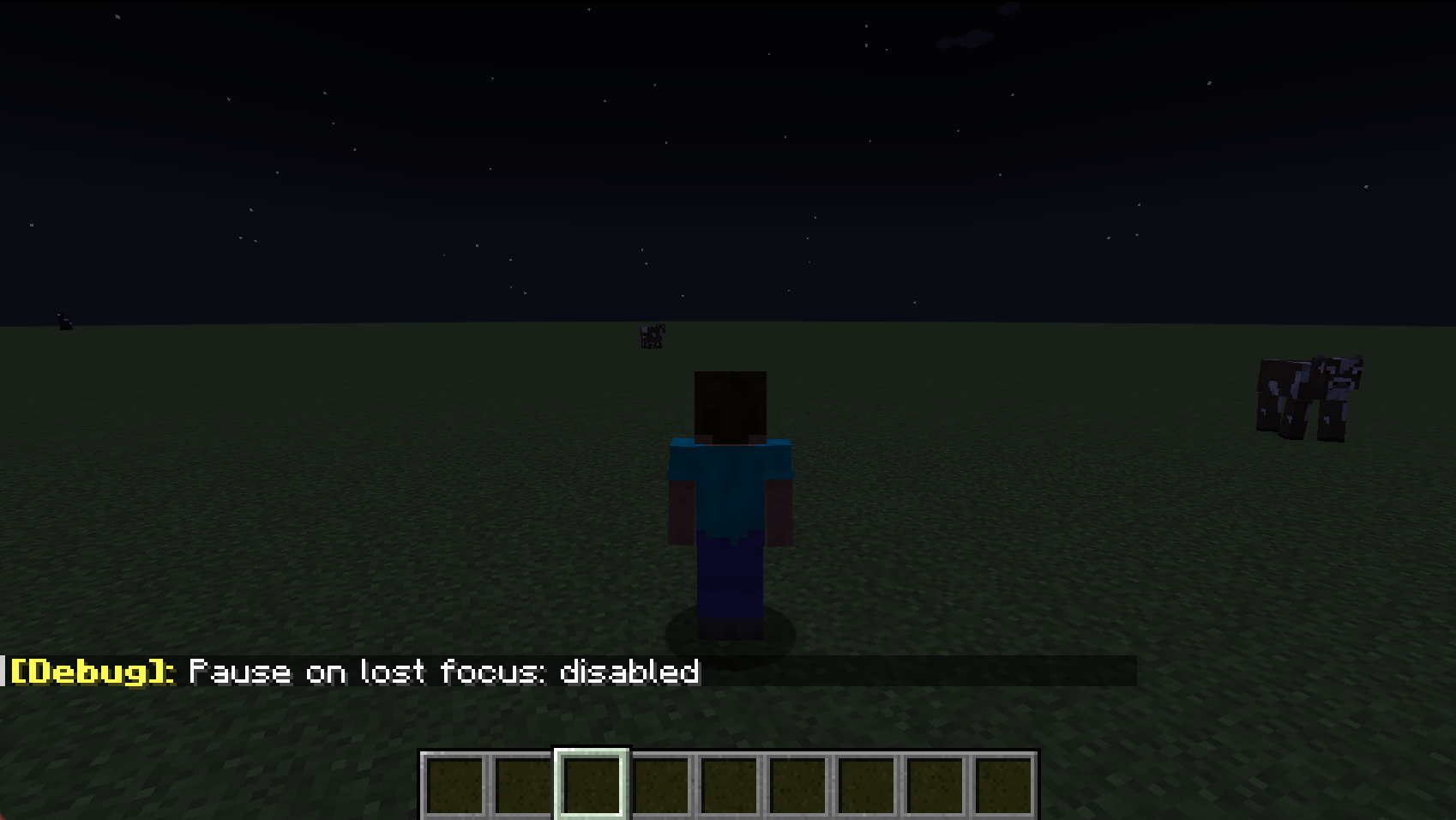
2. Connection Issues on Claude Restart:
If you restart Claude while the Minecraft server is running, you may experience MCP connection issues on the next claude launch due to lingering java process. See Troubleshooting: MCP Connection Failed for resolution steps.
Installation Steps
1. Download and Setup Minecraft Server
- Download Minecraft server v1.21 from mcversions.net/1.21
- Install Java 21.0.5 if not already installed (other versions are untested)
- Create a dedicated directory (e.g., ~/minecraft-server/)
- Place the downloaded server.jar file in this directory
- Note down the absolute path to your server.jar file
2. Install and Configure MCP Integration
Quick Install (Recommended):
npx -y @smithery/cli install mcp-minecraft --client claude
Follow the CLI prompts to complete the setup.
Or Manual Setup:
- Navigate to ~/Library/Application Support/Claude/claude_desktop_config.json
- Add the MCP server configuration:
   {

     "mcpServers": {

       "mcp-minecraft": {

         "command": "npx",

         "args": [

           "-y",

           "mcp-minecraft@latest",

           "--server-jar",

           "/absolute/path/to/minecraft-server/server.jar"

         ]

       }

     }

   }
> ⚠️ Replace
/absolute/path/to/minecraft-server/server.jar with your actual server.jar path
4. Launch Claude Desktop
- Start Claude Desktop after completing the configuration
5. Connect to Server
- Open Minecraft Launcher
- Install and launch Minecraft Java Edition v1.21
- Click "Play" and Select "Multiplayer"
- Click "Add Server"
- Enter server details:
- Server Name: Minecraft Server
- Server Address: localhost:25565
- Click "Done"
Features
Resources
The integration exposes these MCP resources:- minecraft://bot/location - Current bot position in the world
- minecraft://bot/status - Bot connection status
Tools
Available MCP tools:- chat - Send chat messages to the server
- jump - Make the bot jump
- moveForward - Make the bot move forward
- moveBack - Make the bot move backward
- turnLeft - Make the bot turn left
- turnRight - Make the bot turn right
- placeBlock - Place a block at specified coordinates
- digBlock - Break a block at specified coordinates
- getBlockInfo - Get information about a block at specified coordinates
- selectSlot - Select a hotbar slot (0-8)
- getInventory - Get contents of bot's inventory
- equipItem - Equip an item by name to specified destination
- getStatus - Get bot's current status (health, food, position, etc.)
- getNearbyEntities - Get list of nearby entities within range
- attack - Attack a nearby entity by name
- useItem - Use/activate the currently held item
- stopUsingItem - Stop using/deactivate the current item
- lookAt - Make the bot look at specific coordinates
- followPlayer - Follow a specific player
- stopFollowing - Stop following current target
- goToPosition - Navigate to specific coordinates
Technical Details
- Server runs in offline mode for local development
- Default memory allocation: 2GB
- Default port: 25565
- Bot username: MCPBot
Troubleshooting
Common Issues
1. MCP Connection Failed
- Look for lingering Java processes
- Terminate them manually:
- Windows: Use Task Manager (untested)
- Mac/Linux:
- Go to 'Activity Monitor' and 'Force Quit' java
- Restart computer if process termination fails
- Note: Latest version should auto-resolve these issues
2. Server Won't Start
- Verify Java is installed
- Check server.jar path is correct
- Ensure port 25565 is available
3. Can't Connect to Server
- Verify server is running (check logs)
- Confirm you're using "localhost" as server address
- Check firewall settings
Logs Location
- Minecraft Server logs: Check the minecraft-server directory - Claude Desktop logs:~/Library/Logs/Claude/mcp*.log
Contributing
Contributions, big or small, are welcome!
License
This project is licensed under the MIT License - see the LICENSE file for details.
Sign in to leave a review
Use Google, GitHub, or an email account so ratings stay tied to real people.
No reviews posted yet.





