
APS MCP Server
About
Simple prototype MCP server integrating Autodesk APIs
Details
- Author
- kpphillips
- Downloads
- 357
- Categories
- Other
Jump to
- Exposes tools to list hubs, projects, files, and versions.
- Integrates with Claude Desktop via MCP protocol.
- Supports OpenAI Agents SDK for AI querying.
- Uses APS‑Toolkit (GPL‑3.0) for Autodesk API access.
- Environment‑based credential management with .env.
- Cross‑platform setup (macOS, Windows, Unix).

Setting up with Highlight
This MCP is not yet compatible with Highlight’s one-click setup. However, you can still use it with Highlight by following these steps:
- Download and install Highlight from highlightai.com/download
- Navigate to the plugins tab and select "Add Custom Plugin"
-
Configure the plugin with the settings below
Plugin Name
APS MCP ServerCommand (node, npx, python, etc.)Please refer to the README for specific instructions on how to obtain API keys or other required environment variables.
- Enable "Start Automatically" if you want the plugin to start when Highlight launches





From the repository
Clone the repository, copy .env.sample to .env and fill in your Autodesk credentials. Install dependencies using uv or pip, then run python aps_dm_server.py. For use with Claude Desktop, add the server configuration (with absolute paths) to claude_desktop_config.json. Optionally, use with the OpenAI Agents SDK by installing openai and running python main_agent.py.
Claude Desktop / Cursor
Paste into your MCP client config file to install this server.
{
    "mcpServers": {
        "aps mcp server": {
            "acc": {
                "command": "/ABSOLUTE/PATH/TO/YOUR/.venv/bin/python",
                "args": [
                    "/ABSOLUTE/PATH/TO/YOUR/aps_dm_server.py"
                ],
                "env": {
                    "PYTHONPATH": "/ABSOLUTE/PATH/TO/YOUR/PROJECT/FOLDER"
                }
            }
        }
    }
}McpServers
{
    "acc": {
        "command": "/ABSOLUTE/PATH/TO/YOUR/.venv/bin/python",
        "args": [
            "/ABSOLUTE/PATH/TO/YOUR/aps_dm_server.py"
        ],
        "env": {
            "PYTHONPATH": "/ABSOLUTE/PATH/TO/YOUR/PROJECT/FOLDER"
        }
    }
}
APS MCP Server
A minimal MCP server integrating Autodesk ACC APIs via APS toolkit.
Video Overview
Setup
Option 1: Using uv (recommended)
1. Install uv if you don't have it:
curl -LsSf https://astral.sh/uv/install.sh | sh
2. Copy .env.sample to .env and fill in your credentials:
cp .env.sample .env
3. Create and activate a virtual environment:
   uv venv

   # On Windows:

   .venv\Scripts\activate

   # On Unix or MacOS:

   source .venv/bin/activate
4. Install dependencies:
uv pip install -r requirements.txt
5. Run the MCP server:
python aps_dm_server.py
Option 2: Using pip
1. Copy .env.sample to .env and fill in your credentials:
cp .env.sample .env
2. Create and activate a virtual environment:
   python -m venv .venv

   # On Windows:

   .venv\Scripts\activate

   # On Unix or MacOS:

   source .venv/bin/activate
3. Install dependencies:
pip install -r requirements.txt
4. Run the MCP server:
python aps_dm_server.py
Integration with Claude Desktop
To use this MCP server with Claude Desktop:
1. Make sure you have Claude Desktop installed (download from Claude.ai)
2. Open your Claude Desktop configuration file:
code ~/Library/Application\ Support/Claude/claude_desktop_config.json
Create it if it doesn't exist.
3. Add the appropriate configuration:
Option A: Direct Python from virtual environment (most reliable)
   {

       "mcpServers": {

           "acc": {

               "command": "/ABSOLUTE/PATH/TO/YOUR/.venv/bin/python",

               "args": [

                   "/ABSOLUTE/PATH/TO/YOUR/aps_dm_server.py"

               ],

               "env": {

                   "PYTHONPATH": "/ABSOLUTE/PATH/TO/YOUR/PROJECT/FOLDER"

               }

           }

       }

   }
Replace paths with absolute paths to your environment and project.
Option B: Using uv
   {

       "mcpServers": {

           "acc": {

               "command": "/ABSOLUTE/PATH/TO/uv",

               "args": [

                   "--directory",

                   "/ABSOLUTE/PATH/TO/YOUR/PROJECT/FOLDER",

                   "run",

                   "aps_dm_server.py"

               ]

           }

       }

   }
Find the absolute path to
uv by running which uv in your terminal.
4. Save the file and restart Claude Desktop completely
5. Look for the hammer icon in Claude Desktop to access the ACC tools
macOS Specific Setup
macOS users may encounter permission issues when integrating with Claude Desktop:
1. Permission Issues: If you see errors like Operation not permitted in logs:
- Open System Preferences → Privacy & Security → Full Disk Access
- Add Terminal and Claude applications by clicking the "+" button
2. Working Directory Issues: If you see errors about current directory not existing:
- Always use absolute paths in your configuration
- Consider storing projects in locations with fewer permissions restrictions (e.g., Documents folder)
3. Finding the correct Python path: To get the exact path to your virtual environment's Python:
   source .venv/bin/activate  # Activate your environment first

   which python  # Get the full path
4. Checking logs for troubleshooting:
tail -n 50 -f ~/Library/Logs/Claude/mcp.log
Requirements
- Python 3.11 or higher - Dependencies listed in requirements.txtSystem Architecture
This MCP server acts as a bridge between Claude AI and the Autodesk APS platform. The diagram below illustrates how data flows through the system:
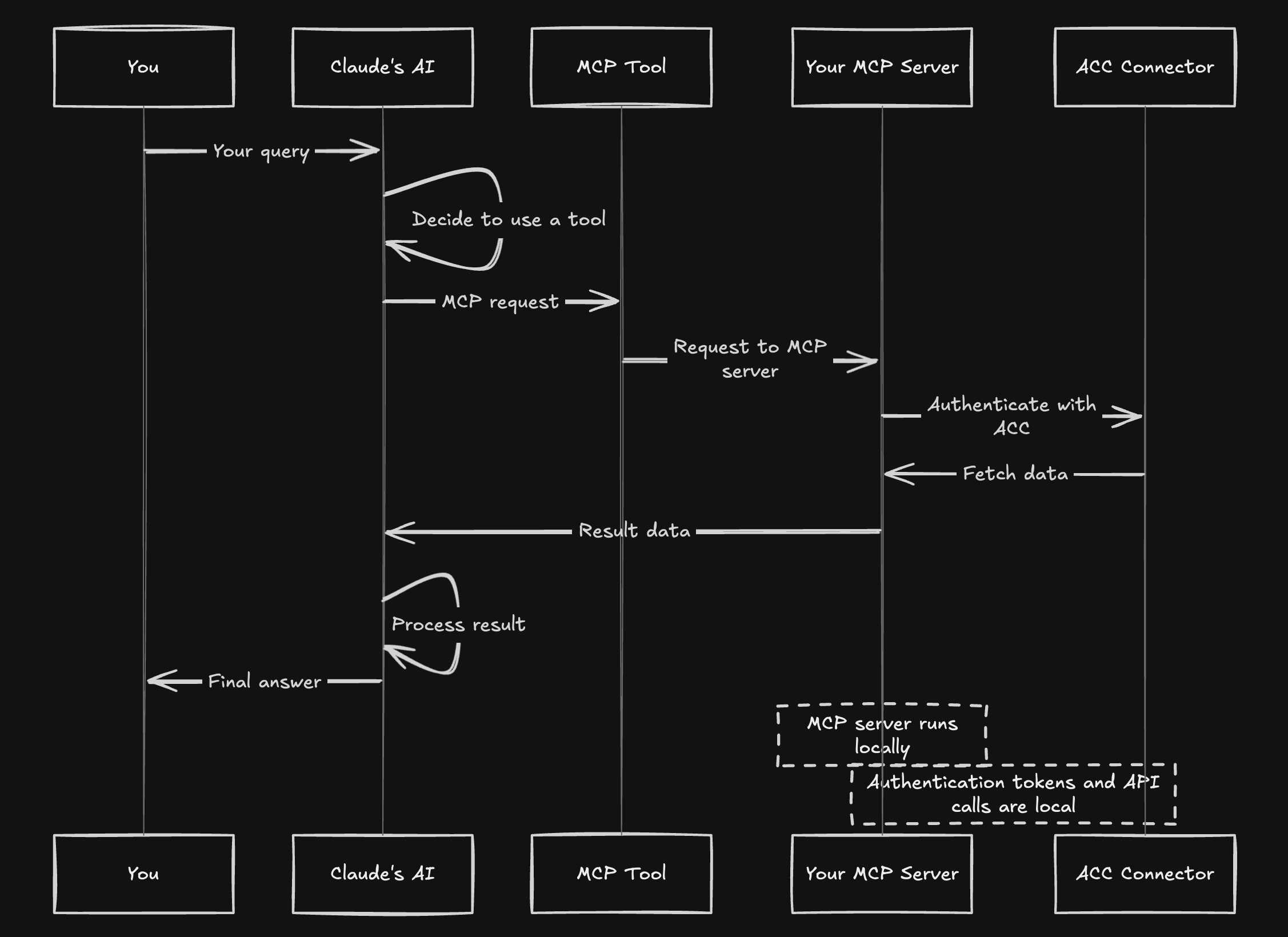
1. Your query to Claude triggers tool selection
2. Claude sends MCP requests to your local server
3. The MCP server connects to APS/ACC using your credentials
4. Data flows back to Claude which processes and formats results
Available Tools
The MCP server exposes the following tools:
- get_hubs: Get all available hubs
- get_projects: Get all projects within a hub
- get_project_files: Get files in a specific folder of a project
- get_versions: Get version information for a specific item
Troubleshooting
If you encounter issues with Claude Desktop integration:
1. Server not showing up:
- Check configuration file syntax (valid JSON)
- Use absolute paths everywhere
- Restart Claude Desktop completely
2. Permission errors:
- Grant Full Disk Access to Terminal and Claude
- Try using Python directly rather than through uv
- Try moving the project to a location with fewer restrictions
3. Environment errors:
- Ensure all dependencies are installed
- Try using the direct path to Python in your virtual environment
- Check your .env file has correct Autodesk credentials
4. Logs check:
tail -n 50 -f ~/Library/Logs/Claude/mcp.log
5. Manual testing:
Test your server works by running it directly:
   cd /path/to/your/project

   source .venv/bin/activate

   python aps_dm_server.py
Using with OpenAI Agents SDK
This project includes integration with the OpenAI Agents SDK, allowing you to use the MCP server with an OpenAI agent.
1. Make sure your .env file includes your OpenAI API key:
OPENAI_API_KEY=your_openai_api_key
2. Install the additional dependencies:
uv pip install openai>=1.31.0
3. Run the agent:
python main_agent.py
This will start an interactive session where you can ask the agent questions about your Autodesk projects.
Dependencies and Licensing
This project uses the following open source components:
- aps-toolkit - A library for Autodesk Platform Services (GPL-3.0)
- mcp - Multimodal Capability Protocol implementation
- python-dotenv - Environment variable management
- openai and openai-agents - OpenAI integration
This project is licensed under the GNU General Public License v3.0 as required by the aps-toolkit dependency.
Disclaimer
This software is provided "as is", without warranty of any kind, express or implied. This is a prototype for demonstration purposes only. The author takes no responsibility for any damages or issues that may arise from using this software. Use at your own risk.
Sign in to leave a review
Use Google, GitHub, or an email account so ratings stay tied to real people.
No reviews posted yet.





