
Alpha Vantage Mcp Server
About
The official Alpha Vantage API MCP server enables LLMs and agentic workflows to interact with real-time and historical stock market data through the Model Context Protocol (MCP). It is designed for use in applications such as Claude, ChatGPT, Grok, Cursor, VS Code, and many more.
Details
- Author
- alphavantage
- GitHub stars
- 183
- Downloads
- 561
- Categories
- Other, API
Jump to
- Provides real‑time and historical stock market data
- Exposes Alpha Vantage functions as MCP tools
- Supports OAuth and API‑key authentication
- Offers both remote and local server connection options
- Compatible with Claude, ChatGPT, Grok, and more
- Enables automated agentic financial workflows
Obtain a free Alpha Vantage API key, then connect the server to your MCP client. For a remote connection (recommended), use the URL https://mcp.alphavantage.co/mcp with OAuth; for a local connection, run uvx marketdata-mcp-server YOUR_API_KEY and configure your client. The Alpha Vantage functions are exposed directly as MCP tools—clients discover them with tools/list and invoke them with tools/call.
Alpha Vantage MCP Server
The official Alpha Vantage API MCP server enables LLMs and agentic workflows to seamlessly interact with real-time and historical stock market data through the Model Context Protocol (MCP). Add this server to your favorite apps such as Claude, Claude Code, Cursor, VS Code, and many more to give them access to comprehensive financial data.
---
Quickstart
To use the server, <a href="https://www.alphavantage.co/support/#api-key" onclick="gtag('event', 'mcp_getKey')">get your free Alpha Vantage API key</a>, copy it to your clipboard, then follow the instructions below for the agentic tool/platform of your interest.
The Alpha Vantage functions are exposed directly as MCP tools. MCP clients discover the available tools with tools/list and invoke them with tools/call.
⭐ View MCP source code on Github
👉 Any questions? Please contact support@alphavantage.co
Connection Examples
Remote Server Connection (Recommended, OAuth):
https://mcp.alphavantage.co/mcp
When you connect, a consent page opens where you enter and authorize your Alpha Vantage API key.
Remote Server Connection (Legacy, API key in URL, deprecated):
https://mcp.alphavantage.co/mcp?apikey=YOUR_API_KEY
Local Server Connection:
uvx marketdata-mcp-server YOUR_API_KEY
Setup Instructions by Use Case
💬📊 _Power your chatbot with financial data_
<details>
<summary><b>Install in Claude</b></summary>
Requirements:
- Claude Pro account (or higher tier)
Claude Remote Server Connection
To connect Claude (Web or Desktop) to this MCP server:
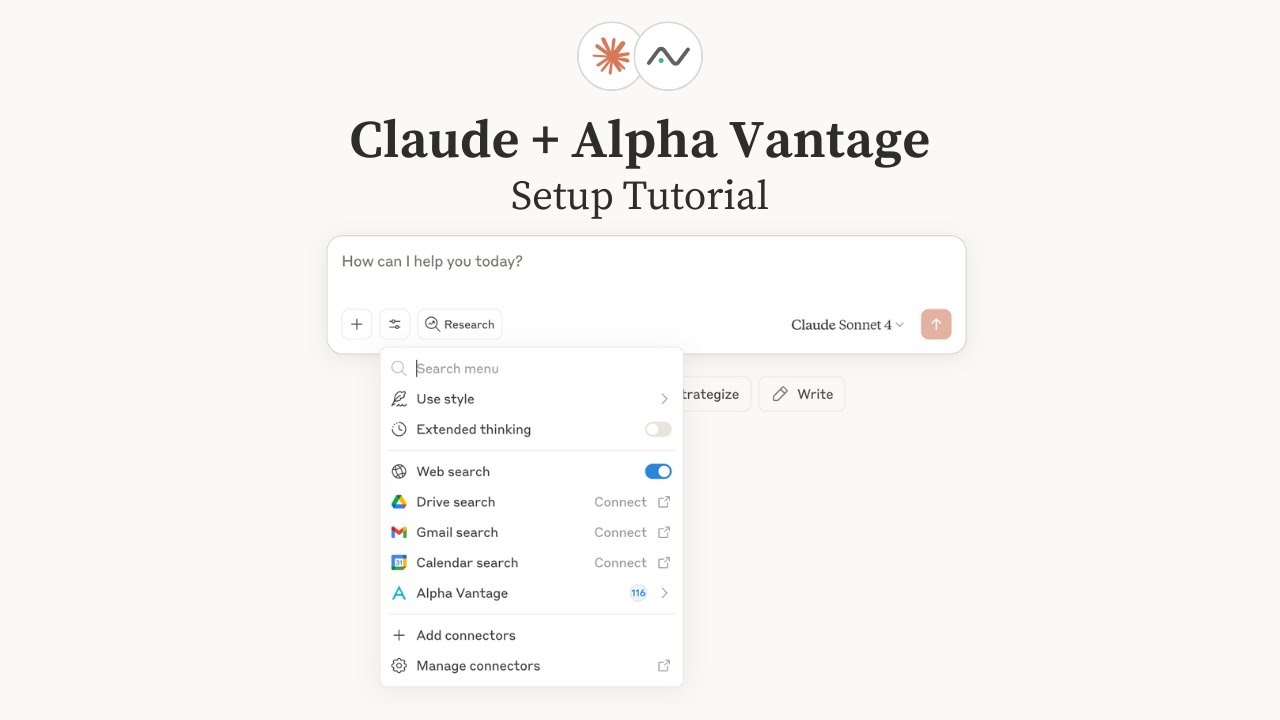
📺 Watch the setup tutorial - Click the image below to watch a step-by-step video guide:
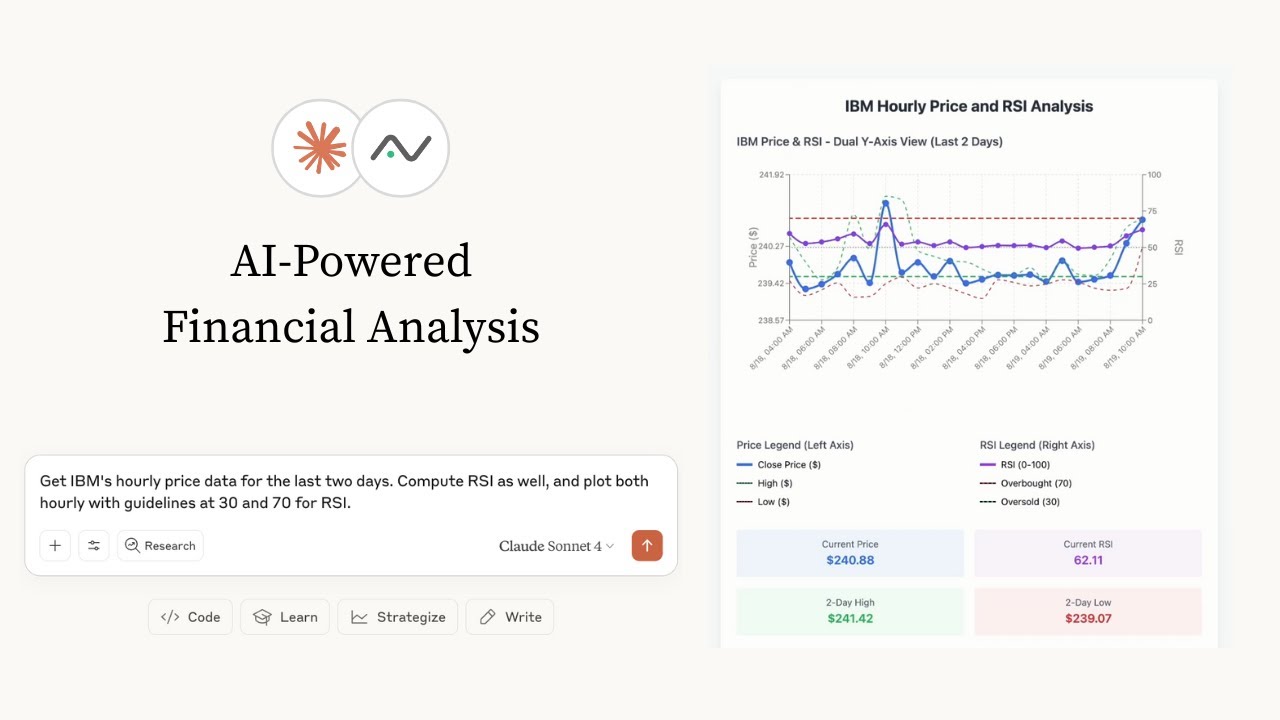
📺 Already have your Alpha Vantage MCP server set up? Below are a few examples of Claude performing various stock analysis & charting tasks:
OAuth Option (Recommended):
1. Go to claude.ai/settings/connectors (Web) or Settings → Connectors (Desktop)
2. Click "Add Custom Connector"
3. Add the MCP server URL: https://mcp.alphavantage.co/mcp
4. Click "Connect"
5. Enter your Alpha Vantage API key
6. Click "Authorize Access"
API Key in URL (Legacy, deprecated):
1. Go to claude.ai/settings/connectors (Web) or Settings → Connectors (Desktop)
2. Click "Add Custom Connector"
3. Add the MCP server URL with your API key: https://mcp.alphavantage.co/mcp?apikey=YOUR_API_KEY (replace YOUR_API_KEY with your actual Alpha Vantage API key)
4. Click "Connect"
Claude Local Server Connection
See Claude Desktop MCP docs for more info.Install uv (a modern Python package and project manager):
curl -LsSf https://astral.sh/uv/install.sh | sh
Open Claude Desktop developer settings and edit your claude_desktop_config.json file to add the following configuration:
{
  "mcpServers": {
    "alphavantage": {
      "command": "uvx",
      "args": ["marketdata-mcp-server", "YOUR_API_KEY"]
    }
  }
}
Replace YOUR_API_KEY with your actual Alpha Vantage API key.
</details>
<details>
<summary><b>Install in ChatGPT</b></summary>
Requirements:
- ChatGPT Plus account (or higher tier)
- Developer mode enabled (beta feature) - see OpenAI's Developer Mode documentation
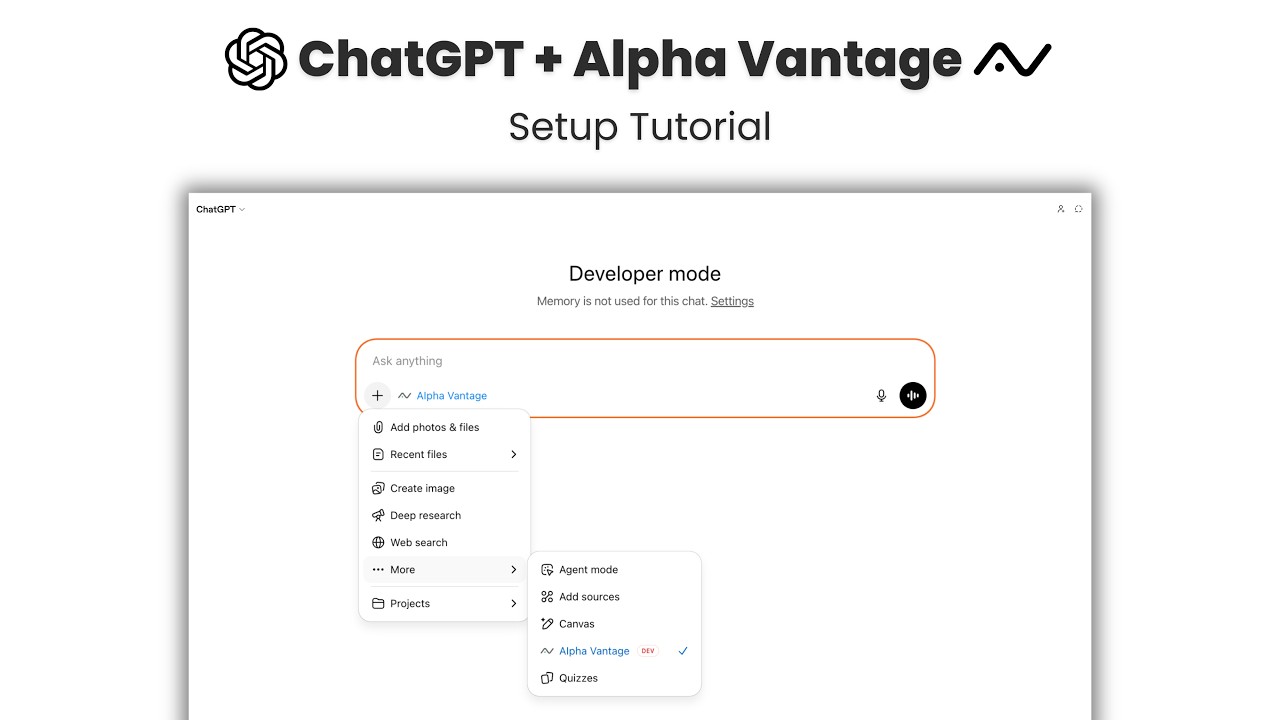
📺 Watch the setup tutorial - Click the image below to watch a step-by-step video guide:
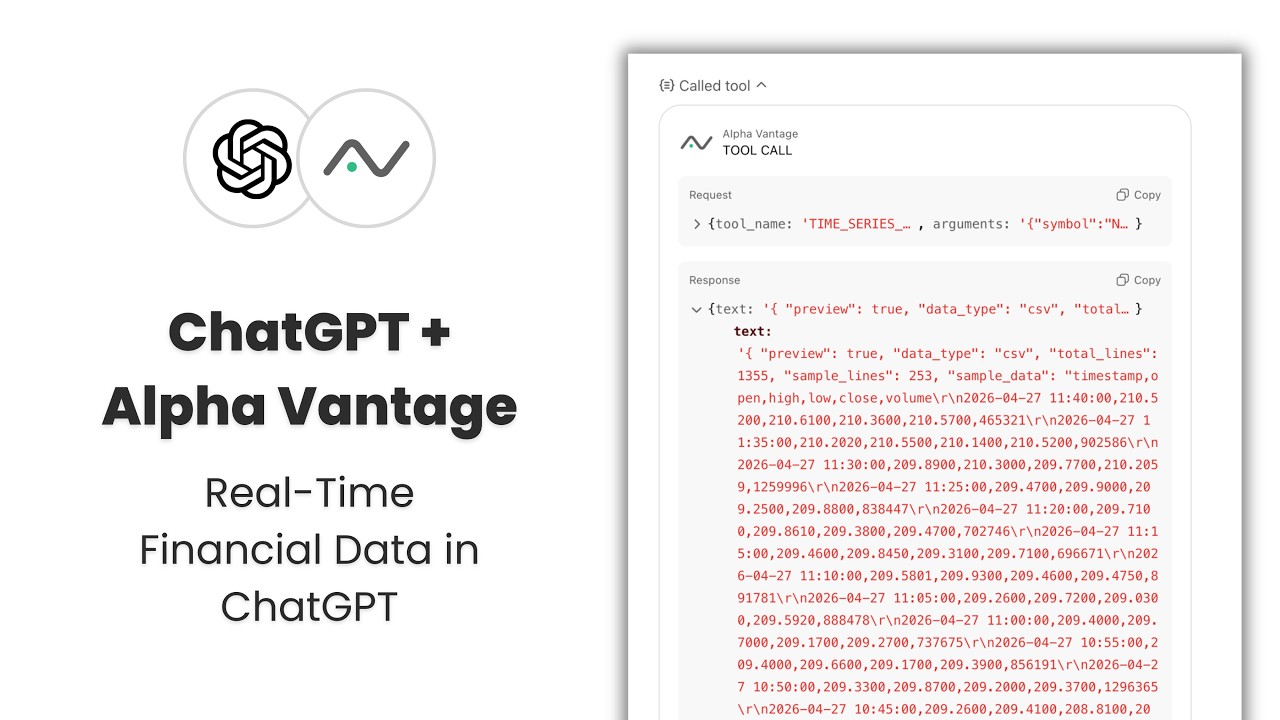
📺 Already have your Alpha Vantage MCP server set up? Below are a few examples of ChatGPT performing various stock analysis & charting tasks:
Setup (Recommended, OAuth):
1. Go to ChatGPT Settings → Apps
2. Click on Advanced settings → enable Developer mode
3. Return to the Apps submenu, then click Create app.
4. MCP Server URL: https://mcp.alphavantage.co/mcp
5. Authentication: OAuth. When you connect, a consent page opens where you enter and authorize your Alpha Vantage API key.
Legacy (API key in URL, deprecated):
1. Go to ChatGPT Settings → Apps
2. Click on Advanced settings → enable Developer mode
3. Return to the Apps submenu, then click Create app.
4. MCP Server URL: https://mcp.alphavantage.co/mcp?apikey=YOUR_API_KEY (replace YOUR_API_KEY with your actual Alpha Vantage API key).
5. Authentication: No authentication
> Note: When you return to your conversation, your UI will clearly indicate that you are in Developer mode. ChatGPT will retain memory of any previous remarks made within the same chat session; however, these sessions may not be persisted, meaning the conversation generated while Developer mode is active may not be saved or accessible once closed.
Troubleshooting for ChatGPT Plus Accounts
While Developer mode is available for both Plus and Pro accounts, on Plus accounts, first-time MCP tool execution may exhibit inconsistent behavior. This primarily affects large data payloads returned from the MCP server. If you notice that MCP calls abruptly terminate without returning any JSON response, try the following:
1. Confirm Connection
- Confirm the connection by prompting:
List 3 functions available in Alpha Vantage MCP server.
- You should see endpoints like
TIME_SERIES_DAILY and TIME_SERIES_INTRADAY.
2. Force JSON Passthrough with simple payload
- Use the following prompts in sequence to prime ChatGPT to surface the full payload:
Run ADD_TWO_NUMBERS from Alpha Vantage MCP Server using 3 and 6, and then show the JSON response.
- If successful, ChatGPT should ask you to Confirm or Deny the call. Click Confirm.
- If it doesn't, use the 🔄 "Try Again..." button and see if you get the Confirm/Deny prompt.
- If this doesn't work, ask ChatGPT the following, and if it starts
Thinking make it Skip, so that it doesn't try the call again and instead outputs its conversational response. Why aren't you receiving a JSON response?
- Then, regardless of the response, prompt ChatGPT
Explicitly request a return value from the tool response to verify what the server outputs.
- Typically, this gets ChatGPT to ask you to Confirm or Deny the call. Click Confirm.
- Sometimes, ChatGPT will insist it has no active connection to Alpha Vantage MCP Server. Just tell it to "try again".
- If payloads still fail to appear, start a New Chat and try Step #2 again.
3. Force JSON Passthrough with large payload
- Once step #2 has been successful, repeat step #2 with the larger call:
Run TIME_SERIES_DAILY using NVDA, and then show the JSON response.
- Use the fallback steps from Step #2 if ChatGPT does not ask you to Confirm or Deny the call.
- Once you observe ChatGPT successfully return part of the raw JSON payload from the larger call, you can typically continue on with more conversational queries.
</details>
<details>
<summary><b>Install in Grok</b></summary>
Requirements:
- SuperGrok (or higher tier)
Setup:
1. Click the + button → Connectors → Add connector → Custom
2. Name: Alpha Vantage MCP Server (or whatever you prefer)
3. Server URL: https://mcp.alphavantage.co/mcp?apikey=YOUR_API_KEY (replace YOUR_API_KEY with your actual Alpha Vantage API key).
4. Click Add Connector
</details>
🤖📈 _Create agentic workflows for quantitative investing_
<details>
<summary><b>Install in 🦞OpenClaw🦞</b></summary>
Requirements:
- Mac with Apple Silicon (or dedicated Mac mini)
- LLM API Key (OpenAI used in demo)
- Messaging Platform Bot Token (Telegram used in demo)
📺 Watch the setup tutorial (click image below)

- View the detailed installation guide from GitHub Gist
- For additional support links, please check the video description on YouTube.
</details>
<details>
<summary><b>Configure in OpenAI Agent Builder</b></summary>
Requirements:
- OpenAI account with access to Agent Builder (e.g., billing details added, organization verified)
📺 Watch the setup tutorial. (Click image below.)

OpenAI Agent Builder Connection
To connect OpenAI Agent Builder to this MCP server:
1. Do not add a separate MCP Server object. Instead, click on your agent in OpenAI Agent Builder to add the MCP Server directly to the agent.
2. Find the Tools section of the agent and click the + button to add a new tool
3. Select MCP Server
4. Click "+ Server" in the upper right of the "Add MCP server" menu
5. Configure the MCP server with the following settings:
- URL: https://mcp.alphavantage.co/mcp
- Label: Alpha Vantage MCP Server (or any name you prefer)
- Description: Financial market data and technical indicators (or any description you prefer)
- Authentication: Select "Access token / API key" (should be default)
- Access Token: Enter your Alpha Vantage API key
6. Click Connect
7. If successful, the next prompt will display all the tools. Scroll to the bottom and click Add.
Recommended Agent Instructions:
Add the following instruction to your agent's configuration to optimize performance:
You are a helpful financial agent with access to market data through Alpha Vantage MCP Server.
The Alpha Vantage functions (TIME_SERIES_DAILY, RSI, COMPANY_OVERVIEW, etc.) are exposed

directly as MCP tools. Call them by name with their parameters, e.g.

TIME_SERIES_DAILY(symbol="AAPL", outputsize="compact").
</details>
<details>
<summary><b>Install in OpenAI Agents SDK</b></summary>
To use the Alpha Vantage MCP server with OpenAI Agents SDK, see our example agent that demonstrates:
- Interactive financial analysis agent
- Session management for conversation continuity
- Real-time tool execution with Alpha Vantage data
- Support for both HTTP and stdio MCP connections
The example includes a complete setup guide and configuration templates.
</details>
<details>
<summary><b>Configure in Microsoft Foundry Agent Service</b></summary>
Requirements:
- Azure subscription with access to Azure AI Foundry
Microsoft Foundry Agent Service Connection
To connect a Foundry agent to this MCP server:
1. Open your agent (or Create Agent from Home Dashboard) in Azure AI Foundry's Agent playground or Agent designer.
2. In the Tools section of the agent configuration, click Add → Browse All Tools. Select the Custom category underneath "Select a Tool" and select Model Context Protocol
3. Configure the MCP server with the following settings:
- Key-based authentication (recommended):
- Server label: alpha-vantage-mcp-server (or any name you prefer)
- Server URL: https://mcp.alphavantage.co/mcp
- Authentication: Select Key-based authentication
- Credential
- Click "Add key value pair"
- Key: apikey
- Value: Enter your Alpha Vantage API key
- Unauthenticated (legacy, API key in URL, deprecated):
- Server label: alpha-vantage-mcp-server (or any name you prefer)
- Server URL: https://mcp.alphavantage.co/mcp?apikey=YOUR_API_KEY
- Replace YOUR_API_KEY with your actual Alpha Vantage API key.
- Authentication: Select Unauthenticated
4. Click Connect
Recommended Agent Instructions:
Add the following instruction to your agent's system prompt to optimize performance:
You are a helpful financial agent with access to market data through Alpha Vantage MCP Server.
The Alpha Vantage functions (TIME_SERIES_DAILY, RSI, COMPANY_OVERVIEW, etc.) are exposed

directly as MCP tools. Call them by name with their parameters, e.g.

TIME_SERIES_DAILY(symbol="IBM", outputsize="compact").
Always use Alpha Vantage MCP Server for market data queries. Do not answer from prior knowledge or web search.
</details>
💻💵 _Code up fintech apps_
<details>
<summary><b>Install in OpenAI Codex</b></summary>
Requirements:
- ChatGPT Plus account (or higher tier)
See OpenAI Codex for more information.
📺 Watch the setup tutorial. (Click image below.) This video additionally provides guidance on handling setup errors and building complete end-to-end applications which are empowered to fetch market data to power dynamic, data-driven visualizations.

- Download the companion .md file from Github Gist.
- For additional support links, please check the video description on YouTube.
Install uv (a modern Python package and project manager):
curl -LsSf https://astral.sh/uv/install.sh | sh
Install Codex CLI v0.34 or later to avoid compatibility issues.
```bash
Sign in to leave a review
Use Google, GitHub, or an email account so ratings stay tied to real people.
No reviews posted yet.





