
UnityMCP VRC
About
MCP Server for Unity with help for creating VRChat worlds
Details
- Author
- swax
- GitHub stars
- 51
- Downloads
- 455
- Categories
- Other
Jump to
- Run LLM-authored C# with auto-discovered assembly references.
- Many Unity Editors supported simultaneously via dynamic ports.
- Bounded state output prevents context window overflow.
- Take screenshots of Scene/Game view for visual feedback.
- Survives domain reloads by retrying requests until ready.
- Live Debug Window shows server status and request queue.

Setting up with Highlight
This MCP is not yet compatible with Highlight’s one-click setup. However, you can still use it with Highlight by following these steps:
- Download and install Highlight from highlightai.com/download
- Navigate to the plugins tab and select "Add Custom Plugin"
-
Configure the plugin with the settings below
Plugin Name
UnityMCP VRCCommand (node, npx, python, etc.)Please refer to the README for specific instructions on how to obtain API keys or other required environment variables.
- Enable "Start Automatically" if you want the plugin to start when Highlight launches





From the repository
1. Build the MCP server by running npm install and npm run build inside the unity-mcp-server directory.
2. Drag the UnityMCPPlugin/ folder into your Unity project’s Assets/ folder. A UnityMCP menu appears; open the Debug Window and confirm the server is Listening.
3. Add the stdio MCP server to your client (e.g. Claude Desktop or Claude Code) with the path to build/index.js.
4. In the Debug Window, verify that an MCP Client row appears once Claude connects. Prompt Claude to start using the tools.
Claude Desktop / Cursor
Paste into your MCP client config file to install this server.
{
    "mcpServers": {
        "unitymcp vrc": {
            "unity": {
                "command": "node",
                "args": [
                    "C:\\git\\UnityMCP\\unity-mcp-server\\build\\index.js"
                ]
            }
        }
    }
}McpServers
{
    "unity": {
        "command": "node",
        "args": [
            "C:\\git\\UnityMCP\\unity-mcp-server\\build\\index.js"
        ]
    }
}
UnityMCP-VRC
Drive the Unity Editor from Claude (or any MCP client). A Unity Editor plugin hosts
a small HTTP server inside the Editor, and a small MCP server (Node/TypeScript) sends
it one request per tool call and exposes the tools to Claude — run C# in the Editor, read
editor/scene state, and pull Unity console logs.
Forked from Arodoid/UnityMCP and extensively
refactored, with a focus on using Claude to build VRChat / UdonSharp and Basis
worlds — though most of it works for ordinary Unity development too. It runs on Unity
2022.3 through Unity 6 (the command sandbox picks a compile backend per project — see
below). The take_screenshot and get_object_details tools were ported from
setohima/UnityMCP-VRC and adapted to this
project's connection model.
<p align="center">
 <br>
<br>
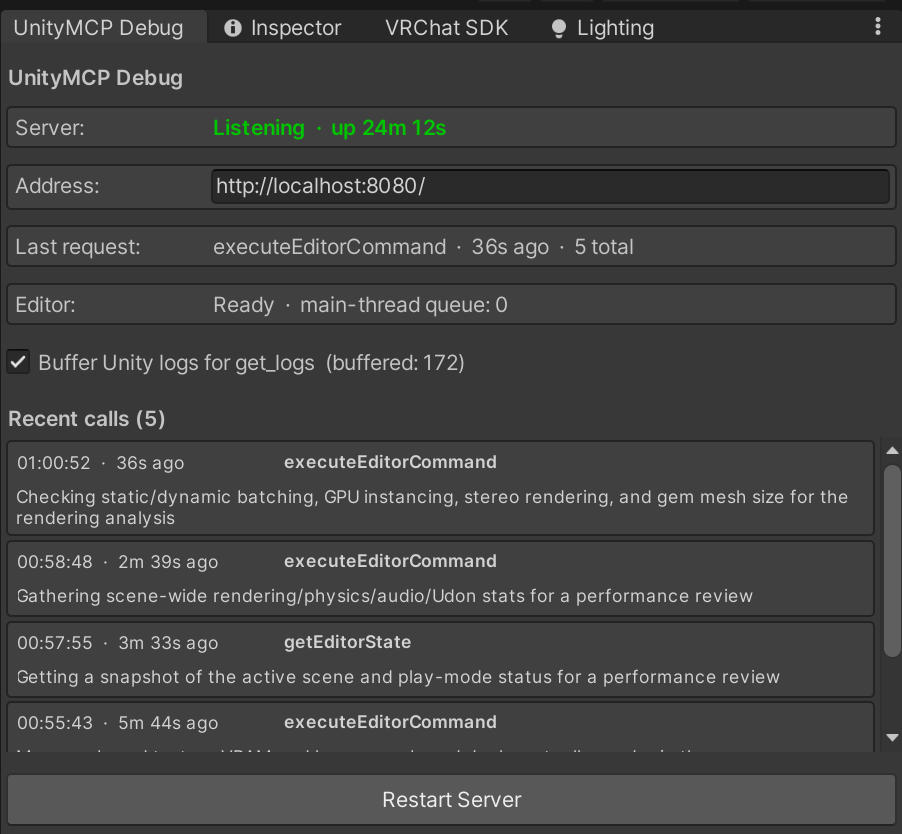
<em>The Debug Window — the plugin's HTTP server, listening inside the Editor (each instance on its own port).</em>
</p>
Highlights
- Many Editors, many Claude sessions. Each Editor's plugin hosts its own HTTP server on a
dynamic port and publishes itself to a shared registry, so you can run several projects at
once and address each by name — while any number of Claude sessions drive the same Editor. No
fixed-port race, no "connected-but-dead" zombie servers.
- Run real C#. execute_editor_command runs LLM-authored C# (its own usings,
classes, functions) with assembly references auto-discovered from everything loaded —
UnityEngine, packages, VRChat/UdonSharp, Basis, project scripts — no hand-maintained list.
- Unity 2022.3 → Unity 6. The command sandbox compiles with Mono's in-process compiler
on .NET Framework projects (the Unity 2022 / VRChat norm) and automatically falls back to
the Editor's bundled Roslyn csc on .NET Standard projects (the Unity 6 default), where
the Mono path is unavailable. The fallback is detected once and cached; nothing to
configure. Detail: docs/005.
- Bounded state. get_editor_state returns scene/project state on demand, capped so
a big project can't blow up the context window.
- See what it's doing. take_screenshot renders the Scene or game camera back to Claude
as an image, and get_object_details dumps a GameObject's components/bounds — so visual
iteration and inspection don't need hand-written C# each time.
- Survives recompiles. A domain reload just drops the HTTP listener for a moment — there's
no persistent socket to tear down, so a request sent during one simply retries until the Editor
is back.
- Live Debug Window. Shows whether the server is listening, the last request, and the
main-thread queue — so a broken link is obvious.
- VRChat helpers + MCP resources to raise Claude's UdonSharp success rate.
Tools
| Tool | What it does |
| ------------------------ | ------------------------------------------------------------------- |
| list_unity_instances | Lists the Unity Editors currently running (name, project, instanceId) so you can pick one. |
| select_unity_instance | Chooses which Editor subsequent calls target by default (per session); calls can also override with instance=. |
| execute_editor_command | Compiles and runs LLM-authored C# in the Editor; returns result + logs. Optional timeoutMs (default 60s, max 300s) for heavy ops like large imports. |
| get_editor_state | Returns Unity/scene/project state on demand (bounded). |
| get_object_details | Inspects one GameObject: transform, components, and size info (Renderer bounds, mesh vertex counts, shared mesh/material names). |
| get_logs | Returns recent Unity console logs. |
| clear_logs | Clears the Editor's buffered console logs (e.g. stale errors from a failed snippet) so later get_logs reads aren't ambiguous. |
| take_screenshot | Renders the Scene view or game camera to a JPEG/PNG image, so Claude can see the result of edits. |
| get_command_page | Fetches later pages of any oversized tool result that was paged — execute_editor_command, get_object_details, get_editor_state (used automatically). |
Getting started
1. Build the MCP server
cd unity-mcp-server

npm install

npm run build      # compiles to build/index.js and copies text resources
2. Add the plugin to Unity
- Drag the whole UnityMCPPlugin/ folder into your project's Assets/. Unity
regenerates .meta files on import — the repo doesn't track them.
- A UnityMCP menu appears. Open Debug Window and dock it; with Unity running, the
Server row should be green / Listening.
3. Point Claude at it — add the stdio MCP server to your client. Claude Desktop
(enable developer mode, then File > Settings):
{

  "mcpServers": {

    "unity": {

      "command": "node",

      "args": ["C:\\git\\UnityMCP\\unity-mcp-server\\build\\index.js"]

    }

  }

}
Or Claude Code:
claude mcp add unity -- node C:\git\UnityMCP\unity-mcp-server\build\index.js
4. Verify — in the Debug Window, confirm Server: Listening and that an MCP
Client row appears once Claude starts (attach more than one session and each shows up).
Prompt Claude; if a script errors, diagnose it in UnityMCP > Script Tester.
Working with multiple Editors
Open as many projects as you like — each registers itself under its project-folder name. Within a
Claude session:
1. list_unity_instances — see what's running (name · project · instanceId).
2. select_unity_instance <name> — target one for the rest of the session; individual calls can
override with instance=<name>.
Tools refuse to run until an instance is selected, so a call never lands in the wrong project. To pin
a session to one project up front, set UNITYMCP_INSTANCE=<name> in the MCP server's env (then the
agent never has to select). Discovery records live in %LOCALAPPDATA%\UnityMCP\instances\ (override
with UNITYMCP_REGISTRY_DIR); each Editor shows its name + instanceId in the Debug Window.
Troubleshooting
- "Connected" in Claude but nothing in Unity? The MCP badge only reflects the
Claude↔server handshake, not the link to Unity. Trust the Debug Window: Server:
Listening + an MCP Client row are the real signals.
- Server won't bind / "NOT listening"? Each Editor takes an OS-assigned port, so clashes are
unlikely; if the Server row is red, the Last Error box shows the bind failure. Click Restart
Server to pick a fresh port.
- Calls stall or time out? The Editor throttles while unfocused — watch the Editor
row's queue depth. Refocus Unity, or use Preferences > General > Interaction Mode >
No Throttling for background use.
- Domain reloads take 10–20 s+ (Unity stuck on "Reloading Domain…")? On Windows this is
usually antivirus scanning the freshly-compiled assemblies — it shows up as a long
Loaded All Assemblies, in N seconds line in the Editor log, and only after a recompile. Add
real-time-scan exclusions for your project's Library/ folder, the Unity editor install, and the
Unity.exe/bee_backend.exe processes — in every active scanner (a machine can run more than
one, e.g. Windows Defender and a vendor agent such as HP Wolf Pro Security). Reloads typically
fall from ~20 s to ~3 s; since an execute_editor_command that writes a .cs triggers a reload,
this directly speeds up the MCP loop. Detail:
docs/004 — when a reload is slow.
More detail in docs/001 — Architecture.
Documentation
- 001 — Architecture — how it works now: connection
model, wire protocol, threading, lifecycle, tools, file map, limits. Start here.
- 002 — Design decisions — the why behind the
architecture: the inverted stateless connection, server-side paging, and a note on the
WebSocket transport we replaced.
- 003 — Changes from the original fork — how this
repo diverges from upstream Arodoid/UnityMCP:
the inverted topology, VRChat/UdonSharp support, paging, and the relicense.
- 004 — Unity Editor states — the Editor lifecycle the
plugin survives: compiling, domain reload, play-mode, focus/throttling — when each happens
and what it means for a command in flight.
- 005 — Executing LLM C# — the command sandbox: how
LLM-authored C# is compiled (auto-discovered references incl. the BCL facades) and run, result
and log capture, output bounding, and the trust model.
- 006 — Attaching UdonSharp components from code — the reliable
recipe for adding a working Udon script to a GameObject (program asset + backing UdonBehaviour +
proxy + CopyProxyToUdon), why each step is needed, and how UdonSharpHelper packages it in one call.
License
Licensed under the Creative Commons Attribution-NonCommercial 4.0 International
(CC BY-NC 4.0).
Sign in to leave a review
Use Google, GitHub, or an email account so ratings stay tied to real people.
No reviews posted yet.





