
pilot-mcp — Fast Browser Automation MCP Server
About
Fast browser automation MCP server. In-process Playwright, 58 tools (profiles: 9/28/58), cookie import from Chrome/Arc/Brave, handoff/resume for CAPTCHAs, iframe support, snapshot diffing. 41% faster than @playwright/mcp.
Details
- Author
- TacosyHorchata
- Downloads
- 328
- Categories
- Automation, AI, Developer Tools, Other
Jump to
- 51 tools for navigation, snapshots, interaction, iframes, and debugging.
- Snapshot‑by‑ref system: capture once, interact using @eN refs.
- Token control: max_elements, structure_only, interactive_only filters.
- Cookie import from Chrome, Arc, Brave, Edge, and Comet.
- Handoff/resume: open headed Chrome, interact manually, then resume automation.
- Snapshot diffing to track page changes between actions.

Setting up with Highlight
This MCP is not yet compatible with Highlight’s one-click setup. However, you can still use it with Highlight by following these steps:
- Download and install Highlight from highlightai.com/download
- Navigate to the plugins tab and select "Add Custom Plugin"
-
Configure the plugin with the settings below
Plugin Name
pilot-mcp — Fast Browser Automation MCP ServerCommand (node, npx, python, etc.)Please refer to the README for specific instructions on how to obtain API keys or other required environment variables.
- Enable "Start Automatically" if you want the plugin to start when Highlight launches





From the repository
Install with npx pilot-mcp and run npx playwright install chromium. Add a server entry to your Claude Code .mcp.json or Cursor MCP settings with command: "npx" and args: ["-y", "pilot-mcp"]. Environment variable PILOT_PROFILE selects tool set: core (9 tools), standard (25, default), or full (51 tools).
pilot_navigate
Navigate the browser to a URL and wait for DOM content to load. Use when the user wants to go to a specific webpage, URL, or link. For read tasks ("go to X and tell me Y"), prefer pilot_get — it returns full readable content + interactive elements in one call, eliminating a follow-up snapshot call. Parameters: - url: The URL to navigate to (e.g., "https://example.com" or relative paths) Returns: Confirmation message with the HTTP status code, content preview, and interactive elements. Errors: - "Invalid URL": The URL format is malformed. Provide a complete URL including the protocol. - Timeout (15s): The page took too long to load. Try pilot_navigate again or check the URL. - "Navigation denied": The URL was rejected by security validation (e.g., file:// on restricted origins).
pilot_back
Navigate back to the previous page in browser history. Use when the user wants to go back to the prior page they visited. Parameters: (none) Returns: The URL of the page after navigating back. Errors: - "No previous page in history": There is nothing to go back to. Use pilot_navigate instead. - Timeout (15s): The previous page took too long to load.
pilot_forward
Navigate forward to the next page in browser history. Use when the user wants to go forward after using pilot_back. Parameters: (none) Returns: The URL of the page after navigating forward. Errors: - "No next page in history": There is nothing to go forward to. Use pilot_navigate instead. - Timeout (15s): The next page took too long to load.
pilot_reload
Reload the current page, waiting for DOM content to load. Use when the user wants to refresh the page, clear dynamic state, or retry a failed load. Parameters: (none) Returns: The URL of the reloaded page. Errors: - Timeout (15s): The page took too long to reload. Try again or check network connectivity.
pilot_get
Navigate to a URL and return its full readable content + interactive elements in one call. Use this as the primary tool for "go to X and find Y" read tasks. It combines navigation and content extraction, eliminating the need for a separate snapshot call. Parameters: - url: The URL to fetch Returns: Page title, readable body text (up to 1500 chars), and interactive elements. Enough context to answer most read questions without additional tool calls. Errors: - Timeout (15s): The page took too long to load.
pilot_snapshot
Capture an accessibility tree snapshot of the page with @eN refs for element selection. Use when the user wants to see the page structure, find elements to interact with, or get refs for click/fill/hover. This is the primary way to understand what is on the page. Refs from this snapshot are used by pilot_click, pilot_fill, pilot_hover, pilot_select_option, and most other interaction tools. Parameters: - selector: CSS selector to scope the snapshot to a specific subtree (e.g., "#main-content") - interactive_only: Set to true to show only interactive elements (buttons, links, inputs) — saves tokens on large pages - compact: Set to true to remove empty structural nodes from the tree - depth: Limit the tree depth (0 = root only). Useful for reducing token usage on deeply nested pages - include_cursor_interactive: Set to true to scan for elements with cursor:pointer, onclick, or tabindex that are not in the ARIA tree — returns @cN refs - max_elements: Maximum elements to include before truncating (saves tokens on very large pages) - structure_only: Set to true to show tree structure without text content — saves tokens when you only need the element hierarchy - output_file: Set to true to save the snapshot to a temp file instead of returning inline. Returns the file path — read with the Read tool when needed. Useful when the snapshot is large and you only need it on demand. Returns: Text representation of the accessibility tree with @eN refs (and @cN refs if include_cursor_interactive is true). If output_file=true: returns only the file path (e.g. /tmp/pilot-snap-abc123.txt). Errors: - Timeout: The page is too complex or unresponsive. Try scoping with selector or using max_elements.
pilot_snapshot_diff
Compare the current page state against the previously captured snapshot, showing a unified diff of what changed. Use when the user wants to verify the effect of an action (click, fill, navigation), check if dynamic content loaded, or see what changed on the page without re-reading the entire snapshot. The first call stores a baseline; subsequent calls diff against it. Parameters: - selector: CSS selector to scope both snapshots to a specific subtree - interactive_only: Set to true to only diff interactive elements (buttons, links, inputs) Returns: Unified diff text showing added (+) and removed (-) lines between snapshots. Errors: - "No baseline snapshot": This is the first call — a baseline will be stored for future diffs. - Timeout: The page is unresponsive.
pilot_find
Find an element by visible text, label, placeholder, or role — without running a full snapshot. Use when you know what you want to click or fill but don't need to see the entire page tree. Returns a @eN ref immediately usable by pilot_click, pilot_fill, pilot_hover, and other interaction tools. Saves tokens compared to pilot_snapshot when you only need one element. Parameters: - text: Visible text content of the element (e.g., "Sign in", "Submit") - label: ARIA label or associated <label> text (e.g., "Email address", "Password") - placeholder: Input placeholder text (e.g., "Search...", "Enter email") - role: ARIA role to match (e.g., "button", "link", "textbox") — combine with text for precision - exact: Set to true for exact text/label match (default: false, substring match) Returns: A @eN ref for the found element and a description of what was found. Errors: - "Element not found": No element matched the criteria. Verify the text/label or run pilot_snapshot to inspect the page. - "Multiple elements found": More than one element matched. Add role or use exact=true to narrow it down.
pilot_annotated_screenshot
Take a PNG screenshot with red overlay boxes and ref labels at each @eN/@cN element position. Use when the user wants a visual debug overlay showing where each snapshot ref is located on the page, or needs to verify element positions visually. Requires a prior pilot_snapshot call to populate the ref positions. For a clean visual capture without debug overlays, use pilot_screenshot instead. Parameters: - output_path: Optional file path to save the annotated screenshot (default: temp directory) Returns: The annotated screenshot as a base64 PNG image and the file path where it was saved. Errors: - "No ref positions": Run pilot_snapshot first to capture element positions before taking an annotated screenshot. - Timeout: The page is unresponsive.
pilot_click
Click an element on the page using a ref from pilot_snapshot or a CSS selector. Use when the user wants to press a button, follow a link, check a checkbox, or interact with any clickable element. Auto-routes clicks on <option> elements to pilot_select_option. Parameters: - ref: Element reference from snapshot (e.g., "@e3") or a CSS selector (e.g., "button.submit") - button: Mouse button to click — "left" (default), "right" (context menu), or "middle" - double_click: Set to true for a double-click instead of single click Returns: Confirmation with the clicked ref and the current URL after navigation (if any). Errors: - "Element not found": The ref is stale or the selector matches nothing. Run pilot_snapshot to get fresh refs. - "Element is not clickable": The element exists but is obscured or disabled. Try scrolling to it first with pilot_scroll. - "Timeout": The click triggered a navigation that took too long. The page may still be loading.
pilot_hover
Hover the mouse over an element, triggering hover states, tooltips, and dropdown menus. Use when the user wants to reveal hidden content, trigger a CSS :hover effect, or inspect tooltip text. Parameters: - ref: Element reference from snapshot (e.g., "@e7") or a CSS selector Returns: Confirmation with the hovered element ref. Errors: - "Element not found": The ref is stale. Run pilot_snapshot to get fresh refs. - Timeout (5s): The element could not be hovered — it may be off-screen or detached.
pilot_fill
Fill an input or textarea with new text, replacing any existing content. Use when the user wants to enter text into a form field, search box, or editable element. Prefer pilot_fill over pilot_type for inputs because it is faster and clears existing content automatically. Parameters: - ref: Element reference from snapshot (e.g., "@e12") or a CSS selector (e.g., "#email") - value: The text to fill into the element Returns: Confirmation with the filled element ref. Errors: - "Element not found": The ref is stale. Run pilot_snapshot to get fresh refs. - "Element is not editable": The element is read-only or disabled. Try pilot_click to enable it first. - Timeout (5s): The element could not be filled.
pilot_select_option
Select an option from a <select> dropdown element by value, label, or visible text. Use when the user wants to choose a dropdown option, select from a combobox, or pick from a list. Note: clicking an <option> in pilot_snapshot is auto-routed here. Parameters: - ref: The <select> element reference from snapshot (e.g., "@e5") or a CSS selector - value: The option's value attribute, label, or visible text to match Returns: Confirmation with the selected value and element ref. Errors: - "No option matched": The value does not match any option. Check the exact option text or value attribute via pilot_page_html. - "Element not found": The ref is stale or does not point to a <select> element. Run pilot_snapshot.
pilot_type
Type text character-by-character into the currently focused element, simulating real keyboard input. Use when the user wants to type into a contenteditable div, rich text editor, or a field that reacts to individual keystrokes (e.g., autocomplete, keypress events). For standard <input>/<textarea> elements, prefer pilot_fill which is faster. Parameters: - text: The text string to type - submit: Set to true to press Enter after typing (useful for search fields and forms) Returns: Character count typed and whether Enter was pressed. Errors: - "No element is focused": Nothing is focused on the page. Use pilot_click on the target field first. - Timeout: The page became unresponsive during typing.
pilot_press_key
Press a keyboard key or key combination on the page. Use when the user wants to press Enter to submit a form, Tab to move between fields, Escape to close a modal, ArrowDown to navigate a list, or use any keyboard shortcut. Parameters: - key: Key name or combination (e.g., "Enter", "Tab", "Escape", "ArrowDown", "Backspace", "Shift+Enter", "Control+a") Returns: Confirmation of the key pressed. Errors: - "Unknown key": The key name is not recognized. Use standard Playwright key names (see docs.playwright.dev/key-input).
pilot_drag
Drag one element and drop it onto another element on the page. Use when the user wants to move an element, reorder items in a drag-and-drop list, or interact with a drag-and-drop UI. Parameters: - start_ref: The source element reference from snapshot (e.g., "@e3") or CSS selector to drag from - end_ref: The target element reference from snapshot (e.g., "@e5") or CSS selector to drop onto Returns: Confirmation with source and target refs. Errors: - "Element not found": Either ref is stale. Run pilot_snapshot to get fresh refs. - Timeout (5s): The drag operation could not be completed. The elements may not support drag-and-drop.
pilot_scroll
Scroll the page or a specific element into view. Use when the user wants to scroll down a long page, scroll to the bottom, scroll to the top, or scroll a specific element into the viewport. With a ref, scrolls the element into view. Without a ref, scrolls the page by one viewport height or to a specific position. Parameters: - ref: Element reference from snapshot (e.g., "@e20") or CSS selector to scroll into view (omit for page scroll) - direction: Page scroll direction when no ref is provided — "up", "down", "top", or "bottom" (default: "bottom") Returns: Confirmation of what was scrolled and in which direction. Errors: - "Element not found": The ref is stale. Run pilot_snapshot to get fresh refs. - Timeout (5s): The element could not be scrolled into view.
pilot_wait
Wait for a specific condition before proceeding — an element to appear, the network to become idle, or the page to finish loading. Use when the user wants to wait for a dynamic element to load, wait for AJAX/fetch requests to complete, or wait for a modal/spinner to appear or disappear. Parameters: - ref: Element reference from snapshot (e.g., "@e10") or CSS selector to wait for - state: What to wait for — "visible" (element appears, default), "hidden" (element disappears), "networkidle" (no network requests for 500ms), or "load" (page load event) - timeout: Maximum wait time in milliseconds (default: 15000) Returns: Confirmation of what was waited for and its state. Errors: - "Timeout waiting for element": The element did not reach the expected state in time. Increase timeout or check the selector. - "Nothing to wait for": Neither ref nor state was provided. Supply at least one.
pilot_page_text
Extract clean text from the page (strips script/style/noscript/svg).
pilot_page_html
Get innerHTML of a selector/ref, or full page HTML if none provided.
pilot_screenshot
Take a PNG screenshot of the current page or a specific element. Use when the user wants to capture what the page looks like visually, save a screenshot to disk, or capture a specific element's appearance. For a visual debug overlay with ref labels, use pilot_annotated_screenshot instead. Parameters: - ref: Element reference from snapshot (e.g., "@e3") or CSS selector to screenshot a specific element (omit for full page) - full_page: Set to false for viewport-only capture (default: true, captures the entire scrollable page) - output_path: File path to save the screenshot (default: /tmp/pilot-screenshot.png). Must be within the allowed output directory - clip: Crop region as {x, y, width, height} pixel coordinates for a specific area of the page Returns: The screenshot as a base64 PNG image and the file path where it was saved. Errors: - "Output path must be within ...": The path is outside the allowed directory. Set PILOT_OUTPUT_DIR or use /tmp. - "Element not found": The ref is stale. Run pilot_snapshot to get fresh refs.
pilot_tabs
List all open browser tabs with their IDs, URLs, titles, and which tab is currently active. Use when the user wants to see what tabs are open, find a specific tab by title or URL, or check which tab is active before switching. Parameters: (none) Returns: Numbered list of tabs showing [id], title, URL, and an arrow (→) marking the active tab. Errors: None — returns empty list if no tabs exist (unlikely in normal operation).
pilot_tab_new
Open a new browser tab, optionally navigating to a URL. Use when the user wants to open a link in a new tab, create a blank tab, or work with multiple pages simultaneously. Parameters: - url: Optional URL to navigate to in the new tab (omit for a blank about:blank tab) Returns: The new tab's ID and URL (if provided). Errors: - "Invalid URL": The URL is malformed. Provide a complete URL with protocol.
pilot_tab_close
Close a browser tab by its ID, or close the currently active tab if no ID is specified. Use when the user wants to close a popup, remove an unwanted tab, or clean up after finishing work in a tab. Parameters: - id: Tab ID to close (omit to close the current active tab). Use pilot_tabs to list tab IDs. Returns: Confirmation that the tab was closed. Errors: - "No such tab": The provided tab ID does not exist. Run pilot_tabs to see valid IDs. - "Cannot close last tab": The last remaining tab cannot be closed.
pilot_tab_select
Switch the active browser context to a specific tab by its ID. Use when the user wants to work in a different tab, bring a background tab to the foreground, or continue automation in a previously opened tab. Use pilot_tabs to find tab IDs. Parameters: - id: The tab ID to switch to (from pilot_tabs output) Returns: Confirmation with the tab ID that is now active. Errors: - "No such tab": The provided tab ID does not exist. Run pilot_tabs to see valid IDs.
pilot_auth
Save, load, or clear browser session state (cookies + localStorage + sessionStorage) to/from a JSON file. Use when the user wants to authenticate once and reuse credentials across sessions, skip re-login flows, or transfer session state between runs. Complement to pilot_import_cookies — use pilot_auth for Pilot-managed state, pilot_import_cookies for one-time import from a real browser. Parameters: - action: "save" — write current session to file; "load" — restore session from file; "clear" — clear cookies and storage from browser - path: File path to save or load (e.g., "~/.pilot/github.json"). Required for save/load actions. Returns: - save: Count of cookies saved and the file path. - load: Count of cookies restored. - clear: Confirmation that cookies and storage were cleared. Errors: - "Session file not found": The path does not exist. Run with action="save" first. - "Browser not launched": Navigate to a URL first to initialize the browser.
pilot_block
Block network requests matching URL patterns to speed up page loads and reduce token noise from ad/tracker content. Use when the user wants to block ads, trackers, analytics scripts, or any noisy domain. Blocked requests are aborted before they hit the network — faster loads, smaller snapshots. Use the built-in "ads" preset to block ~20 major ad networks with one call. Parameters: - patterns: Array of URL glob patterns to block (e.g., ["*googletag*", "*.hotjar.com/*"]) - preset: Built-in preset to block — "ads" blocks ~20 major ad and tracker networks - clear: Set to true to remove all active blocks Returns: - Add mode: List of active blocked patterns. - clear mode: Confirmation that all blocks were removed. Errors: None — invalid patterns are silently ignored by the browser.
pilot_frames
List all frames (iframes) on the current page with their indices, names, and URLs. Use when the user wants to see what iframes exist on the page, find an iframe to interact with, or verify the page structure before switching frame context. The main frame is always index 0. Use pilot_frame_select to switch into an iframe. Parameters: (none) Returns: Numbered list of frames showing index, type ([main] or [iframe name="..."]), URL, and an arrow (→) marking the currently active frame. Returns "(no iframes — only the main frame)" if no iframes exist. Errors: None.
pilot_frame_select
Switch the browser context into an iframe so that pilot_snapshot, pilot_click, pilot_fill, and other tools operate inside that frame instead of the main page. Use when the user wants to interact with elements inside an embedded iframe, read iframe content, or fill forms within an iframe. After switching, all refs are cleared — run pilot_snapshot to get fresh refs for the iframe contents. Use pilot_frames to list available frames first. Parameters: - index: Frame index number from pilot_frames output (e.g., 1, 2) - name: Frame name attribute (alternative to index) Returns: Confirmation with the frame index/name and its URL, plus a reminder to run pilot_snapshot for fresh refs. Errors: - "Frame not found": The index or name does not match any frame. Run pilot_frames to see valid indices and names. - "Provide index or name": Neither parameter was supplied.
pilot_frame_reset
Switch the browser context back to the main page frame after working inside an iframe. Use when the user wants to return to the main page after interacting with an iframe. All refs are cleared — run pilot_snapshot to get fresh refs for the main page content. Parameters: (none) Returns: Confirmation of switching to the main frame, with a reminder to run pilot_snapshot. Errors: None — always succeeds.
Claude Desktop / Cursor
Paste into your MCP client config file to install this server.
{
    "mcpServers": {
        "pilot-mcp \u2014 fast browser automation mcp server": {
            "pilot": {
                "command": "npx",
                "args": [
                    "-y",
                    "pilot-mcp"
                ]
            }
        }
    }
}McpServers
{
    "pilot": {
        "command": "npx",
        "args": [
            "-y",
            "pilot-mcp"
        ]
    }
}
pilot — The Fastest MCP Browser Automation Server


> MCP browser automation for AI agents. 20x faster than the alternatives.
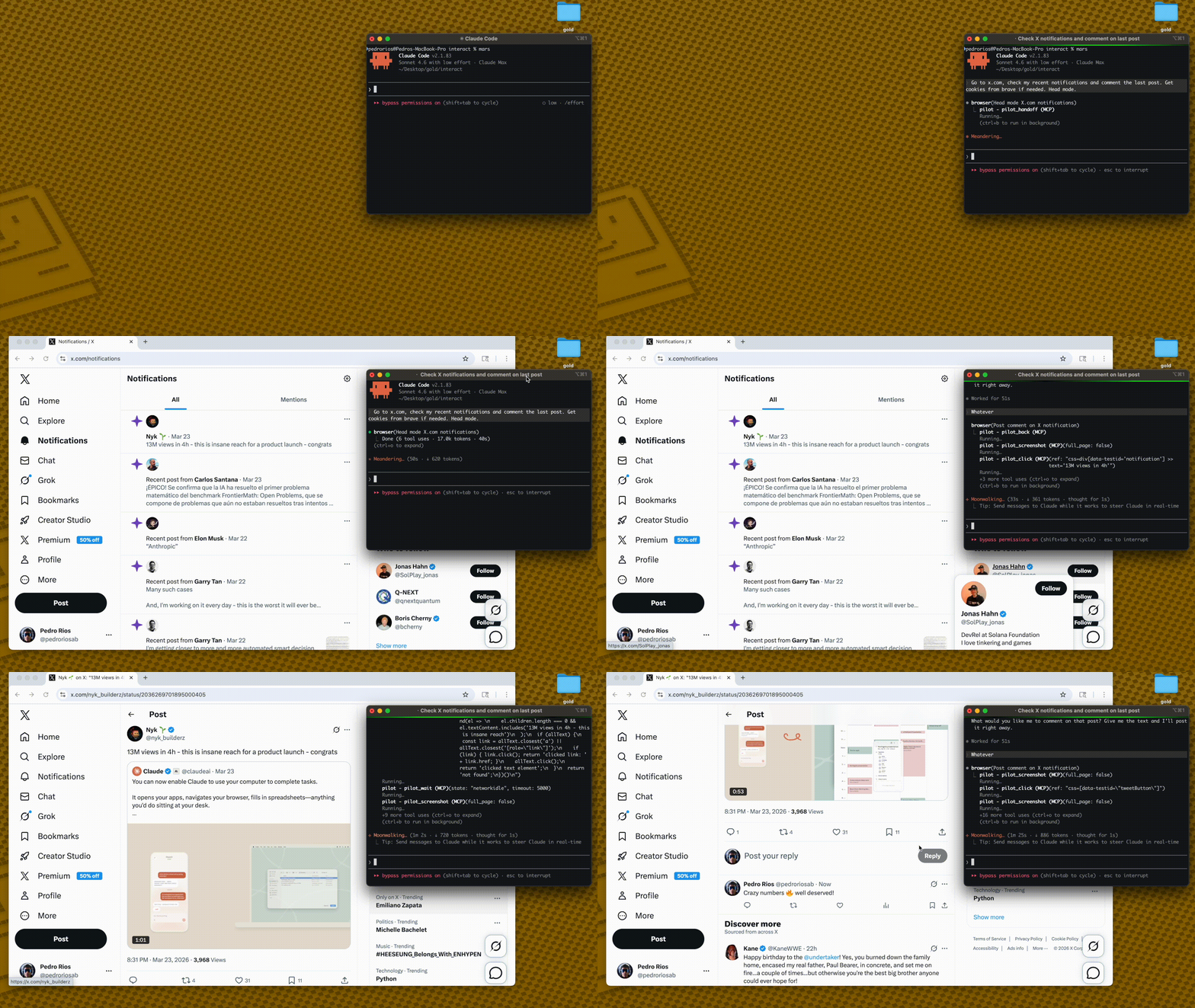
pilot is an MCP server that gives Claude Code, Cursor, and other AI agents a fast, persistent browser for web automation. Built on Playwright, it runs Chromium in-process over stdio — no HTTP server, no cold starts, no per-action overhead. If you need a Playwright MCP alternative with lower latency, more tools, and cookie import, this is it.
<!-- Diagram: Data flow from LLM client through stdio MCP to pilot's in-process Playwright and persistent Chromium browser -->
LLM Client → stdio (MCP) → pilot → Playwright → Chromium
                              in-process      persistent
First call: ~3s (launch)
Every call after: ~5-50ms
Why pilot? MCP Browser Automation Compared
| | pilot | @playwright/mcp | BrowserMCP |
|---|---|---|---|
| Latency/action | ~5-50ms | ~100-200ms | ~150-300ms |
| Architecture | In-process stdio | Separate process | Chrome extension |
| Persistent browser | Yes | Per-session | Yes |
| Tools | 51 (configurable profiles) | 25+ | ~20 |
| Token control | max_elements, structure_only, interactive_only | No | No |
| Iframe support | Full (list, switch, snapshot inside) | NOT_PLANNED | No |
| Cookie import | Chrome, Arc, Brave, Edge, Comet | No | No |
| Snapshot diffing | Track page changes between actions | No | No |
| Handoff/Resume | Open headed Chrome, interact manually, resume | No | No |
Speed matters when your agent makes hundreds of browser calls in a session. At 100 actions, that's 5 seconds with pilot vs 20 seconds with alternatives.
Benchmark — pilot vs @playwright/mcp
Measured end-to-end with Claude Code (claude -p) as the runtime, 3 runs per task, averaged. Tasks require 2–3 page navigations and interactions (click link → read result) — the realistic workload for an AI agent.
> Methodology: claude -p --output-format stream-json --verbose captures every intermediate message. Tool result sizes are measured from the raw tool_result content blocks. Context tokens = sum of input_tokens + cache_creation_input_tokens + cache_read_input_tokens across all turns. Wall time = full task completion including all LLM calls. Full benchmark source in benchmark/llm-compare.ts, raw results in benchmark/results.jsonl.
Multi-step tasks (navigate → interact → read)
| Task | pilot wall time | @playwright/mcp wall time | pilot advantage |
|------|:-----------:|:---------------------:|:----------:|
| HN: click top story → read article | 27s | ❌ failed (bot detection) | — |
| GitHub: trending → click repo → star count | 29s | 100s | 71% faster |
| GitHub: vscode/releases → latest version | 23s | 19s | — |
| npm: search "zod" → click → downloads | 21s | 28s | 26% faster |
| Wikipedia: main page → click featured → first sentence | 27s | 69s | 60% faster |
Averages across 5 tasks:
| Metric | pilot | @playwright/mcp | Delta |
|--------|:-----:|:---------------:|:-----:|
| Wall time (avg) | 25s | 43s | pilot 41% faster |
| Tool result size (chars) | 5,230 | 9,165 | pilot 43% smaller |
| Cost per task (USD) | $0.107 | $0.124 | pilot 13% cheaper |
| Success rate | 5/5 | 4/5 | pilot more reliable |
Why pilot is faster on multi-step tasks
@playwright/mcp bundles a full page snapshot (~58K chars) into every navigate response. On a 2-page flow, that's ~116K chars of snapshot content entering context — even before the model generates a single token. The LLM then has to attend over that entire context on every subsequent turn, making each API call progressively slower.
pilot's navigate returns a lightweight confirmation. The model requests a snapshot explicitly (pilot_snapshot, ~9K chars) and only when it needs one. On the same 2-page flow: ~18K chars of snapshot content. 6× less data in context, which directly translates to faster LLM inference and lower cost.
@playwright/mcp:  navigate(58K) → navigate(58K) → answer     = 116K snapshot chars
pilot:           navigate(1K)  → snapshot(9K) → navigate(1K) → snapshot(9K) → answer = 20K snapshot chars
The tradeoff: pilot requires more tool calls per task (avg 4–5 vs 1–2). For simple single-page reads, this roughly cancels out. For multi-step flows — search, click, navigate, extract — pilot wins by a widening margin.
Reproduce
npm run build
npx tsx benchmark/llm-compare.ts            # multi-step LLM benchmark (claude -p)
npx tsx benchmark/playwright-compare.ts     # raw MCP tool response sizes + timing
Quick Start — Add Browser Automation to Claude Code or Cursor
npx pilot-mcp
npx playwright install chromium
Add to your Claude Code config (.mcp.json):
{
  "mcpServers": {
    "pilot": {
      "command": "npx",
      "args": ["-y", "pilot-mcp"]
    }
  }
}
For Cursor, add the same config to your Cursor MCP settings.
That's it. Your AI agent now has a browser.
How It Works
Snapshot once, interact by ref. No CSS selectors needed.
pilot_snapshot → @e1 [button] "Submit", @e2 [textbox] "Email", ...
pilot_fill    → { ref: "@e2", value: "user@example.com" }
pilot_click   → { ref: "@e1" }
The ref system gives LLMs a simple, reliable way to interact with pages. Stale refs are auto-detected with clear error messages.
Token Control
Large pages can blow up your context window. Pilot gives you fine-grained control:
pilot_snapshot({ max_elements: 20 })
→ Returns 20 elements + "614 more elements not shown"
pilot_snapshot({ structure_only: true })

→ Pure tree structure, no text content
pilot_snapshot({ interactive_only: true, max_elements: 15 })

→ Only buttons/links/inputs, capped at 15
Combine max_elements, structure_only, interactive_only, compact, and depth to get exactly the level of detail you need. Start small, expand as needed.
Tool Profiles
48+ tools can overwhelm LLMs (research shows degradation at 30+ tools). Use PILOT_PROFILE to load only what you need:
| Profile | Tools | Use case |
|---|---|---|
| core | 9 | Simple automation — navigate, snapshot, click, fill, type, press_key, wait, screenshot |
| standard | 25 | Common workflows — core + tabs, scroll, hover, drag, iframe, page reading |
| full | 51 | Everything |
{
  "mcpServers": {
    "pilot": {
      "command": "npx",
      "args": ["-y", "pilot-mcp"],
      "env": { "PILOT_PROFILE": "full" }
    }
  }
}
The default profile is standard (25 tools). Set PILOT_PROFILE=full for all 51 tools.
Security & Configuration
| Variable | Default | Description |
|---|---|---|
| PILOT_PROFILE | standard | Tool set: core (9), standard (25), or full (51) |
| PILOT_OUTPUT_DIR | System temp | Restricts where screenshots/PDFs can be written |
Security hardening:
- Output path validation prevents writing outside PILOT_OUTPUT_DIR
- Path traversal protection on all file-write operations
- Expression size limit (50KB) on pilot_evaluate input
- File upload resolves symlinks to prevent directory escape
Tools (51)
Navigation
| Tool | Description | |------|-------------| |pilot_navigate | Navigate to a URL |
| pilot_back | Go back in browser history |
| pilot_forward | Go forward in browser history |
| pilot_reload | Reload the current page |
Snapshots
| Tool | Description | |------|-------------| |pilot_snapshot | Accessibility tree with @eN refs. Supports max_elements, structure_only, interactive_only, compact, depth. |
| pilot_snapshot_diff | Unified diff showing what changed since last snapshot |
| pilot_annotated_screenshot | Screenshot with red overlay boxes at each @ref position |
Interaction
| Tool | Description | |------|-------------| |pilot_click | Click by @ref or CSS selector (auto-routes <option> to selectOption) |
| pilot_hover | Hover over an element |
| pilot_fill | Clear and fill an input/textarea |
| pilot_select_option | Select a dropdown option by value, label, or text |
| pilot_type | Type text character by character |
| pilot_press_key | Press keyboard keys (Enter, Tab, Escape, etc.) |
| pilot_drag | Drag from one element to another |
| pilot_scroll | Scroll element into view or scroll page |
| pilot_wait | Wait for element visibility, network idle, or page load |
| pilot_file_upload | Upload files to a file input |
Iframes
| Tool | Description | |------|-------------| |pilot_frames | List all frames (iframes) on the page |
| pilot_frame_select | Switch context into an iframe by index or name |
| pilot_frame_reset | Switch back to the main frame |
After switching frames, pilot_snapshot, pilot_click, pilot_fill, and all interaction tools operate inside that iframe. Use pilot_frames to discover available iframes, then pilot_frame_select to enter one.
Page Inspection
| Tool | Description | |------|-------------| |pilot_page_text | Clean text extraction (strips script/style/svg) |
| pilot_page_html | Get innerHTML of element or full page |
| pilot_page_links | All links as text + href pairs |
| pilot_page_forms | All form fields as structured JSON |
| pilot_page_attrs | All attributes of an element |
| pilot_page_css | Computed CSS property value |
| pilot_element_state | Check visible/hidden/enabled/disabled/checked/focused |
| pilot_page_diff | Text diff between two URLs (staging vs production, etc.) |
Debugging
| Tool | Description | |------|-------------| |pilot_console | Console messages from circular buffer |
| pilot_network | Network requests from circular buffer |
| pilot_dialog | Captured alert/confirm/prompt messages |
| pilot_evaluate | Run JavaScript on the page (supports await) |
| pilot_cookies | Get all cookies as JSON |
| pilot_storage | Get localStorage/sessionStorage (sensitive values auto-redacted) |
| pilot_perf | Page load performance timings (DNS, TTFB, DOM parse, load) |
Visual
| Tool | Description | |------|-------------| |pilot_screenshot | Screenshot of page or specific element |
| pilot_pdf | Save page as PDF |
| pilot_responsive | Screenshots at mobile (375), tablet (768), and desktop (1280) |
Tabs
| Tool | Description | |------|-------------| |pilot_tabs | List open tabs |
| pilot_tab_new | Open a new tab |
| pilot_tab_close | Close a tab |
| pilot_tab_select | Switch to a tab |
Settings & Session
| Tool | Description | |------|-------------| |pilot_resize | Set viewport size |
| pilot_set_cookie | Set a cookie |
| pilot_import_cookies | Import cookies from Chrome, Arc, Brave, Edge, Comet |
| pilot_set_header | Set custom request headers (sensitive values auto-redacted) |
| pilot_set_useragent | Set user agent string |
| pilot_handle_dialog | Configure dialog auto-accept/dismiss |
| pilot_handoff | Open headed Chrome with full state for manual interaction |
| pilot_resume | Resume automation after manual handoff |
| pilot_close | Close browser and clean up |
Key Features
Cookie Import
Import cookies from your real browser into the headless session. Decrypts from the browser's SQLite cookie database using platform-specific safe storage keys (macOS Keychain).
pilot_import_cookies({ browser: "chrome", domains: [".github.com"] })
Supports Chrome, Arc, Brave, Edge, and Comet. Use list_browsers, list_profiles, and list_domains to discover what's available.
Handoff / Resume
When headless mode hits a CAPTCHA, bot detection, or complex auth flow:
1. Call pilot_handoff — opens a visible Chrome window with all your cookies, tabs, and localStorage
2. Solve the challenge manually
3. Call pilot_resume — automation continues with the updated state
Snapshot Diffing
Call pilot_snapshot_diff after an action to see exactly what changed on the page. Returns a unified diff. Useful for verifying actions worked, monitoring dynamic content, or debugging.
AI-Friendly Errors
Playwright errors are translated into actionable guidance:
- Timeout → "Element not found. Run pilot_snapshot for fresh refs."
- Multiple matches → "Selector matched multiple elements. Use @refs from pilot_snapshot."
- Stale ref → "Ref is stale. Run pilot_snapshot for fresh refs."
Circular Buffers
Console, network, and dialog events are captured in O(1) ring buffers (50K capacity). Query with pilot_console, pilot_network, pilot_dialog. Never grows unbounded.
Architecture — In-Process Playwright MCP Server
pilot runs Playwright in the same process as the MCP server. No HTTP layer, no subprocess — direct function calls to the Playwright API over a persistent Chromium instance.
<!-- Diagram: AI agent communicates over stdio to pilot, which runs Playwright and Chromium in the same process for minimal latency -->
┌─────────────────────────────────────────────────┐
│  Your AI Agent (Claude Code, Cursor, etc.)      │
│                                                 │
│  ┌──────────────┐    stdio     ┌─────────────┐ │
│  │  MCP Client  │◄───────────►│    pilot     │ │
│  └──────────────┘              │              │ │
│                                │  Playwright  │ │
│                                │  (in-proc)   │ │
│                                │      │       │ │
│                                │      ▼       │ │
│                                │  Chromium    │ │
│                                │  (persistent)│ │
│                                └─────────────┘ │
└─────────────────────────────────────────────────┘
This is why it's fast. No network hops, no serialization overhead, no process spawning per action.
Requirements
- Node.js >= 18
- Chromium (installed via npx playwright install chromium)
Development
21 unit tests via vitest:
npm test
Credits
The core browser automation architecture — ref-based element selection, snapshot diffing, cursor-interactive scanning, annotated screenshots, circular buffers, and AI-friendly error translation — is ported from gstack by Garry Tan.
Built on Playwright by Microsoft and the Model Context Protocol SDK by Anthropic.
Frequently Asked Questions
How do I add browser automation to Claude Code?
Install pilot with npx pilot-mcp, then add it to your .mcp.json config file. Once configured, Claude Code can navigate pages, click elements, fill forms, take screenshots, and extract data through 51 browser automation tools. See the Quick Start section above.
What is the fastest MCP browser server?
pilot is the fastest MCP browser automation server available. It runs Playwright in-process over stdio with a persistent Chromium instance, achieving ~5-50ms per action compared to ~100-300ms for alternatives like @playwright/mcp and BrowserMCP. The speed difference compounds over sessions with hundreds of browser actions.
How does pilot compare to @playwright/mcp?
pilot offers lower latency (~5-50ms vs ~100-200ms per action), more tools (51 vs 25+), token control for large pages, full iframe support, cookie import from five browsers, snapshot diffing, and a handoff/resume flow for manual intervention. Both are built on Playwright, but pilot runs in-process instead of as a separate process.
How do I import cookies into an MCP browser session?
Use pilot_import_cookies with the browser name and domains you want to import. pilot decrypts cookies directly from the SQLite databases of Chrome, Arc, Brave, Edge, and Comet using platform-specific safe storage keys. Use list_browsers, list_profiles, and list_domains to discover what cookies are available on your system.
Does pilot work with Cursor?
Yes. Add the same MCP server configuration to your Cursor MCP settings. pilot works with any MCP-compatible client, including Claude Code, Cursor, Windsurf, and other AI coding agents that support the Model Context Protocol.
How do I handle CAPTCHAs and bot detection?
Call pilot_handoff to open a visible Chrome window with your full session state (cookies, tabs, localStorage). Solve the challenge manually, then call pilot_resume to continue automation with the updated state. This handoff/resume pattern works for CAPTCHAs, complex auth flows, and any situation where human interaction is needed.
License
MIT
---
If pilot is useful to you, star the repo — it helps others find it.
---
<!-- Keywords: MCP browser automation, MCP server, Playwright MCP, Playwright MCP alternative, fastest MCP server, Claude Code browser, Cursor browser automation, AI browser automation, headless browser MCP, web automation AI agent, browser automation for LLMs, cookie import MCP, Model Context Protocol browser, pilot-mcp, npx pilot-mcp -->
Sign in to leave a review
Use Google, GitHub, or an email account so ratings stay tied to real people.
No reviews posted yet.




