
Koppla
About
A Model-Context-Protocol (MCP) Server for Active Directory
Details
- Author
- ruudmens
- GitHub stars
- 55
- Downloads
- 394
- Categories
- Other
Jump to
- Query Active Directory in natural language
- Find inactive users, locked accounts, empty groups
- Add or remove users from security groups
- Update user attributes (description, title, department)
- Password encryption using Fernet symmetric encryption
- Automatic backups of Claude Desktop configuration before changes
- Write protection disabled by default; critical accounts protected

Setting up with Highlight
This MCP is not yet compatible with Highlight’s one-click setup. However, you can still use it with Highlight by following these steps:
- Download and install Highlight from highlightai.com/download
- Navigate to the plugins tab and select "Add Custom Plugin"
-
Configure the plugin with the settings below
Plugin Name
KopplaCommand (node, npx, python, etc.)Please refer to the README for specific instructions on how to obtain API keys or other required environment variables.
- Enable "Start Automatically" if you want the plugin to start when Highlight launches





From the repository
Install Koppla with pip install koppla, then configure it using the interactive configuration manager (koppla-config configure) or by setting environment variables manually. Add the server to the mcpServers section of your Claude Desktop configuration file. Optionally test the connection with koppla-config test.
Claude Desktop / Cursor
Paste into your MCP client config file to install this server.
{
    "mcpServers": {
        "koppla": {
            "Koppla-Active-Directory": {
                "command": "python",
                "args": [
                    "-m",
                    "koppla.server"
                ],
                "env": {
                    "AD_SERVER": "ldap://domain.com:389",
                    "AD_USER": "lazyadmin\\srv-account",
                    "AD_PASSWORD": "ENCRYPTED:PASSWORD",
                    "BASE_DN": "DC=lazyadmin,DC=nl",
                    "AD_WRITE_ENABLED": "false"
                }
            }
        }
    }
}McpServers
{
    "Koppla-Active-Directory": {
        "command": "python",
        "args": [
            "-m",
            "koppla.server"
        ],
        "env": {
            "AD_SERVER": "ldap://domain.com:389",
            "AD_USER": "lazyadmin\\srv-account",
            "AD_PASSWORD": "ENCRYPTED:PASSWORD",
            "BASE_DN": "DC=lazyadmin,DC=nl",
            "AD_WRITE_ENABLED": "false"
        }
    }
}
Koppla
Koppla is a model-context-protocol server for Active Directory that enables you to manage users, groups, and computer objects using natural language.
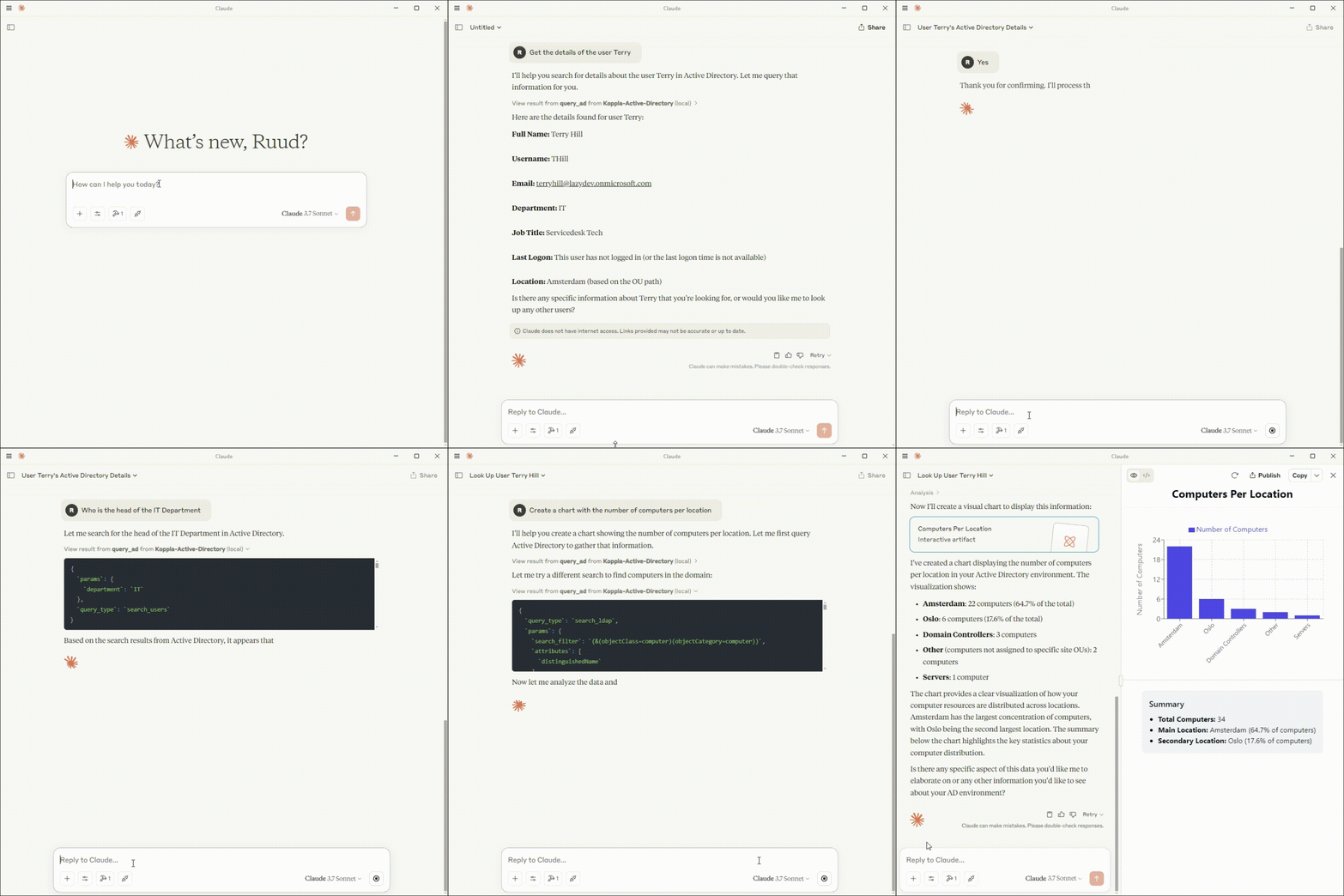
For more information, visit https://lazyadmin.nl/koppla
With Koppla, you can seamlessly query and manage your Active Directory environment using Claude Desktop or other MCP capable AI agents.
---
🔹 What Can Koppla Do?
Koppla allows you to execute complex Active Directory queries and updates effortlessly. Examples:
- "Find all inactive users who haven't logged in for 90 days."
- "Add John Doe to the 'IT Admins' security group."
- "List all locked-out user accounts."
- "Find all users in the Sales department."
- "Which groups does Jane Smith belong to?"
- "Show me empty groups."
- "Find users in group A but not in group B."
---
🚀 Getting Started
1️⃣ Prerequisites
- Python 3.7 or higher - Active Directory environment - Claude Desktop application (for integration with Claude)2️⃣ Installation
Koppla requires Python and can be installed using:pip install koppla
3️⃣ Configuration
Using the Configuration Manager (Recommended)
Koppla includes a secure configuration manager that handles encryption of sensitive credentials:
koppla-config configure
This interactive tool will:
1. Prompt for your Active Directory connection details
2. Securely encrypt your password using Fernet symmetric encryption
3. Create or update the Claude Desktop configuration file with Koppla server settings
4. Automatically create a backup of your existing Claude Desktop configuration
5. Test the connection to verify your credentials
You can also:
- Display current configuration: koppla-config show
- Test your AD connection: koppla-config test
Manual Configuration
Koppla uses environment variables for configuration:
| Name | Description |
|-----------------|--------------------------------------------------|
| AD_SERVER | The address of the Active Directory server. |
| AD_USER | Username for authentication. |
| AD_PASSWORD | Password for authentication. |
| BASE_DN | Base DN for LDAP queries. |
| AD_WRITE_ENABLED | Enable or disable write operations (true/false). |
---
To manually configure Koppla with the Claude Desktop app, add the following configuration to the "mcpServers" section of your claude_desktop_config.json:
{
  "mcpServers": {
    "Koppla-Active-Directory": {
        "command": "python",
        "args": ["-m", "koppla.server"],
        "env": {
            "AD_SERVER": "ldap://<domain-controller-name>:389",
            "AD_USER": "<domain\\username>",
            "AD_PASSWORD": "<password>",
            "BASE_DN": "DC=lazyadmin,DC=nl",
            "AD_WRITE_ENABLED": "false"
        }
    }
  }
}
⚠️ Data Processing & Privacy Notice
Important: Koppla transmits Active Directory data to external AI models for processing. This may have security and compliance implications, particularly for organizations subject to GDPR or similar regulations. No AD data is stored by Koppla itself, but be aware that AI agents may retain conversation history according to their own policies. Ensure usage complies with your organization's data handling requirements and consider limiting the scope of queryable data through careful configuration.🔒 Security Features
Password Encryption
- Koppla uses Fernet symmetric encryption (from the cryptography package) to secure your Active Directory password - The encryption key is stored separately from the configuration in a key file with restricted permissions - When using the configuration manager, passwords are never stored in plain text - Encrypted passwords appear asENCRYPTED:xxxx... in the configuration file
Backup System
- Before any configuration changes, Koppla automatically creates timestamped backups of your Claude Desktop configuration - Backups are stored alongside your configuration with format:claude_desktop_config.json.backup_YYYYMMDD_HHMMSS
Write Protection
- By default, all write operations (adding/removing users from groups, updating user attributes) are disabled - To enable write operations, setAD_WRITE_ENABLED to "true"
- Critical accounts and groups have additional protection regardless of write settings
Supported Write Operations
Koppla supports the following write operations whenAD_WRITE_ENABLED is set to "true":
1. Update User Attributes
- Modify standard user attributes like description, title, department, etc.
- Protected fields (passwords, security identifiers, account control) cannot be modified
- Protected accounts (administrators, service accounts, etc.) cannot be modified
2. Add User to Group
- Add standard users to security or distribution groups
- Cannot add users to protected administrative groups
- Protected accounts cannot be added to any groups
3. Remove User from Group
- Remove users from most security or distribution groups
- Cannot remove users from critical system groups
- Protected accounts cannot be removed from any groups
All write operations require explicit confirmation before execution.
Sign in to leave a review
Use Google, GitHub, or an email account so ratings stay tied to real people.
No reviews posted yet.





