TySVA - TypeScript Voice Assistant🪄
- desktop-chat
Learn TypeScript chatting effortlessly with AI
About
What is TySVA - TypeScript Voice Assistant🪄?
TySVA is a voice- and text-enabled assistant that helps users learn TypeScript through natural conversation, leveraging AI agent workflows. It runs locally via Docker or source code, integrating Qdrant, LinkUp, ElevenLabs, LlamaIndex, and MCP servers.
How to use TySVA - TypeScript Voice Assistant🪄?
Clone the repository, set up a .env file with Groq, ElevenLabs, and LinkUp API keys, then launch using the provided Docker compose or conda scripts. The application becomes accessible at http://localhost:7999/app.
Key features of TySVA - TypeScript Voice Assistant🪄
- Voice input and output via ElevenLabs
- Textual input and output option
- Local Qdrant vector database with full TypeScript documentation
- Web deep search via LinkUp
- Agent workflow orchestrated with LlamaIndex
- MCP servers for vector and web search automation
Use cases of TySVA - TypeScript Voice Assistant🪄
- Learn TypeScript by asking natural language questions
- Retrieve relevant documentation from a local vector database
- Search the web for current TypeScript topics and examples
- Practice TypeScript concepts using voice commands
FAQ from TySVA - TypeScript Voice Assistant🪄
What APIs are required to run TySVA?
You need API keys from Groq, ElevenLabs, and LinkUp, which must be placed in a .env file.
Can I use TySVA without voice input?
Yes, TySVA supports both voice and textual input/output; you can use it solely through text.
How is the application deployed?
It runs locally using Docker containers or source code with conda. After setup, it is accessible at http://localhost:7999/app.
What license does TySVA use?
The software is provided under the MIT license.
Does TySVA use MCP servers?
Yes, it uses MCP servers to automate vector search (Qdrant) and web search (LinkUp) within the agent workflow.
Details
- Author
- astrabert
- GitHub stars
- 14
- Category
- desktop-chat
- Repository
- astrabert/tysva
<h1 align="center">TySVA - TypeScript Voice Assistant🪄</h1>
<h2 align="center">Learn TypeScript chatting effortlessly with AI</h2>
<div align="center">
<h3>If you find TySVA userful, please consider to donate and support the project:</h3>
<a href="https://github.com/sponsors/AstraBert">
</div>
<br>
<div align="center">
</div>
<br>
TySVA is aimed at creating a learning space for you to get to know more about TypeScript, leveraging:
- Qdrant local database, with the full documentation for TypeScript
- LinkUp, for web deep search
- MCP servers, for vector search and web search automation
- ElevenLabs, for voice input transcription and voice output generation
- LlamaIndex, for agent workflows
It supports voice input/output, as well as textual input/output.
Install and launch🚀
The first step, common to both the Docker and the source code setup approaches, is to clone the repository and access it:
``
bash

git clone https://github.com/AstraBert/TySVA.git

cd TySVA
`
Once there, you can choose one of the two following approaches:


Docker (recommended)🐋


> _Required: Docker and docker compose_


- Add the , elevenlabs_api_key and linkup_api_key variable in the .env.example file and modify the name of the file to .env. Get these keys:
+ On Groq Console
+ On ElevenLabs Settings
+ On Linkup Dashboard
`bash
mv .env.example .env
`
- Launch the Docker application:
bash

If you are on Linux/macOS


bash start_services.sh

If you are on Windows


.\start_services.ps1
`
- Or do it manually:
bash

docker compose up vector_db -d

docker compose up mcp -d

docker compose up app -d
`
You will see the application running on http://localhost:7999/app and you will be able to use it. Depending on your connection and on your hardware, the set up might take some time (up to 15 mins to set up) - but this is only for the first time your run it!


Source code🗎


> _Required: Docker, docker compose and conda_


- Add the , elevenlabs_api_key and linkup_api_key variable in the .env.example file and modify the name of the file to .env. Get these keys:
+ On Groq Console
+ On ElevenLabs Settings
+ On Linkup Dashboard
`bash
mv .env.example scripts/.env
`
- Set up the conda environment and the vector database using the dedicated script:
bash

For MacOs/Linux users


bash setup.sh

For Windows users


.\setup.ps1
`
- Or you can do it manually, if you prefer:
bash

docker compose up vector_db -d


conda env create -f environment.yml
`
- Now you can launch the script to load TypeScript documentation to the vector database:
bash

conda activate typescript-assistant-voice

python3 scripts/data.py
`
- And, when you're done, launch the MCP server:
bash

conda activate typescript-assistant-voice

cd scripts

python3 server.py
`
- Now open another terminal, and run the application:
bash

uvicorn app:app --host 0.0.0.0 --port 7999
``You will see the application running on http://localhost:7999/app and you will be able to use it.
Workflow
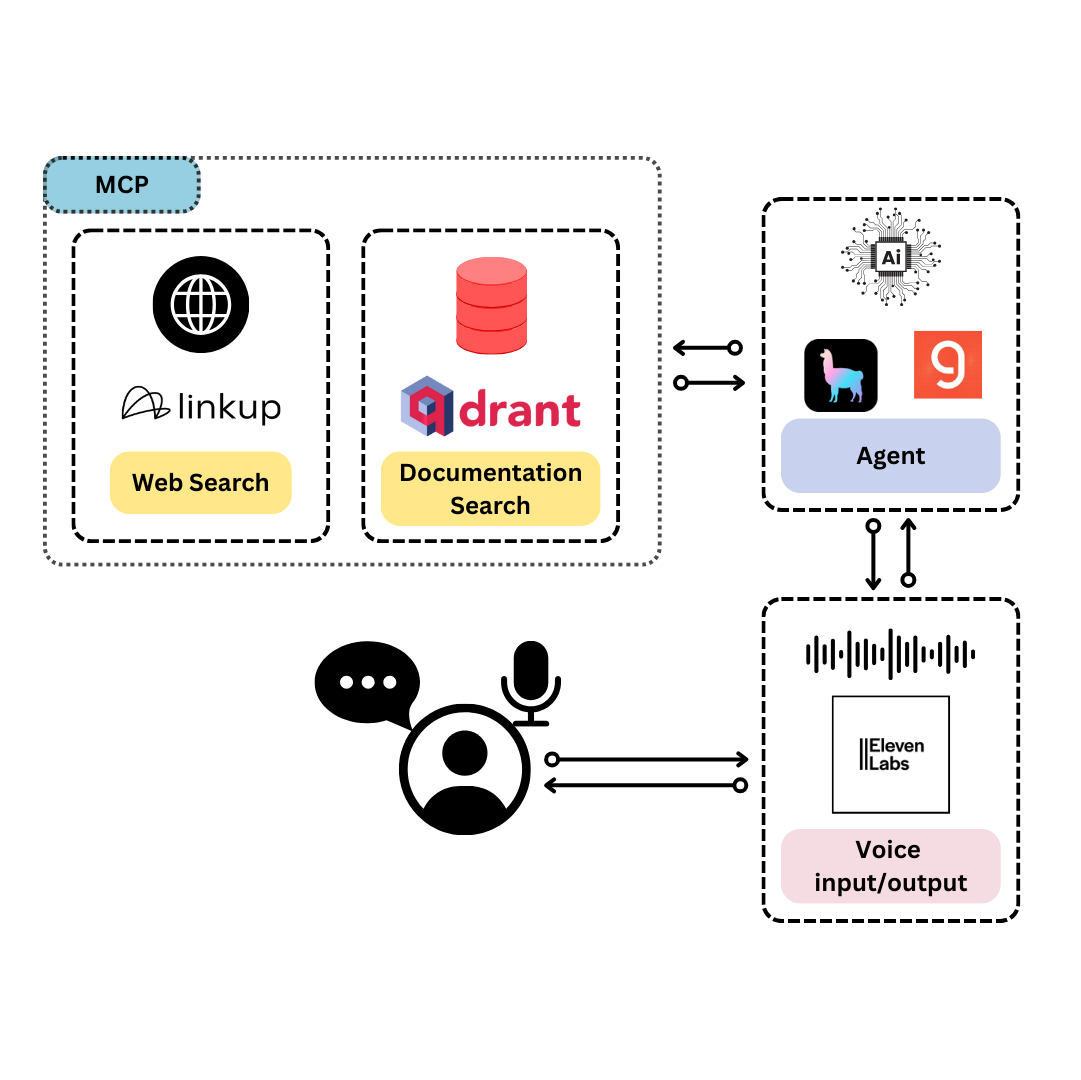
The workflow is very simple:
- When you submit a request, if is audio, it gets transcribed and then submitted to the agent workflow as a starting prompt, whereas if it is textual it will be submitted directly to the agent workflow
- The agent workflow can solve the TypeScript answer by retrieving documents from the vector database or by searching the web. There is also the possibility of a direct response (no tool use) if the answer is simple. All the tools are available through MCP.
- Once the agent is done, the agentic process and the output get summarized, and the summaries are turned into voice output. The voice output is returned along with the textual output by the agent.
Contributing
Contributions are always welcome! Follow the contributions guidelines reported here.
License and rights of usage
The software is provided under MIT license.