MCP CLI client
- agent-framework
A simple CLI to run LLM prompt and implement MCP client.
About
What is MCP CLI client?
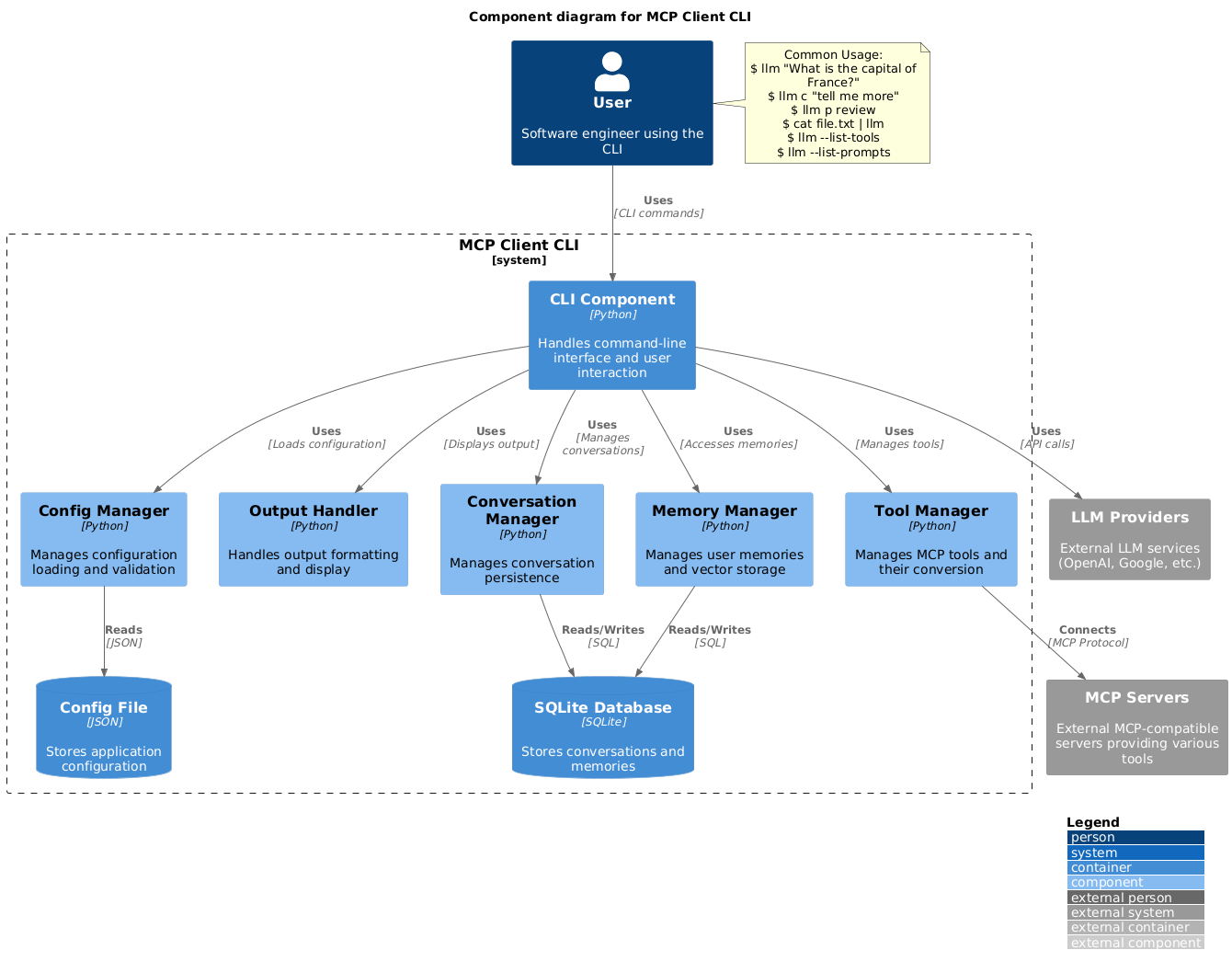
MCP CLI client is a command-line program that runs LLM prompts and implements the Model Context Protocol (MCP) client side. It works in any terminal environment and is intended for developers and power users who want to interact with MCP-compatible servers and various LLM providers (OpenAI, Groq, or local models via llama.cpp).
How to use MCP CLI client?
Install via pip install mcp-client-cli, then create a JSON configuration file at ~/.llm/config.json (or $PWD/.llm/config.json) specifying your LLM provider and MCP servers. Run prompts with llm "your question", pipe input from files or commands, use prompt templates with llm p, or continue conversations with llm c. Clipboard support is available via the cb command.
Key features of MCP CLI client
- Integrates any MCP-compatible server (fetch, search, etc.)
- Supports multiple LLM providers (OpenAI, Groq, local via llama.cpp)
- Accepts text and image input via piping or clipboard
- Offers prompt templates for common tasks (review, commit, YouTube)
- Allows tool confirmation prompts and --no-confirmations flag
- Can continue previous conversations with c prefix
Use cases of MCP CLI client
- Ask questions and get answers enhanced with web search or database tools
- Analyze code or images by piping files into the prompt
- Generate commit messages or code reviews using predefined templates
- Summarize YouTube videos by providing the URL
- Automate tasks in bash scripts with --no-intermediates flag
FAQ from MCP CLI client
What is MCP?
MCP stands for Model Context Protocol, a standard for connecting LLMs with external servers. This client implements the MCP client side.
Which LLM providers are supported?
You can use OpenAI, Groq, or any OpenAI-compatible API endpoint (like OpenRouter), as well as local models via llama.cpp.
How do I configure the client?
Create a JSON config file at ~/.llm/config.json with your LLM provider settings and a list of MCP servers. Environment variables LLM_API_KEY or OPENAI_API_KEY can also be used.
What are the system requirements for clipboard support?
On macOS: pbpaste (built-in) for text, optionally pngpaste for images; Linux: requires xclip; Windows: uses built-in PowerShell. WSL can access Windows clipboard via `powers
Details
- Author
- adhikasp
- GitHub stars
- 529
- Category
- agent-framework
- Repository
- adhikasp/mcp-client-cli
MCP CLI client
A simple CLI program to run LLM prompt and implement Model Context Protocol (MCP) client.
You can use any MCP-compatible servers from the convenience of your terminal.
This act as alternative client beside Claude Desktop. Additionally you can use any LLM provider like OpenAI, Groq, or local LLM model via llama.
Setup
1. Install via pip:
pip install mcp-client-cli
2. Create a ~/.llm/config.json file to configure your LLM and MCP servers:
   {

     "systemPrompt": "You are an AI assistant helping a software engineer...",

     "llm": {

       "provider": "openai",

       "model": "gpt-4",

       "api_key": "your-openai-api-key",

       "temperature": 0.7,

       "base_url": "https://api.openai.com/v1"  // Optional, for OpenRouter or other providers

     },

     "mcpServers": {

       "fetch": {

         "command": "uvx",

         "args": ["mcp-server-fetch"],

         "requires_confirmation": ["fetch"],

         "enabled": true,  // Optional, defaults to true

         "exclude_tools": []  // Optional, list of tool names to exclude

       },

       "brave-search": {

         "command": "npx",

         "args": ["-y", "@modelcontextprotocol/server-brave-search"],

         "env": {

           "BRAVE_API_KEY": "your-brave-api-key"

         },

         "requires_confirmation": ["brave_web_search"]

       },

       "youtube": {

         "command": "uvx",

         "args": ["--from", "git+https://github.com/adhikasp/mcp-youtube", "mcp-youtube"]

       }

     }

   }
Note:
- See CONFIG.md for complete documentation of the configuration format
- Use requires_confirmation to specify which tools need user confirmation before execution
- The LLM API key can also be set via environment variables LLM_API_KEY or OPENAI_API_KEY
- The config file can be placed in either ~/.llm/config.json or $PWD/.llm/config.json
- You can comment the JSON config file with // if you like to switch around the configuration
3. Run the CLI:
llm "What is the capital city of North Sumatra?"
Usage
Basic Usage
$ llm What is the capital city of North Sumatra?
The capital city of North Sumatra is Medan.
You can omit the quotes, but be careful with bash special characters like &, |, ; that might be interpreted by your shell.
You can also pipe input from other commands or files:
$ echo "What is the capital city of North Sumatra?" | llm
The capital city of North Sumatra is Medan.
$ echo "Given a location, tell me its capital city." > instructions.txt

$ cat instruction.txt | llm "West Java"

The capital city of West Java is Bandung.
Image Input
You can pipe image files to analyze them with multimodal LLMs:
$ cat image.jpg | llm "What do you see in this image?"
[LLM will analyze and describe the image]
$ cat screenshot.png | llm "Is there any error in this screenshot?"

[LLM will analyze the screenshot and point out any errors]
Using Prompt Templates
You can use predefined prompt templates by using the p prefix followed by the template name and its arguments:
# List available prompt templates
$ llm --list-prompts
Use a template
$ llm p review  # Review git changes
$ llm p commit  # Generate commit message
$ llm p yt url=https://youtube.com/...  # Summarize YouTube video
Triggering a tool
$ llm What is the top article on hackernews today?
================================== Ai Message ==================================

Tool Calls:

  brave_web_search (call_eXmFQizLUp8TKBgPtgFo71et)

 Call ID: call_eXmFQizLUp8TKBgPtgFo71et

  Args:

    query: site:news.ycombinator.com

    count: 1

Brave Search MCP Server running on stdio
If the tool requires confirmation, you'll be prompted:
Confirm tool call? [y/n]: y
================================== Ai Message ==================================

Tool Calls:

  fetch (call_xH32S0QKqMfudgN1ZGV6vH1P)

 Call ID: call_xH32S0QKqMfudgN1ZGV6vH1P

  Args:

    url: https://news.ycombinator.com/

================================= Tool Message =================================

Name: fetch
[TextContent(type='text', text='Contents [REDACTED]]

================================== Ai Message ==================================
The top article on Hacker News today is:
Why pipes sometimes get "stuck": buffering
- Points: 31
- Posted by: tanelpoder
- Posted: 1 hour ago
You can view the full list of articles on Hacker News
To bypass tool confirmation requirements, use the --no-confirmations flag:
$ llm --no-confirmations "What is the top article on hackernews today?"
To use in bash scripts, add the --no-intermediates, so it doesn't print intermediate messages, only the concluding end message.
$ llm --no-intermediates "What is the time in Tokyo right now?"
Continuation
Add a c prefix to your message to continue the last conversation.
$ llm asldkfjasdfkl
It seems like your message might have been a typo or an error. Could you please clarify or provide more details about what you need help with?
$ llm c what did i say previously?
You previously typed "asldkfjasdfkl," which appears to be a random string of characters. If you meant to ask something specific or if you have a question, please let me know!
Clipboard Support
You can use content from your clipboard using the cb command:
# After copying text to clipboard
$ llm cb
[LLM will process the clipboard text]
$ llm cb "What language is this code written in?"

[LLM will analyze the clipboard text with your question]
After copying an image to clipboard
$ llm cb "What do you see in this image?"
[LLM will analyze the clipboard image]
You can combine it with continuation
$ llm cb c "Tell me more about what you see"
[LLM will continue the conversation about the clipboard content]
The clipboard feature works in:
- Native Windows/macOS/Linux environments
- Windows: Uses PowerShell
- macOS: Uses pbpaste for text, pngpaste for images (optional)
- Linux: Uses xclip (required for clipboard support)
- Windows Subsystem for Linux (WSL)
- Accesses the Windows clipboard through PowerShell
- Works with both text and images
- Make sure you have access to powershell.exe from WSL
Required tools for clipboard support:
- Windows: PowerShell (built-in)
- macOS:
- pbpaste (built-in) for text
- pngpaste (optional) for images: brew install pngpaste
- Linux:
- xclip: sudo apt install xclip or equivalent
The CLI automatically detects if the clipboard content is text or image and handles it appropriately.
Additional Options
$ llm --list-tools                # List all available tools
$ llm --list-prompts              # List available prompt templates
$ llm --no-tools                  # Run without any tools
$ llm --force-refresh             # Force refresh tool capabilities cache
$ llm --text-only                 # Output raw text without markdown formatting
$ llm --show-memories             # Show user memories
$ llm --model gpt-4               # Override the model specified in config
Contributing
Feel free to submit issues and pull requests for improvements or bug fixes.