Jira Assistant with MCP Integration
- agent-framework
A Streamlit-powered Jira assistant with MCP integration. Create, search, and manage Jira tickets through a clean tabbed interface using natural language commands or direct forms. Built with Python and MCP framework.
About
What is Jira Assistant with MCP Integration?
Jira Assistant with MCP Integration is a Streamlit-based web application that enables users to manage Jira tickets through a conversational interface or direct form input, powered by the MCP (Model Control Panel) framework for flexible tool calling.
How to use Jira Assistant with MCP Integration?
To use the application, clone the repository, install dependencies with pip install -r requirements.txt, and configure a .env file with your Jira URL, email, and API token. Then run ./start_jira_assistant.sh to automatically start the MCP server and launch the Streamlit interface. A command-line tool (direct_jira_tool.py) is also available for direct operations.
Key features of Jira Assistant with MCP Integration
- Clean tabbed interface for chat, create, and search operations
- Create, search, and manage tickets via natural language commands
- Real‑time ticket creation without relying on external LLMs
- Built on the MCP framework for standardized tool calling
- Direct form‑based ticket creation and advanced JQL search
Use cases of Jira Assistant with MCP Integration
- Creating new Jira tickets by typing conversational commands (e.g., “Create a bug ticket in KAN…”)
- Searching tickets using natural language queries or raw JQL with a dedicated search tab
- Quickly retrieving details of specific tickets (e.g., “Show details for KAN-123”)
- Automating Jira tasks via the command‑line tool direct_jira_tool.py
FAQ from Jira Assistant with MCP Integration
What is MCP in this context?
MCP stands for Model Control Panel, a framework used for standardized tool calling that handles ticket operations under the hood.
How do I install and run the assistant?
Install Python 3.8+, clone the repository, run pip install -r requirements.txt, set up a .env file with your Jira credentials, and execute ./start_jira_assistant.sh to launch both the MCP server and the Streamlit web app.
What are the known limitations of the search feature?
The MCP server limits search results to a maximum of 10 tickets per query. Complex JQL queries with special characters may also cause validation errors; simple queries like project = KAN are recommended.
What new features were added in the latest update?
The latest update introduced a tabbed interface, improved form‑based ticket creation, advanced JQL search with examples, enhanced error handling, and simplified dependencies that removed reliance on external APIs such as Gemini.
How can I troubleshoot MCP server connection issues?
Check that the MCP server path is correct, verify your Jira credentials in the .env file, use the “Restart MCP Server” button in the sidebar, or run test_mcp_client.py connect to test connectivity.
Details
- Author
- pawankumar94
- GitHub stars
- 2
- Category
- agent-framework
- Repository
- pawankumar94/jira_mcp_streamlit
Jira Assistant with MCP Integration
A Streamlit-based assistant for managing Jira tickets using MCP (Model Control Panel) for tool calling.
Features
- 🤖 Clean tabbed interface for different operations
- 🎯 Create, search, and manage Jira tickets with simple conversational commands
- 🔄 Real-time ticket creation without relying on external LLMs
- 🛠️ Built on the MCP framework for flexible tool calling
- 📊 Direct form-based interface for creating and searching tickets
Screenshots
Tabbed Interface
The application now features a clean tabbed interface with separate sections for: 1. Chat - Conversational interface for managing tickets 2. Create Ticket - Form-based ticket creation 3. Search Tickets - Advanced search using JQL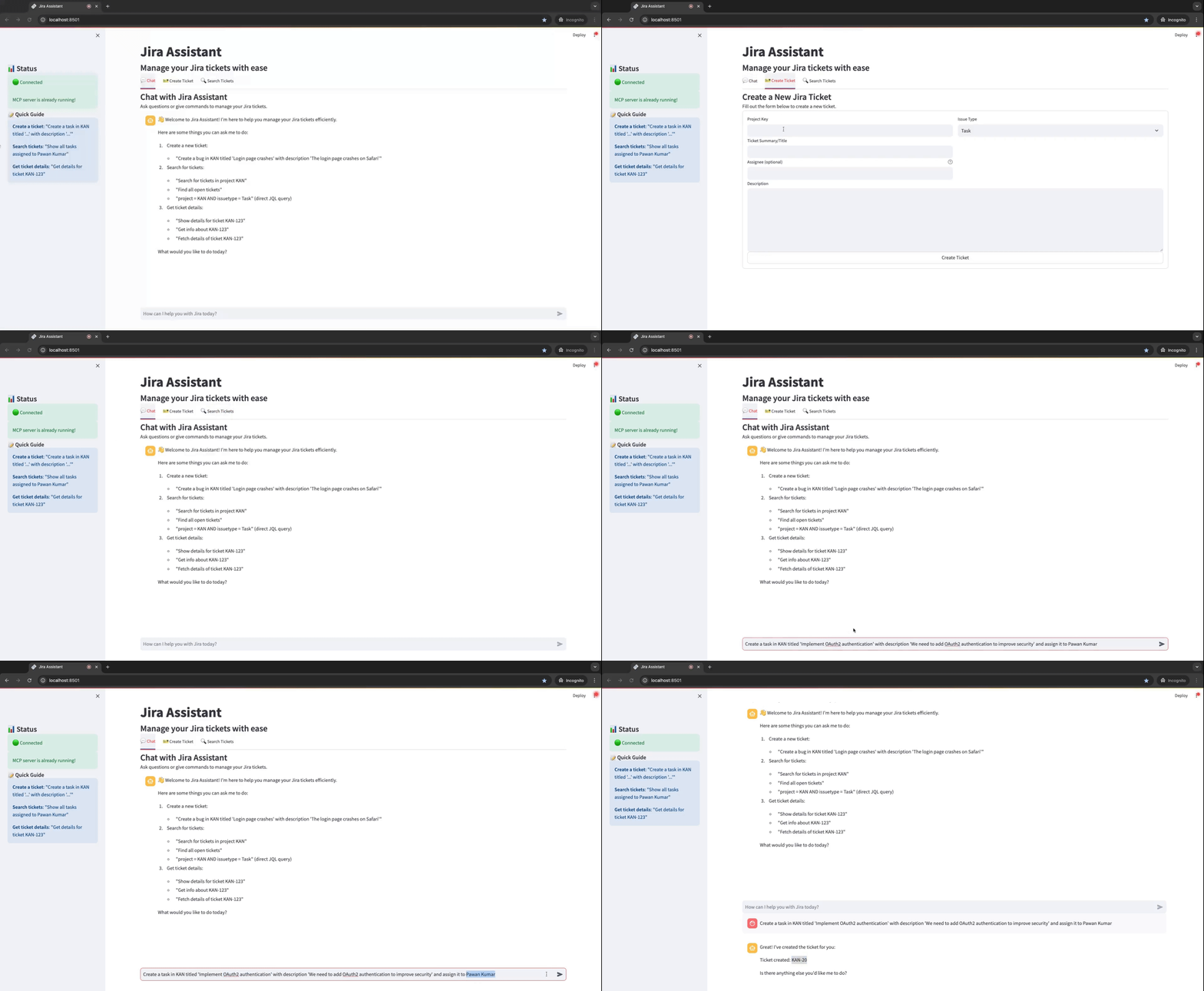
Prerequisites
- Python 3.8+
- Jira account with API access
- MCP server running with Jira tools
Installation
1. Clone the repository
2. Install the required packages:
pip install -r requirements.txt
3. Set up your environment variables in a
.env file: JIRA_URL=https://your-domain.atlassian.net
JIRA_EMAIL=your-email@example.com
JIRA_API_TOKEN=your-jira-api-token
Running the Application
Use the start script to launch the application:
./start_jira_assistant.sh
The script will:
1. Check if the MCP package is installed
2. Verify required environment variables
3. Start the MCP server if it's not already running
4. Launch the Streamlit application
Usage Examples
Creating Tickets
You can create tickets in two ways:
Using the Chat Interface
Type natural language commands like: - "Create a new task in KAN titled 'Implement user authentication' with description 'We need to add a JWT-based authentication system for user login.'" - "I need a bug ticket in KAN for 'Fix pagination in user list' describing 'The pagination controls are not working correctly when there are more than 10 users.'"Using the Form Interface
1. Navigate to the "Create Ticket" tab 2. Fill in the required fields (Project Key, Summary, Description) 3. Select the issue type 4. Click "Create Ticket"Searching Tickets
You can search tickets in two ways:
Using the Chat Interface
Type natural language queries like: - "Find all open tickets in the KAN project" - "Show me all high priority bugs" - "Search for tickets mentioning 'authentication' in the KAN project"Using the Search Interface
1. Navigate to the "Search Tickets" tab 2. Enter a JQL query (examples are provided in the interface) 3. Set the maximum number of results 4. Click "Search"Getting Ticket Details
Ask for details about specific tickets:
- "Show details for ticket KAN-123"
- "What's the status of KAN-456?"
Direct Jira Tool
For command-line operations, use the direct_jira_tool.py script:
# List available tools
./direct_jira_tool.py list
Create a ticket
./direct_jira_tool.py create --project KAN --title "Fix login page" --description "The login page has a UI bug in Safari"
Search for tickets
./direct_jira_tool.py search --query "project = KAN AND status = 'In Progress'"
Get ticket details
./direct_jira_tool.py get --id KAN-123
Test MCP Client
You can test the connection to the MCP server using the test_mcp_client.py script:
# Run all tests
python test_mcp_client.py all
Test connection only
python test_mcp_client.py connect
Test creating a specific ticket
python test_mcp_client.py test_create --project KAN --title "Test ticket" --description "This is a test"
Troubleshooting
MCP Server Issues
If the MCP server doesn't connect properly:
1. Check if the MCP server path is correct
2. Verify your Jira credentials in the .env file
3. Use the "Restart MCP Server" button in the sidebar
4. Test the connection using test_mcp_client.py connect
Ticket Creation Issues
If you encounter issues with ticket creation:
1. Make sure all required fields are filled in
2. Check that the project key exists and is correctly formatted
3. Verify that your Jira API token has sufficient permissions
4. Look for specific error messages in the response
Search Issues
If you encounter search issues with error messages like Error executing tool search_jira_tickets: validation error:
1. Make sure your JQL query is properly formatted
2. Avoid using complex JQL queries with special characters
3. Try simple queries first like project = KAN to test functionality
4. The MCP server currently has a limit of 10 results per search
Other Issues
- Check the browser console and terminal output for detailed error messages
- Make sure all environment variables are set correctly
- Ensure you have the correct version of the mcp package installed (pip install -U mcp)
New Features in Latest Update
- 📋 Tabbed Interface: Separate tabs for chat, ticket creation, and search
- 🖋️ Improved Ticket Creation: Direct form-based creation without relying on LLMs
- 🔎 Advanced Search: JQL-based search with examples and flexible formatting
- 🛡️ Enhanced Error Handling: Better error messages and validation
- 🧩 Simplified Dependencies: Removed reliance on external APIs like Gemini
Development
To contribute to this project:
1. Fork the repository
2. Create a feature branch
3. Make your changes
4. Submit a pull request
License
This project is licensed under the MIT License - see the LICENSE file for details.
Acknowledgements
- Streamlit for the web app framework
- MCP for the tool-calling infrastructure